

Buy any 2 selected products for $X
Overview
This tutorial explains how to create a promotion that lets customers buy any 2 selected products for a fixed price of $X.
Pre-requisites
Before configuring the promotion, ensure the supporting assets and product setup are in place.
1. Finalise the promotion details.
Prepare the customer-facing elements in advance so you can complete the setup in one session.
– Promotion Name (EN) e.g., Buy any 2 selected products for $X
– Promotion Name (ZH) e.g., 购买任意2件精选商品,仅需$X
– Promotion Description (EN) e.g., Buy any 2 selected products for a fixed price of $X. Promotion ends 28 Feb 2026.
– Promotion Description (ZH) e.g., 购买任意2件精选商品,仅需$X。活动截止至2026年2月28日。
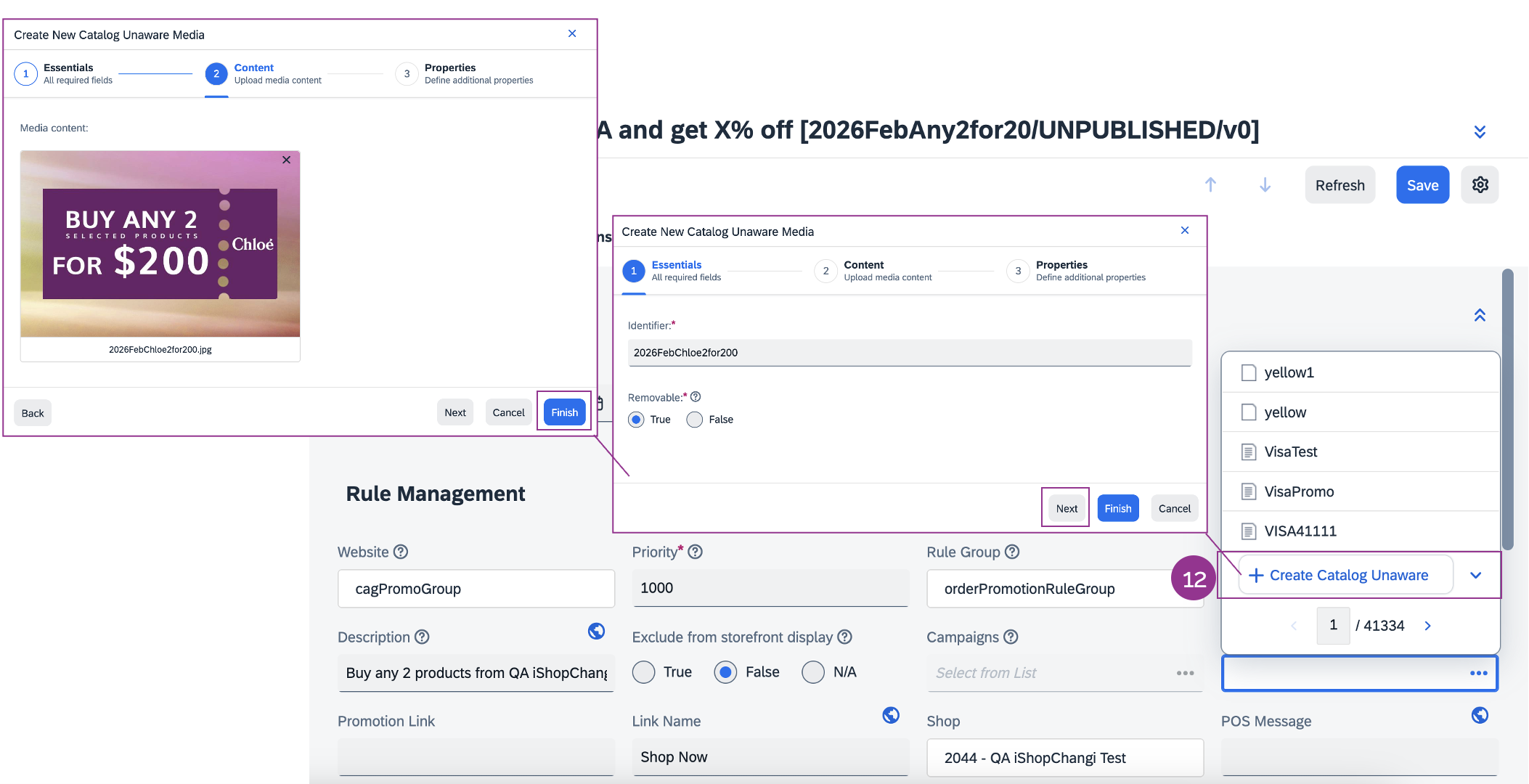
– Promotion Banner (840px by 560px) – increase visibility on the category page & PDP.
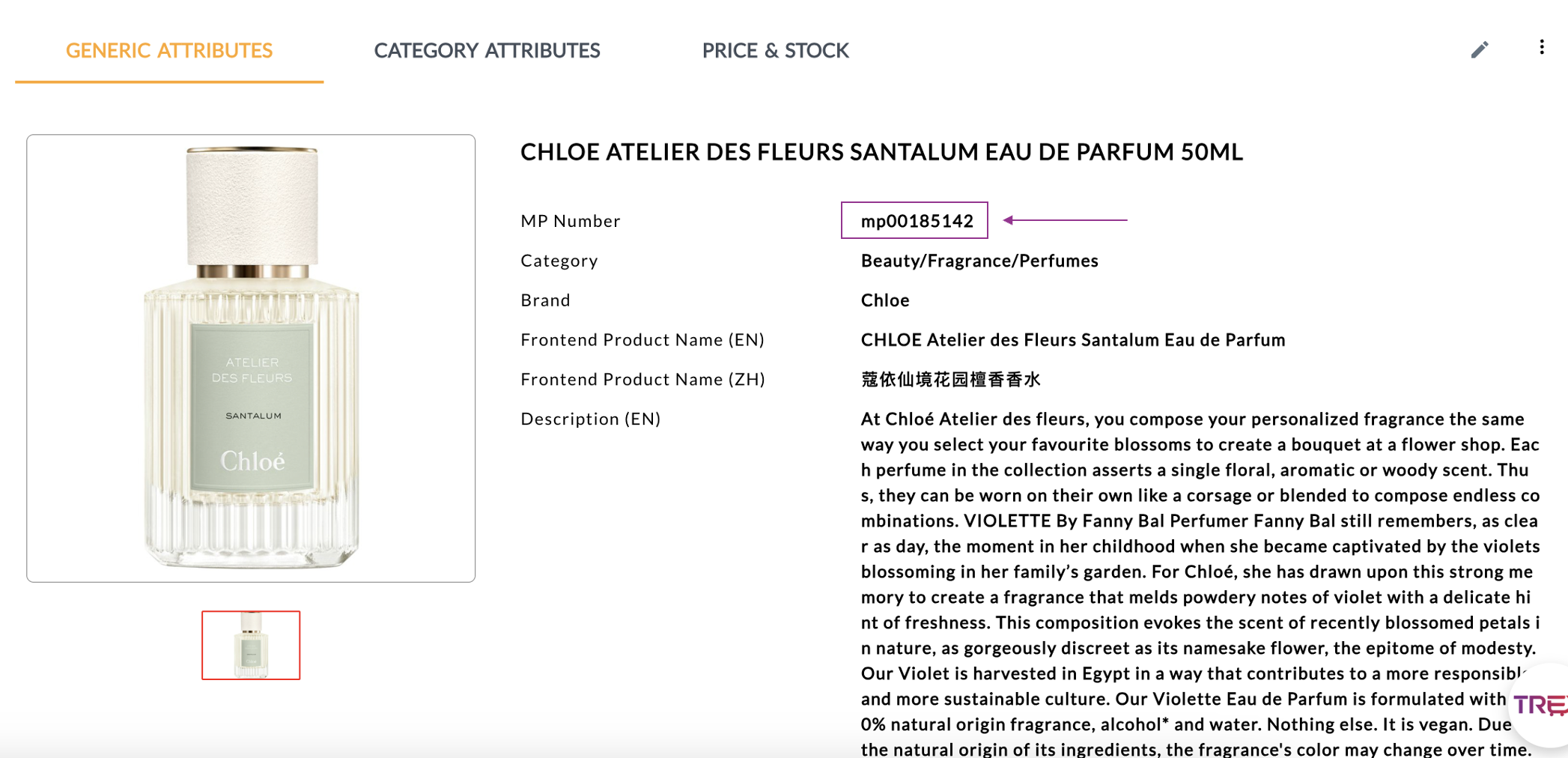
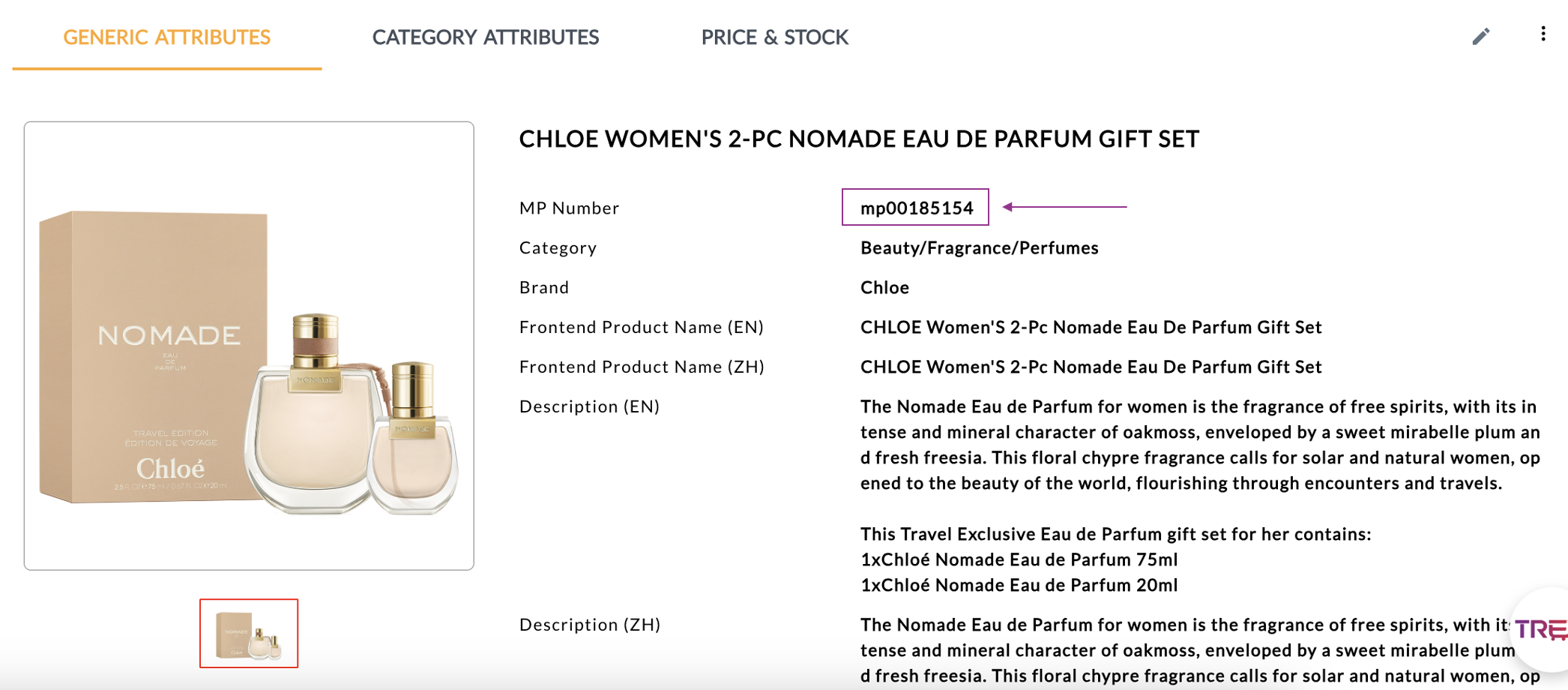 The mp# found on the product page in TREX.
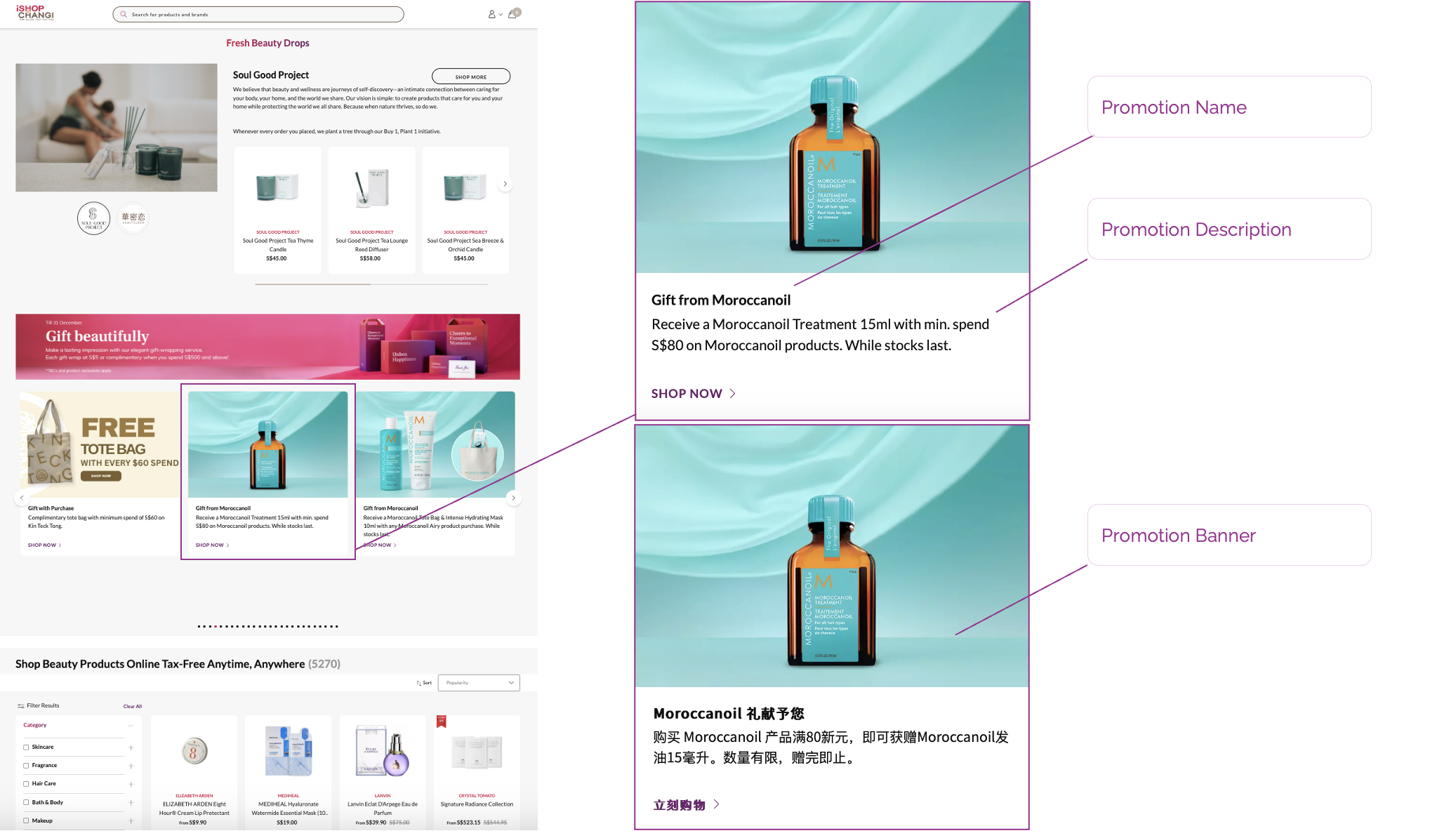 How the promotion will appear on the promotion carousel on the Category page.
 The promotion on the PLP
(Product Listings Page).
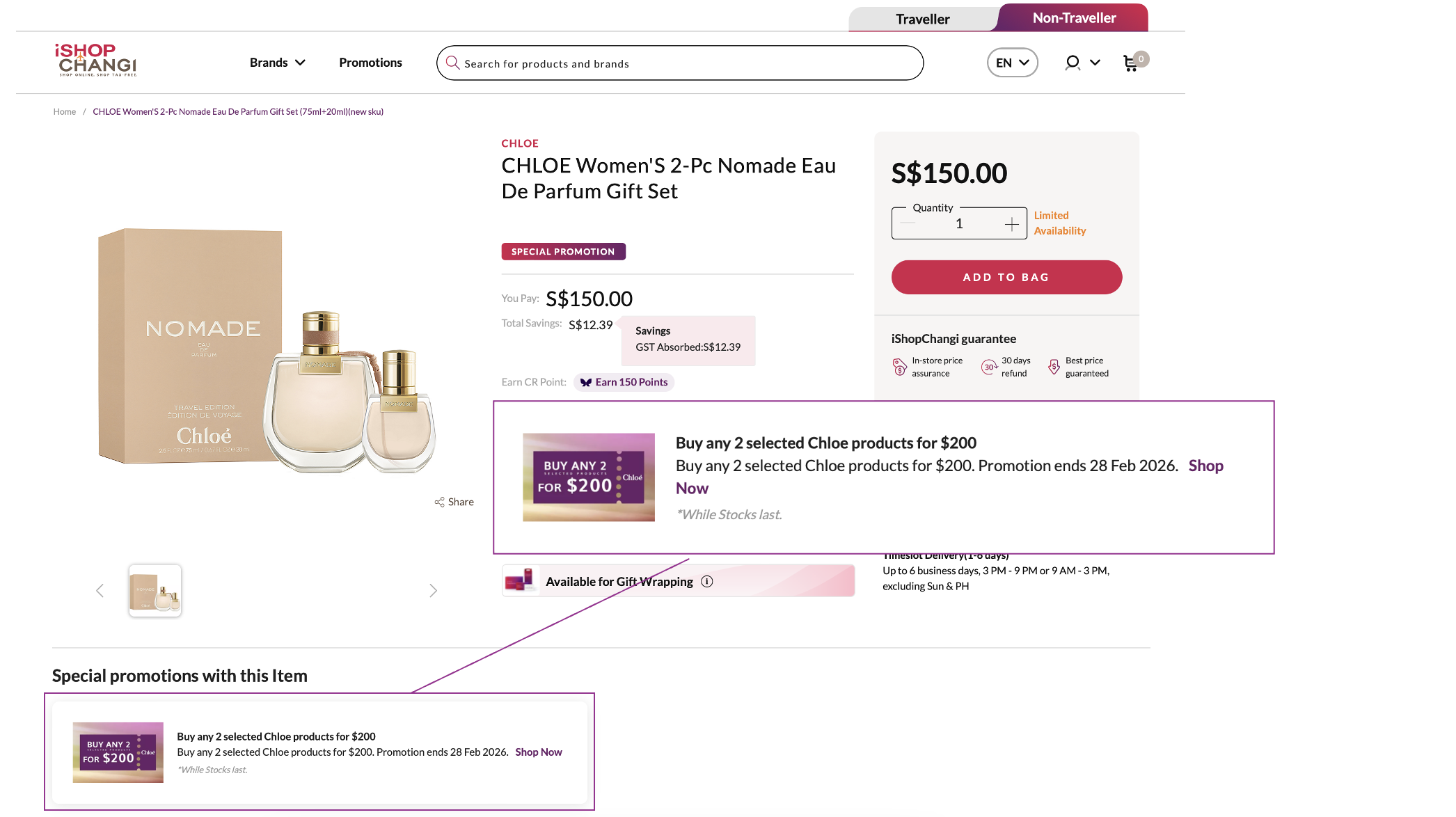
The promotion on the PDP
(Product Display Page).
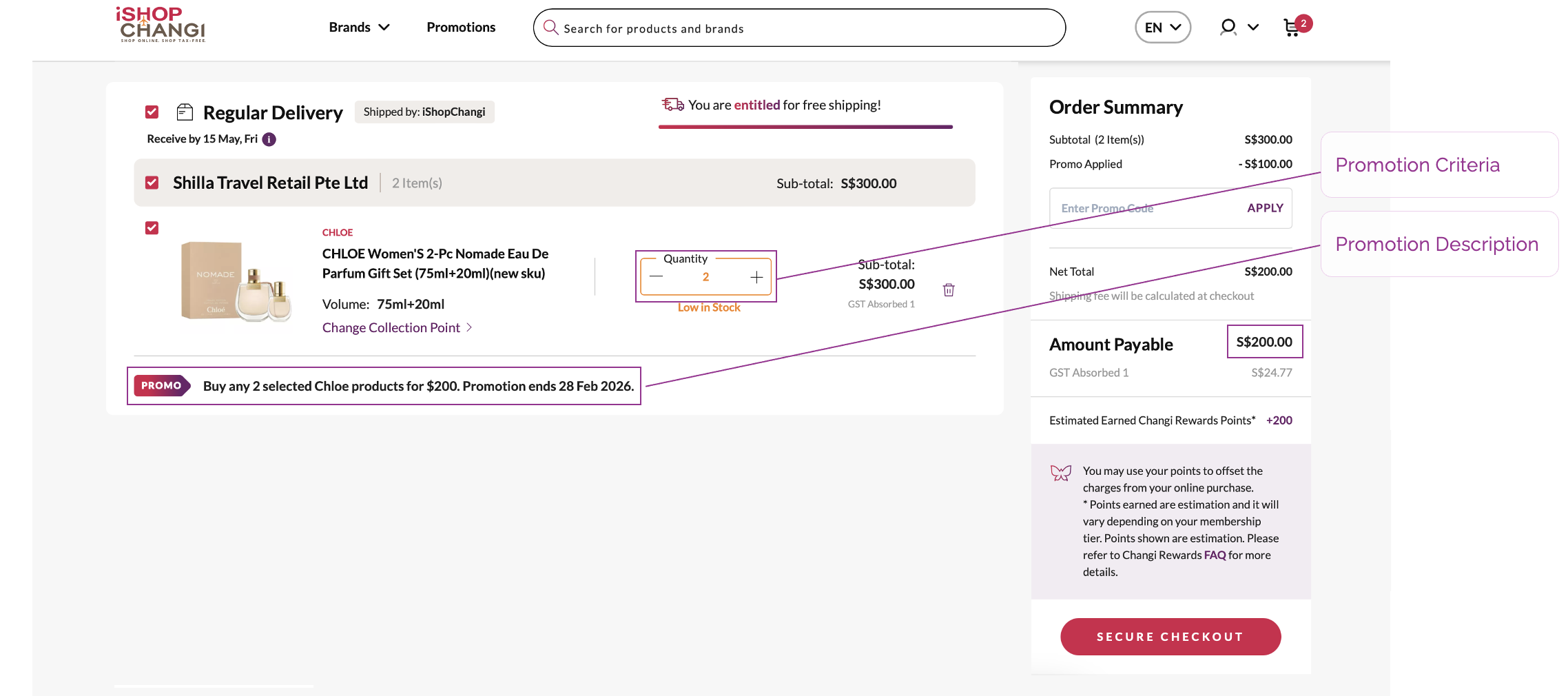 How the promotion will appear at the Shopping Cart.
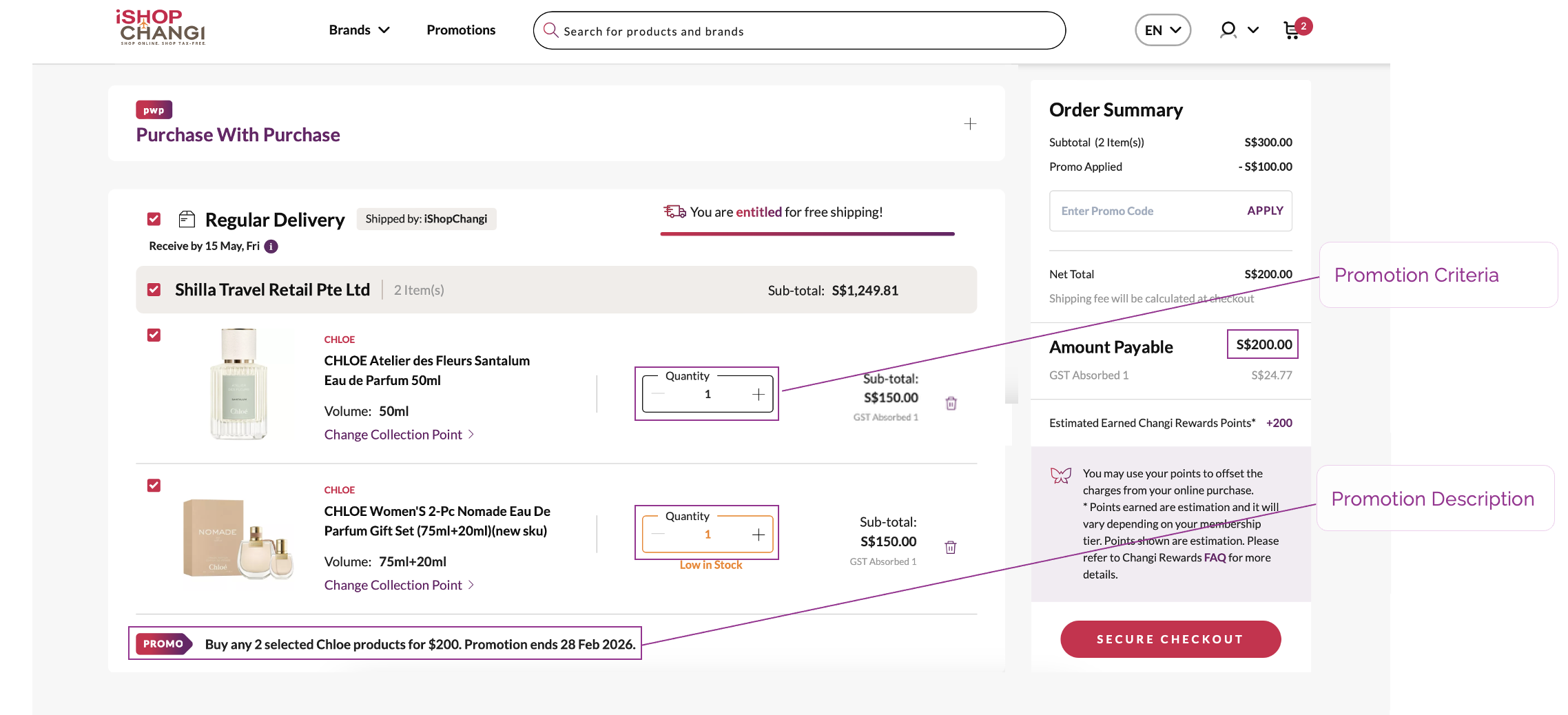 How the promotion will appear at the Shopping Cart.
Steps to create the promotions in SAP BackOffice

1. Click on Marketing in the left-hand side menu.
2. Select Promotion Templates
3. Click on the binoculars icon
4. Click on Search
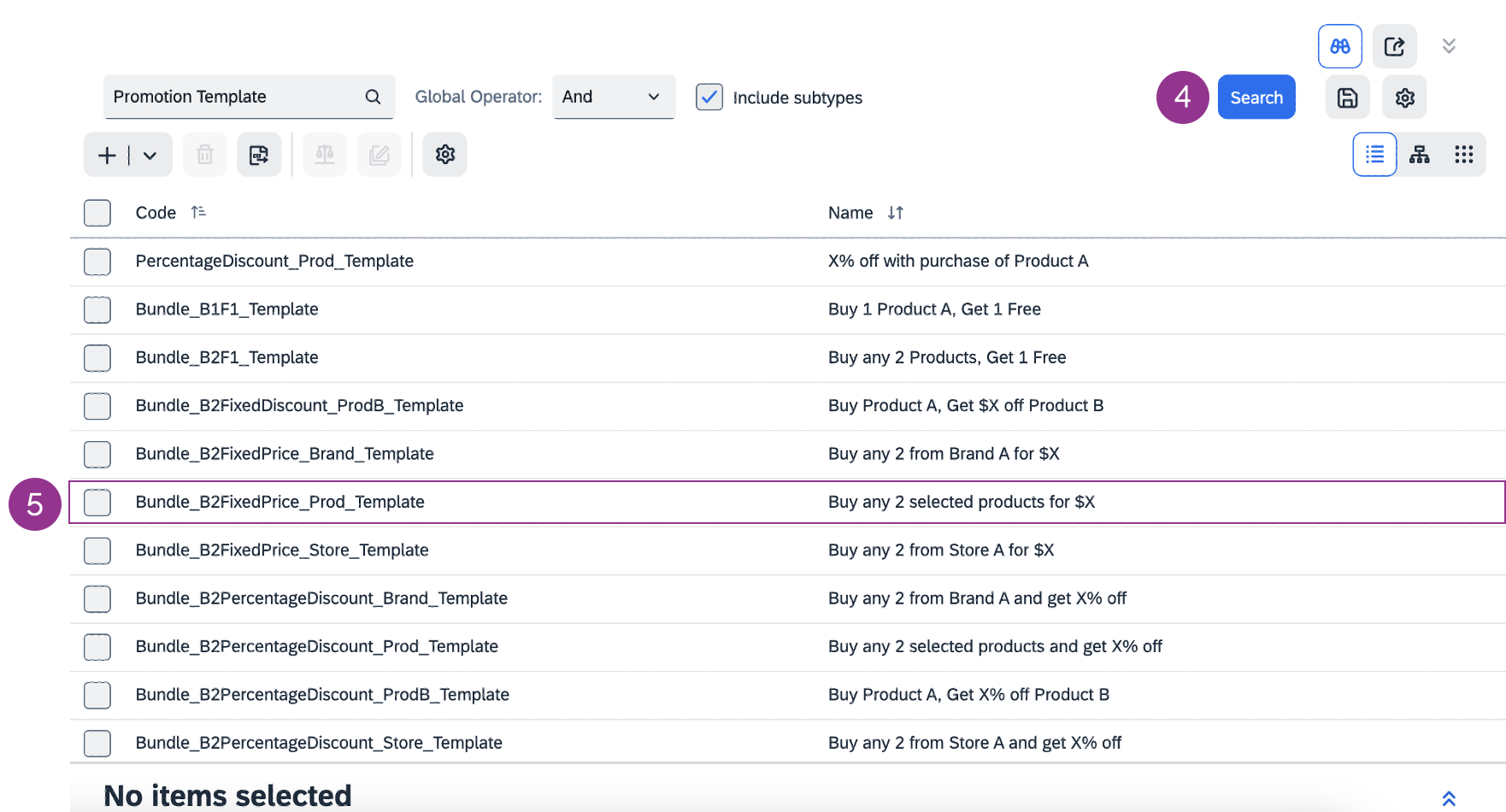
5. Select the Bundle_B2FixedPrice_Prod_Template
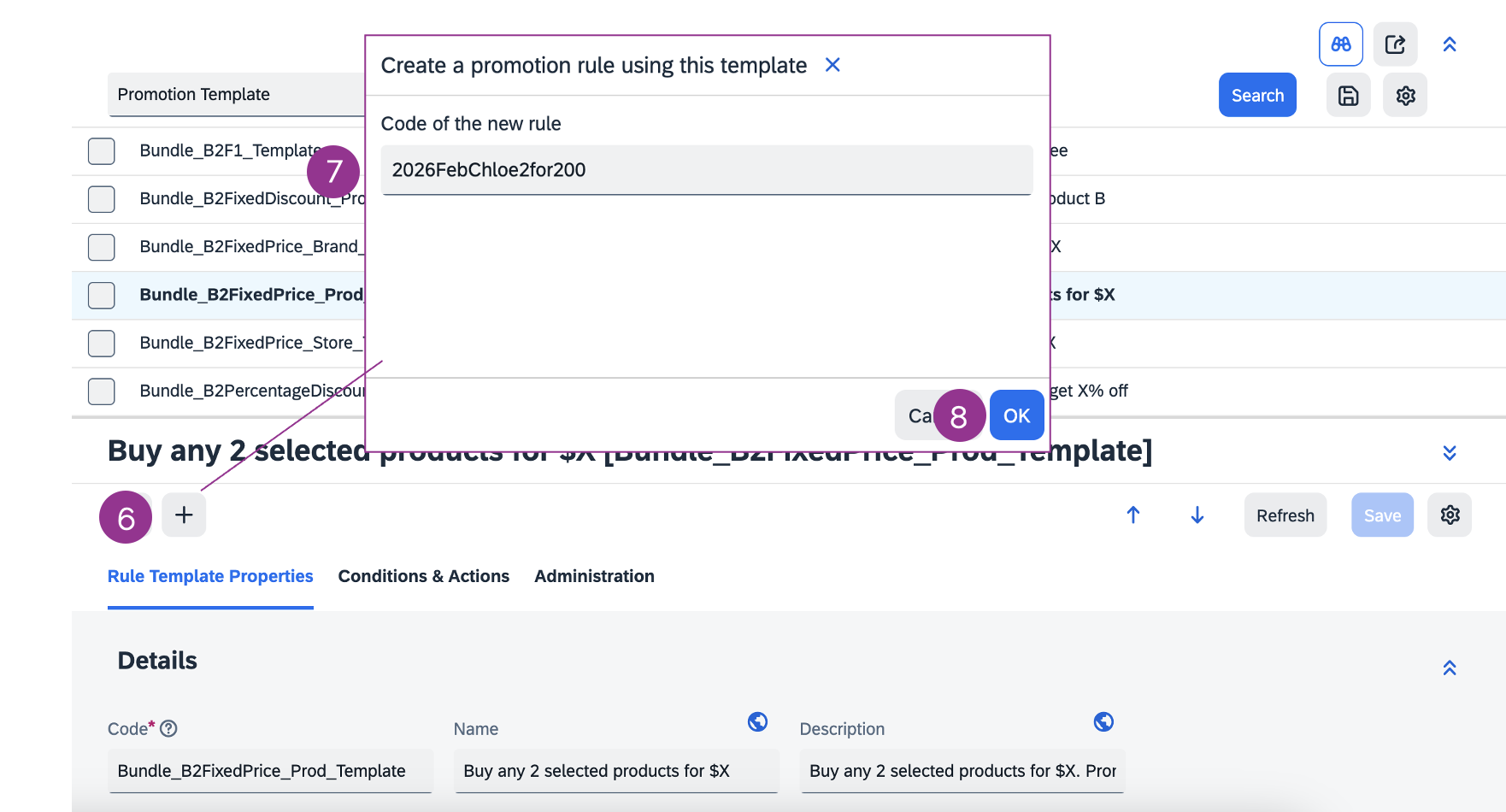
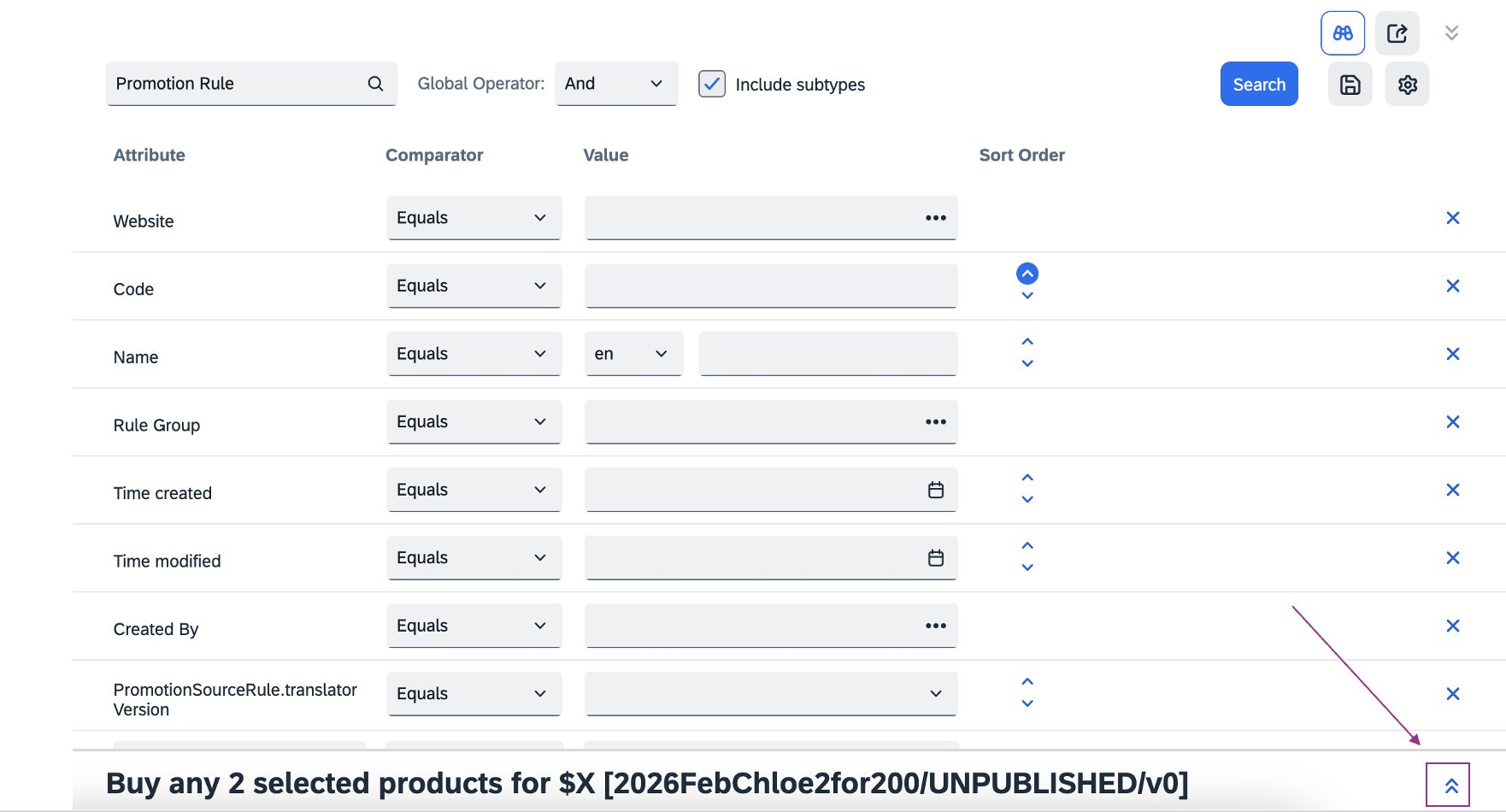
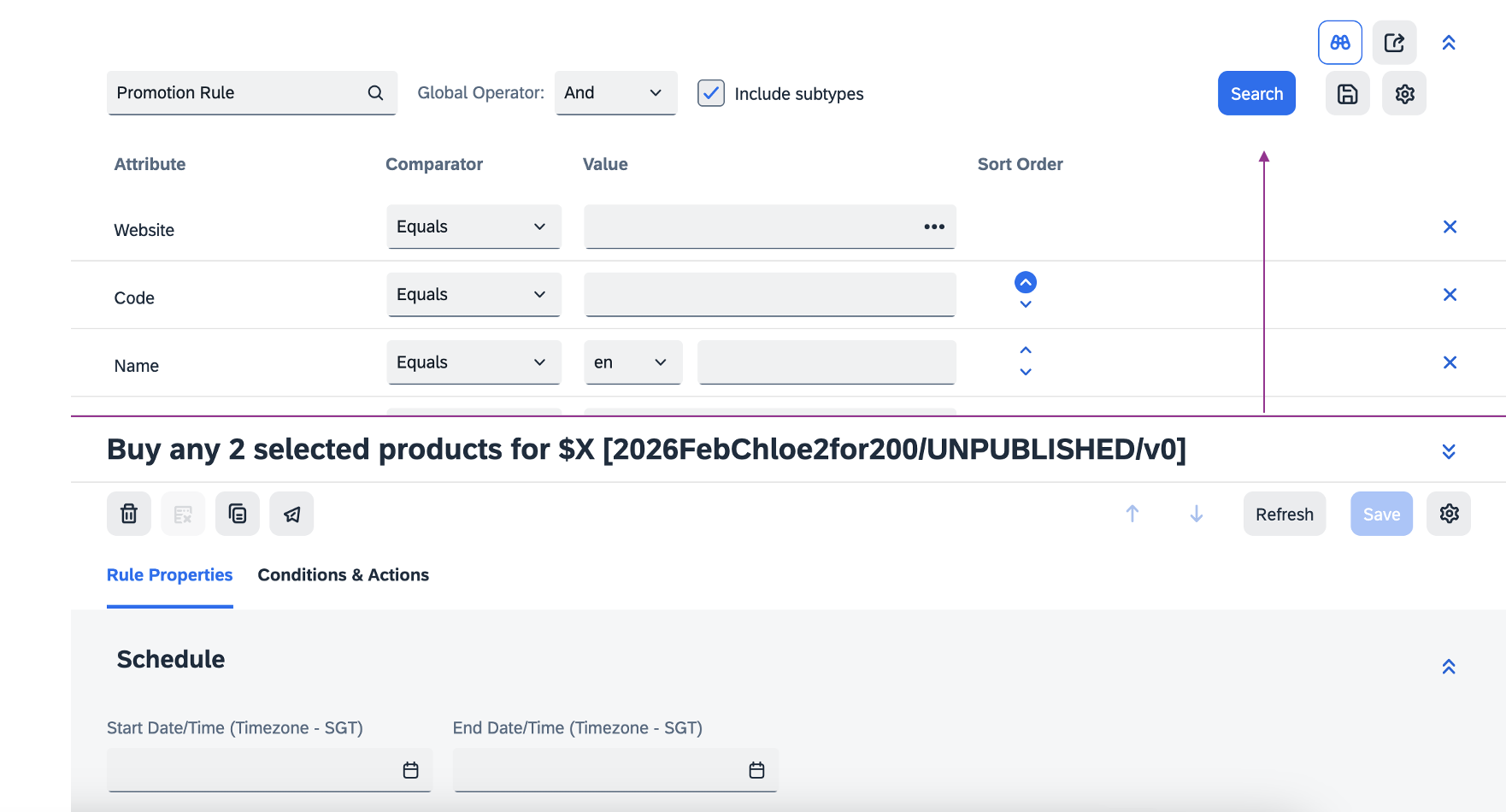
6. Click +
7. Create a unique code for the promotion.
8. Click OK
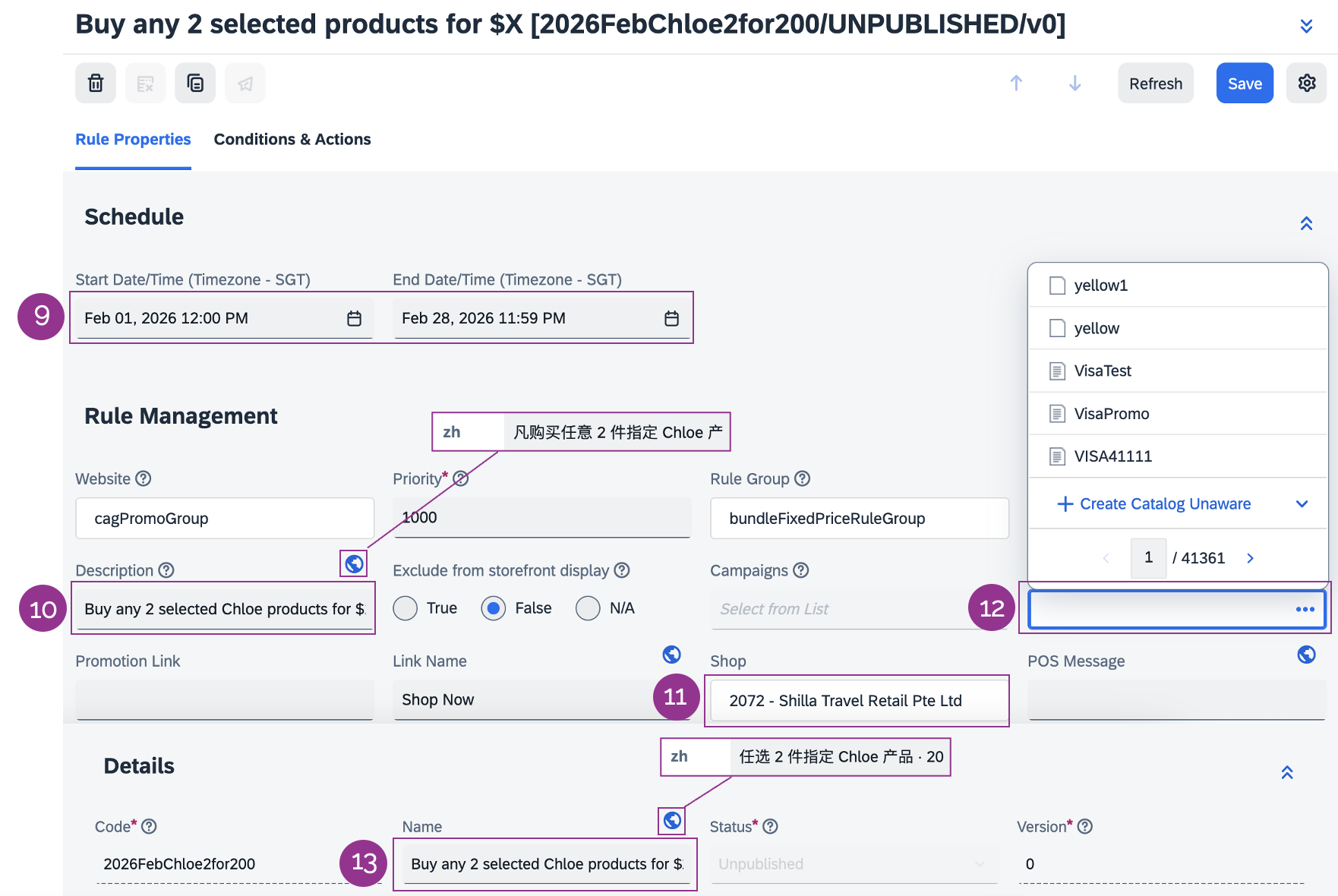
9. Input the promotion schedule.
10. Include the Description.
11. Select your Shop.
12. Append a Media banner.
13. Input the promotion Name.
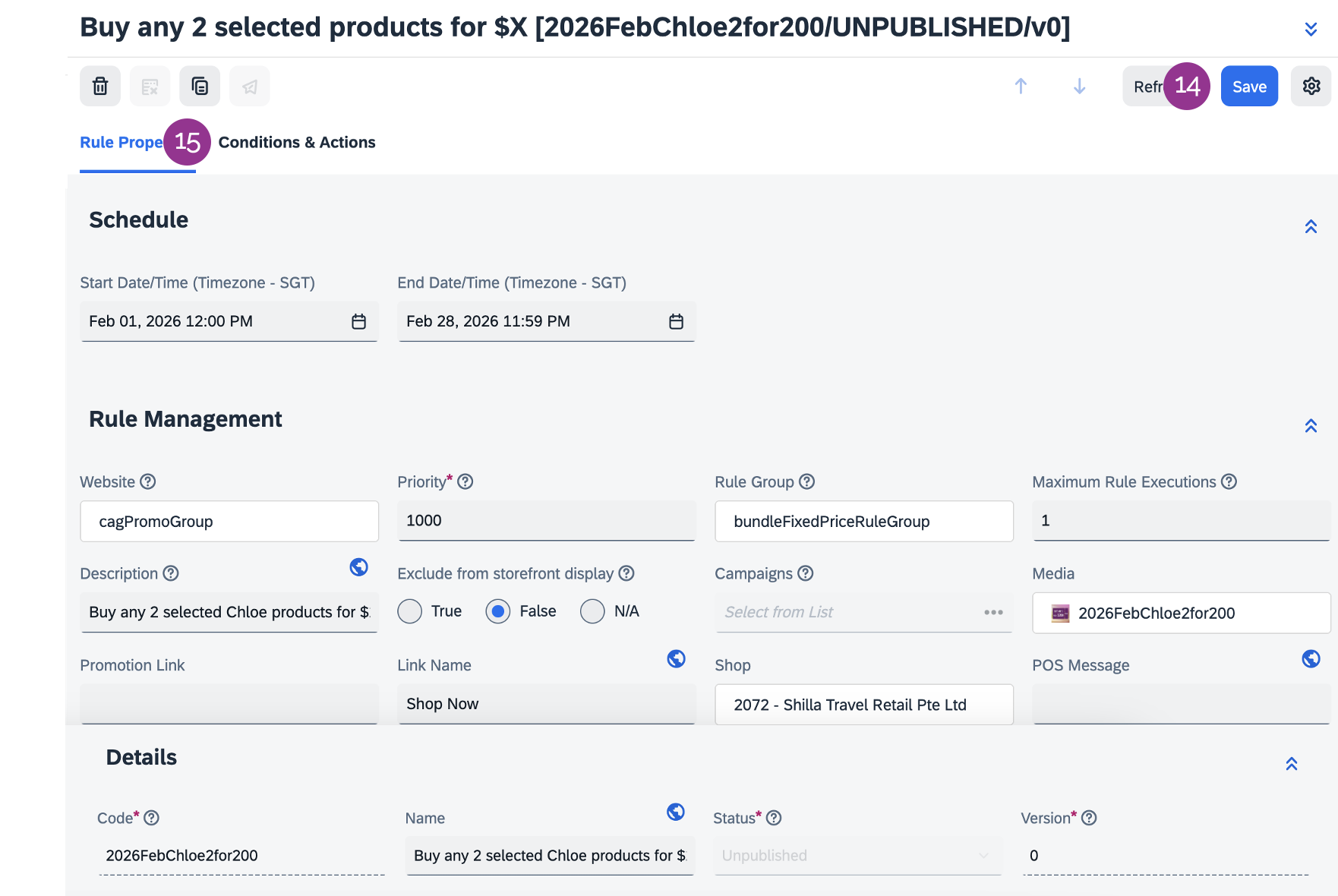
14. Click Save.
15. Click on the Conditions & Actions Tab.
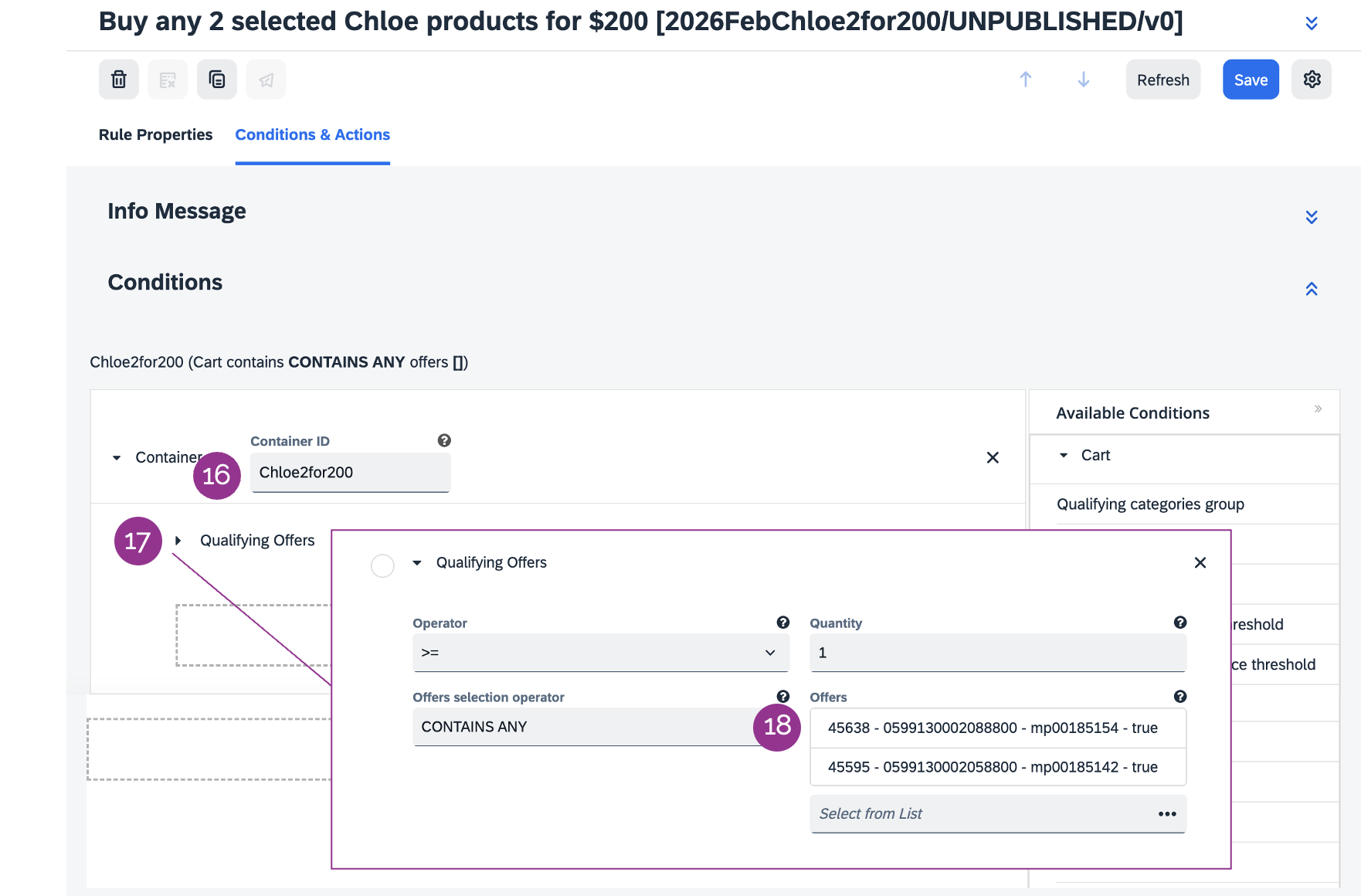
16. Input a code in Container ID. E.g., ProductA
17. Click on Qualifying offers to expand the section.
18. Under Offers, input the mp# of the selected product for the promotion.
📝 Note: For WeChat Mini Program applicable merchants only.
If the promotion applies to only one platform (WeChat Mini Program or iShopChangi website), please add the Qualifying By Channel condition (from the Available Conditions section on the right). Under Qualifying By Channel, click Channel Type ➡️ select the applicable channel.
If it applies to both platforms, please ignore this note.
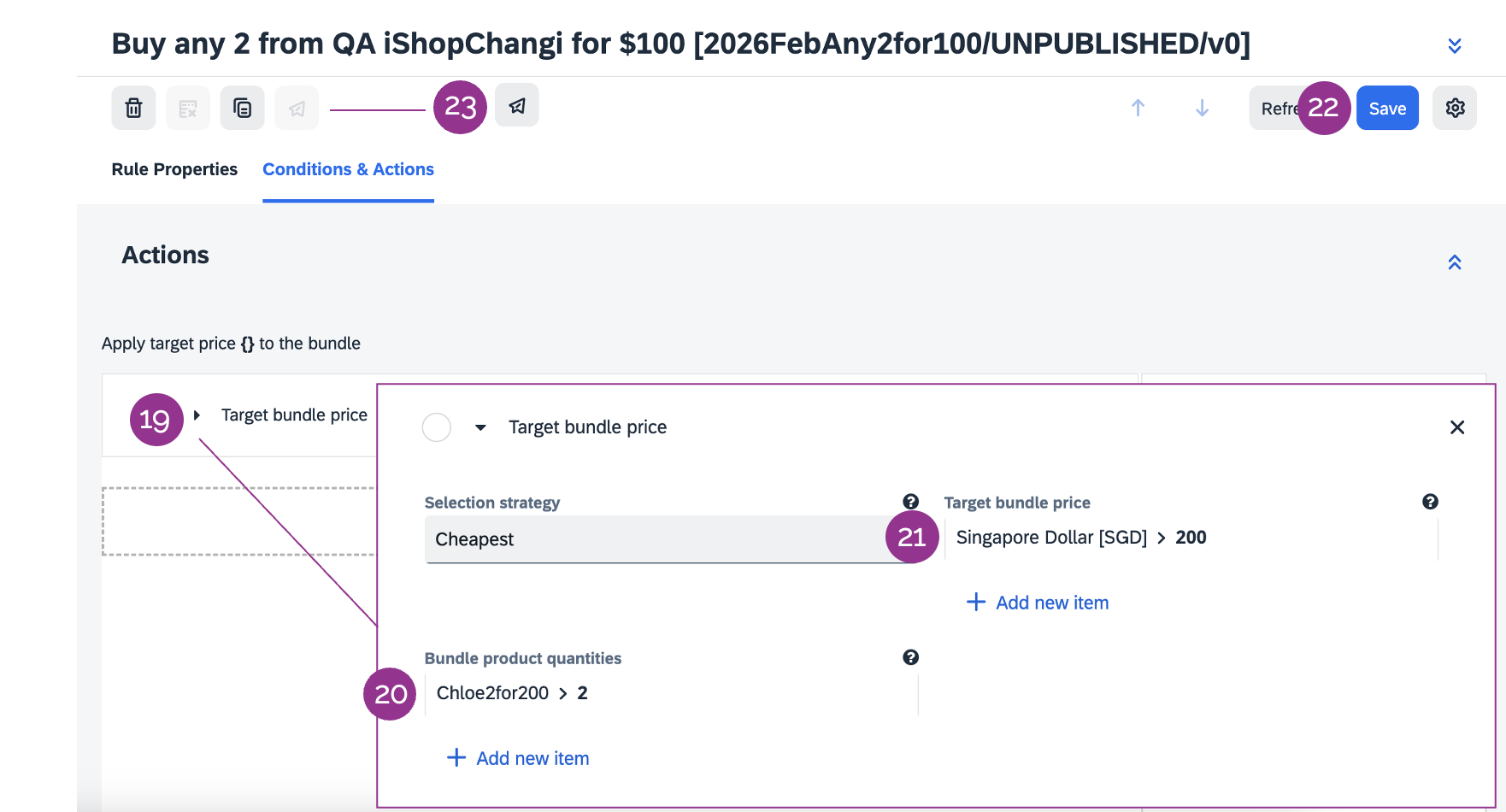
19. Click on Target bundle price to expand the section.
20. Under Bundle product quantities, input the Container ID and the value 2.
21. Under Target bundle price, input the currency and the bundle price.
22. Click Save.
23. Click on the paper aeroplane icon to publish. Ensure that the status changes from Unpublished to Published.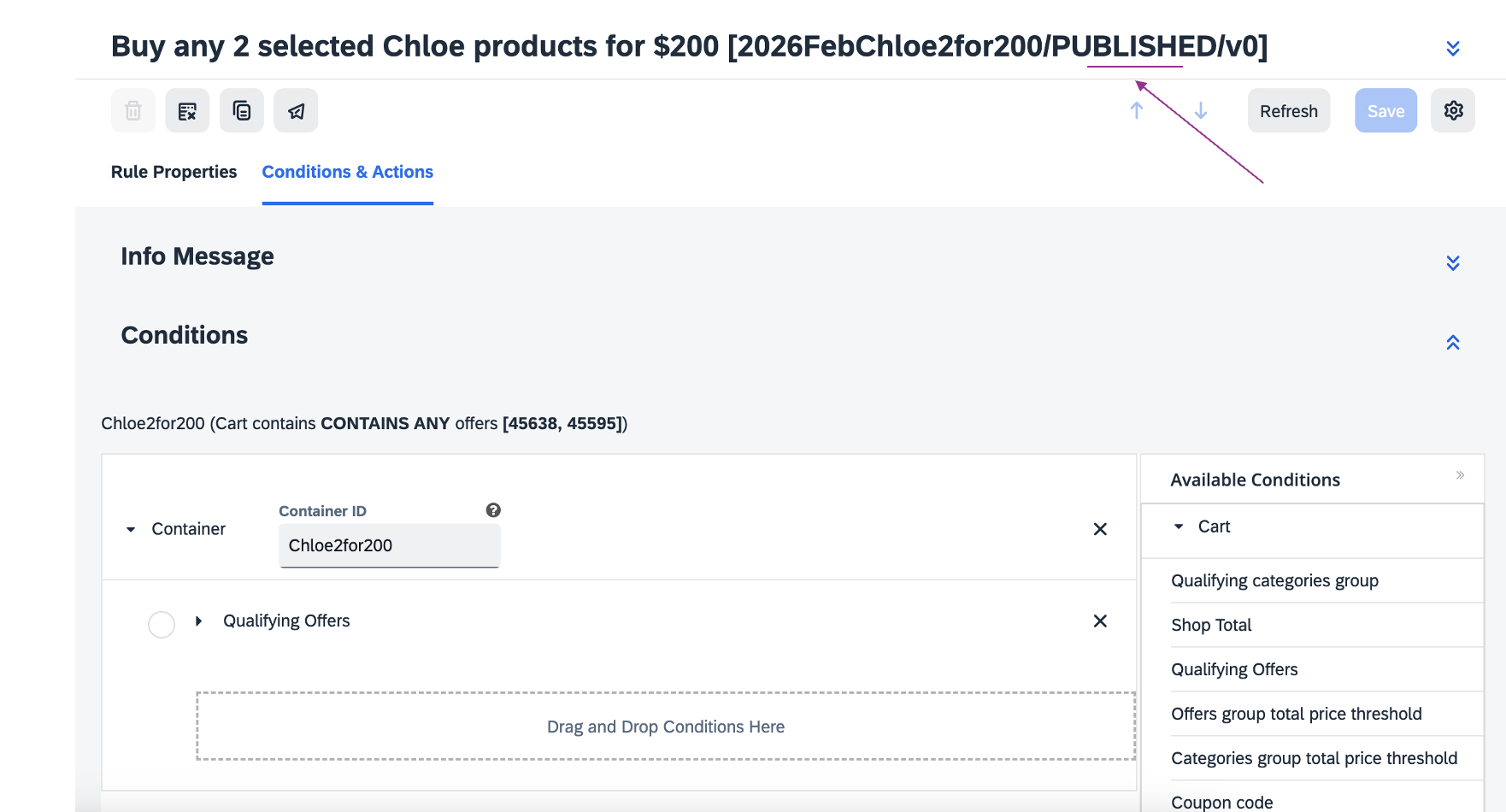
Common FAQs/Errors
1. Unable to publish the promotion?
If you are unable to publish, please review mandatory fields for missing or invalid values.
2. Promotion Banner not appearing on storefront?
If the promotion is working but the banner is not appearing on the Category Banner Carousel or PDP, please inform your Account Manager and the iSC team will review the banner and approve it. Please also ensure that the banner meets the requirements.