How to create a GWP with minimum spend
This tutorial explains how to create a Gift with Purchase (GWP) promotion that rewards shoppers with a free gift when they reach a minimum spend amount in your store.
How to create a GWP (min. spend) promotion in SAP
- Please create the GWP in TREX first before creating this promotion on SAP.
- In the Okta SSO portal, click on SAP Backoffice.
 Under Marketing ➡️ select Promotion Templates ➡️ click on SEARCH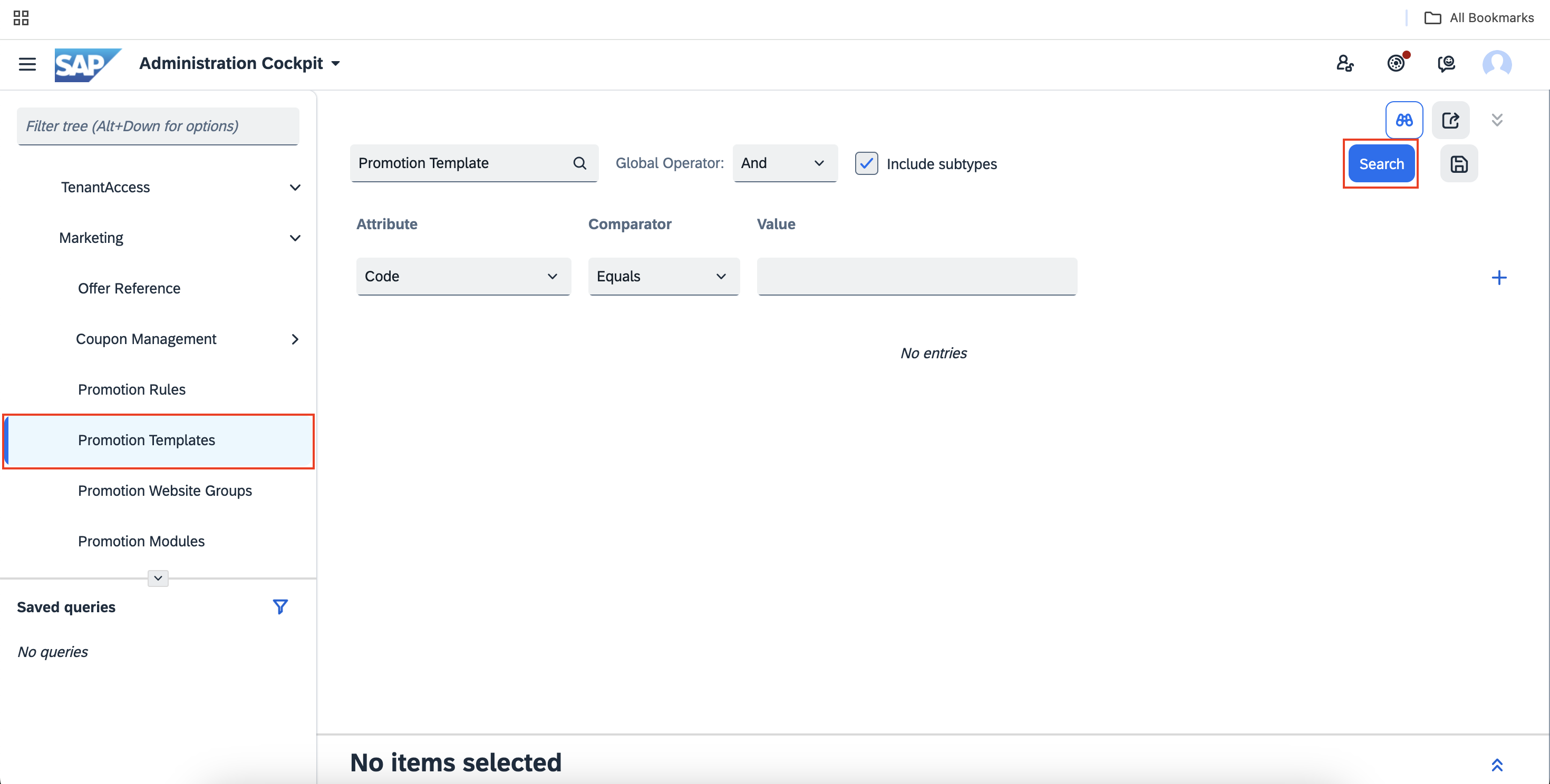
- Select GWP_wMinSpend_Template ⚠️ Please proceed to Step 4. Do not edit the Name or Code of this template as you will overwrite the template information.
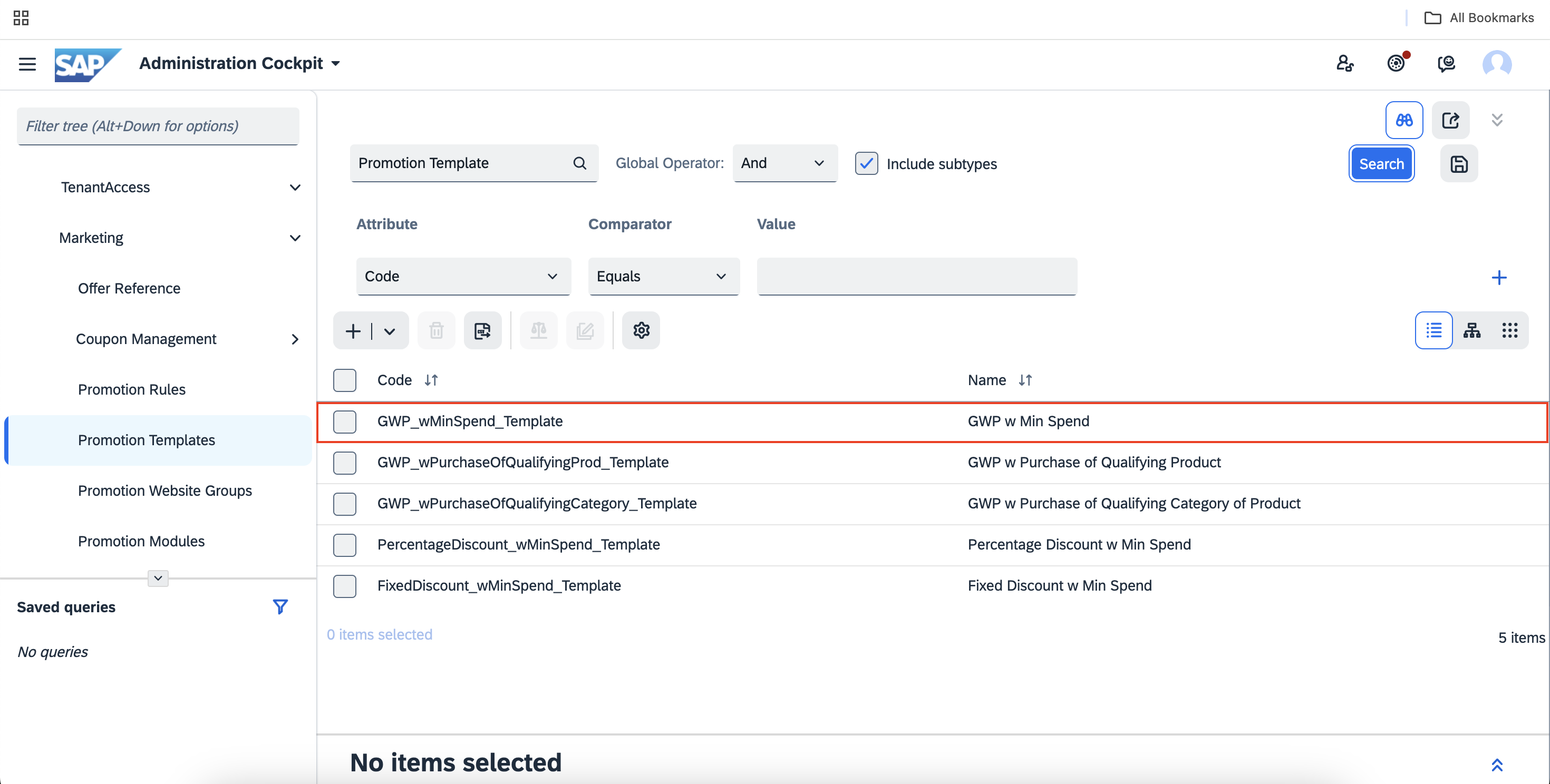
- Click into the template ➡️ Click on +
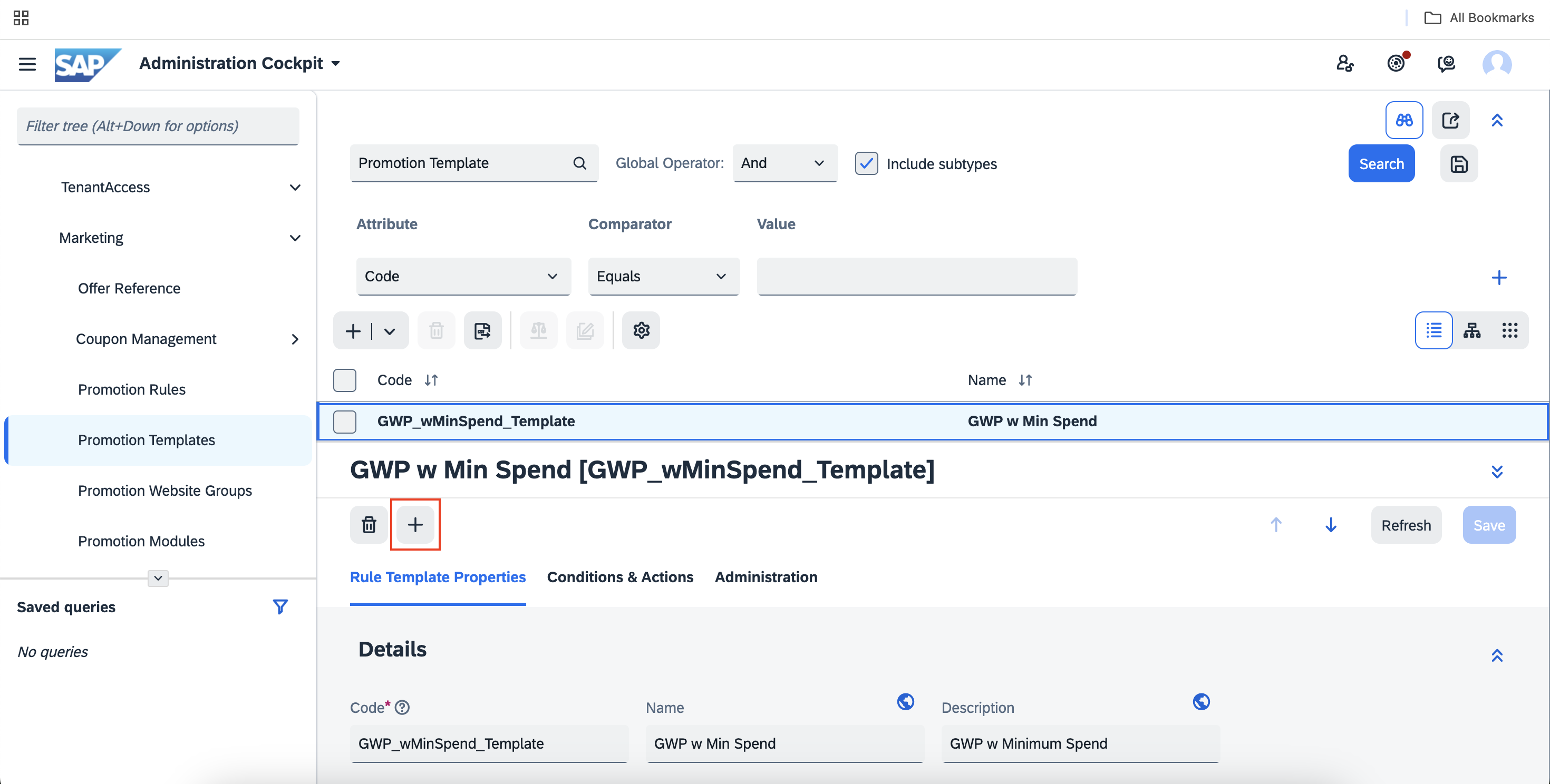
- Rename the code and ensure that the code is unique. E.g., DemoCNY25GWPA ➡️ OK. ⚠️ Please copy the code that you have just created as you will use it to search for your promotion in future.
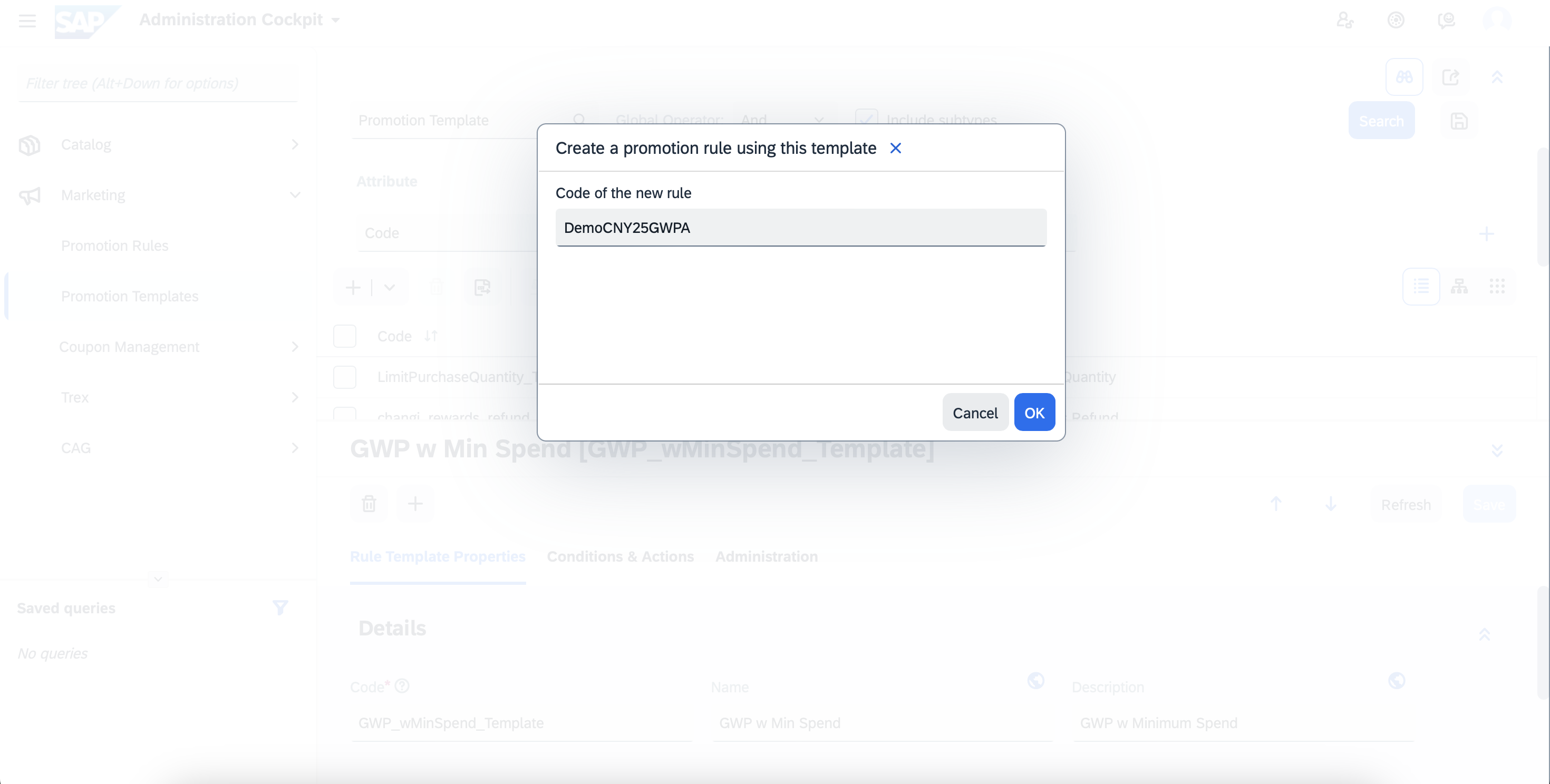 In the bottom right corner of the window, you will see an Up arrow button. Please click on this to expand the section.
 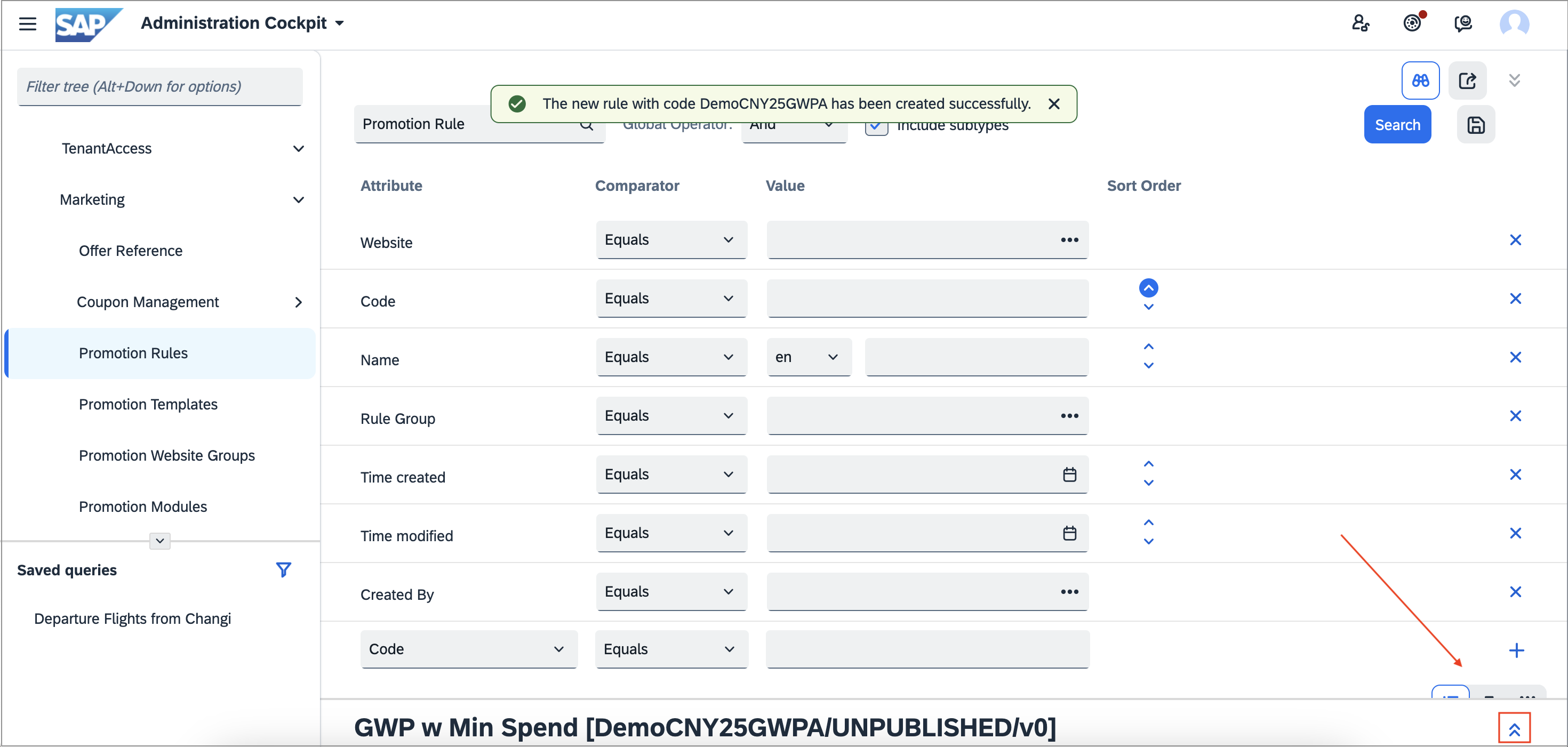 Drag the top part to expand the window. This will allow you to input details easily.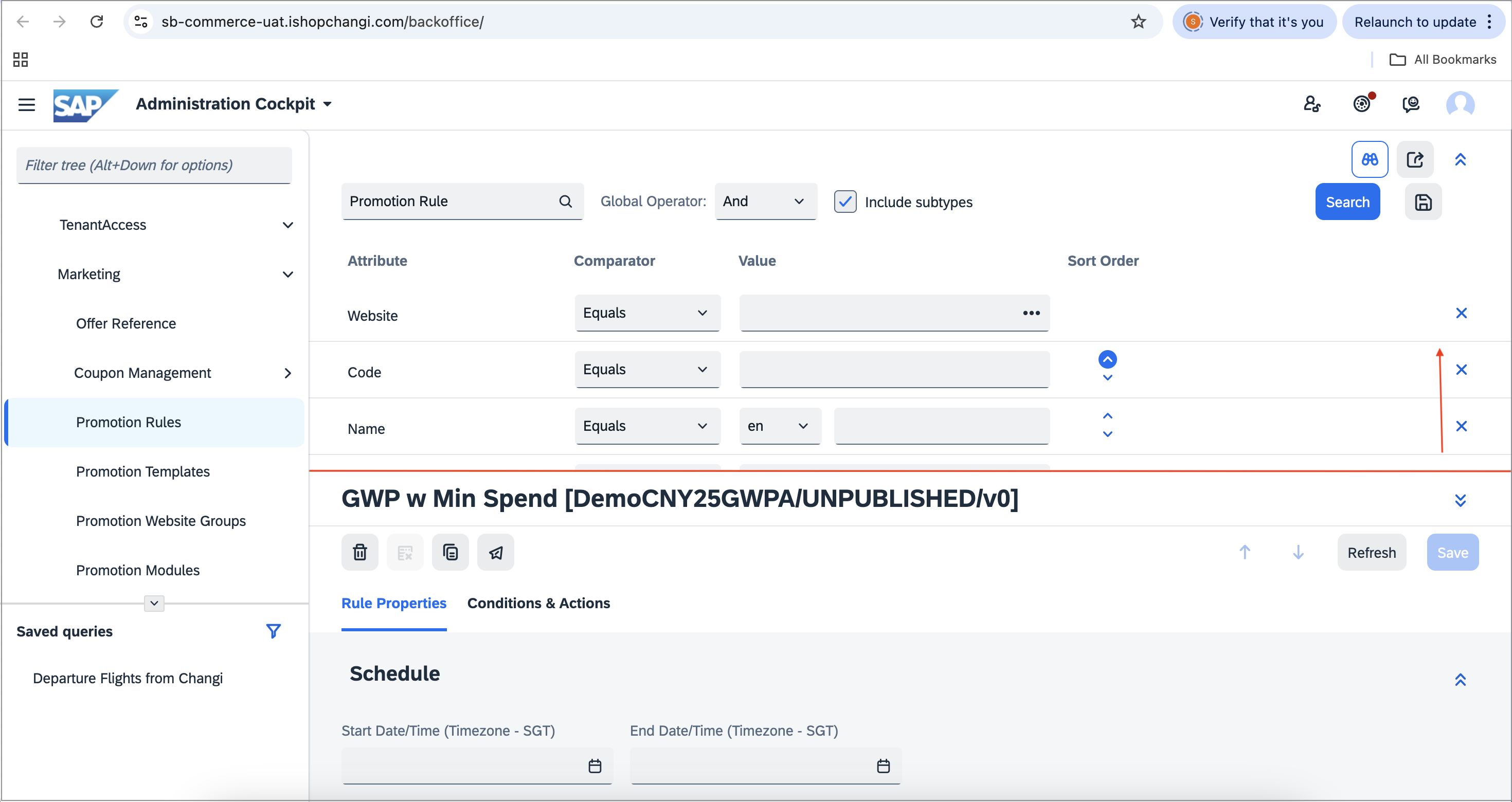
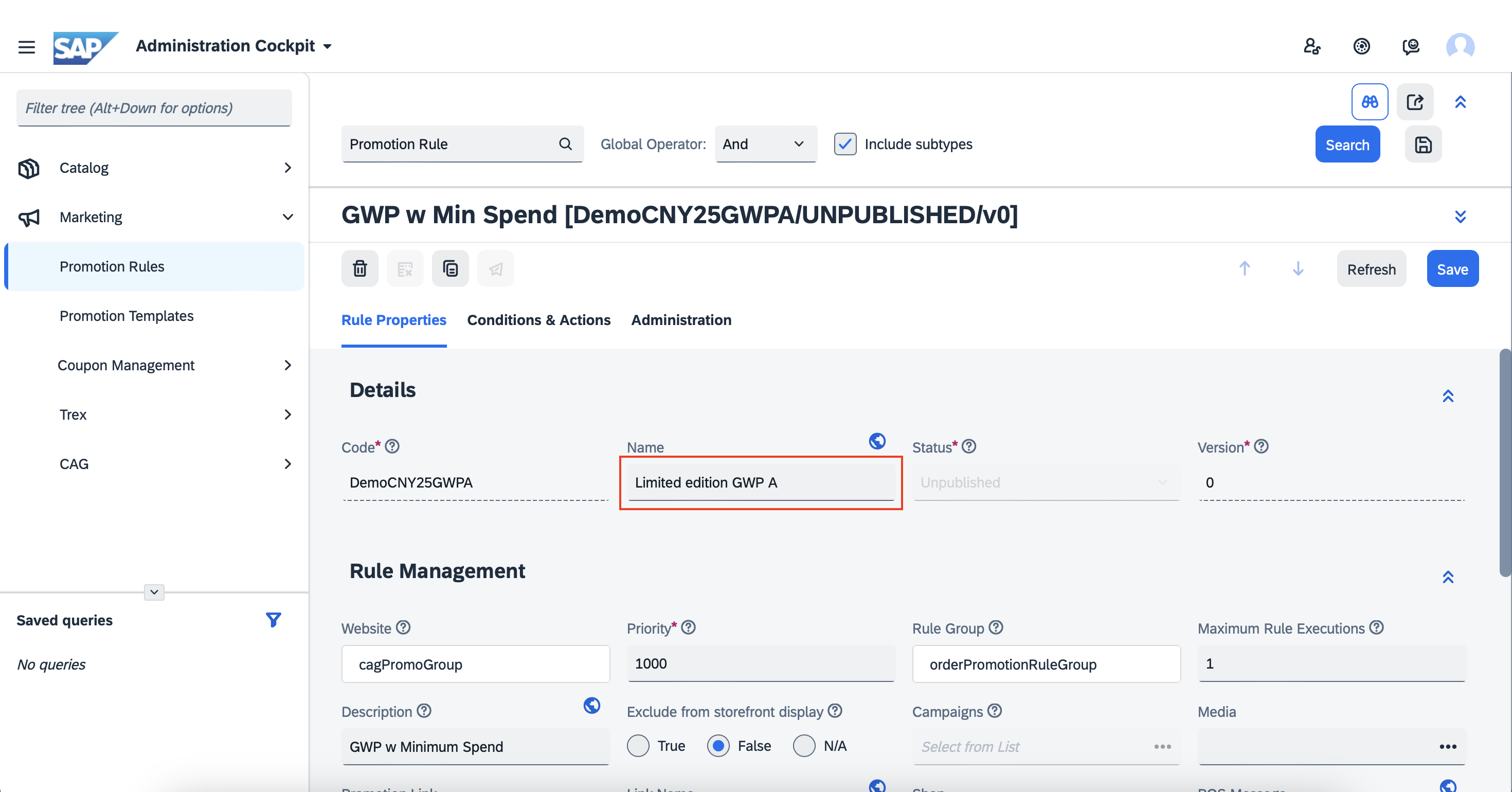
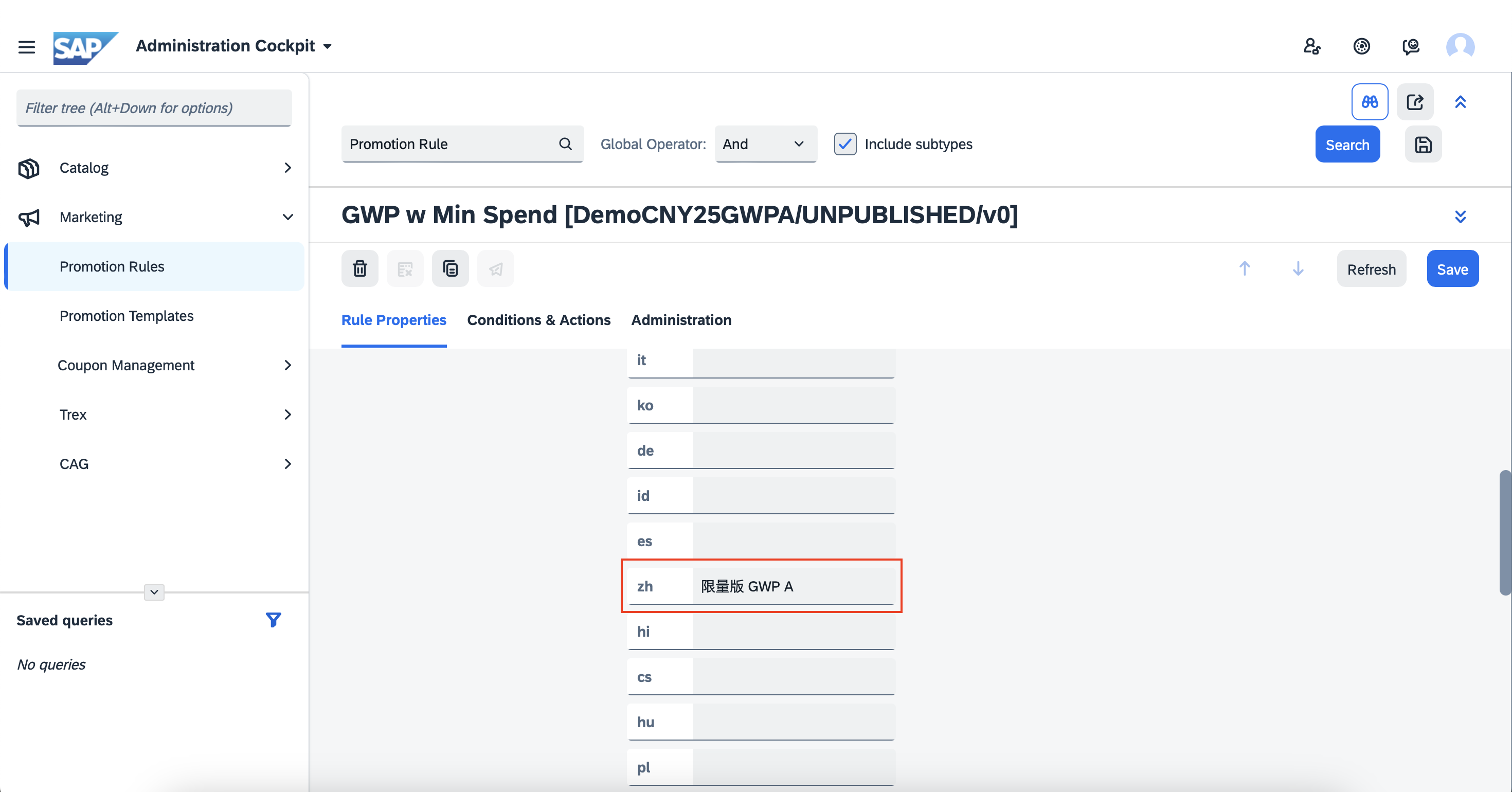
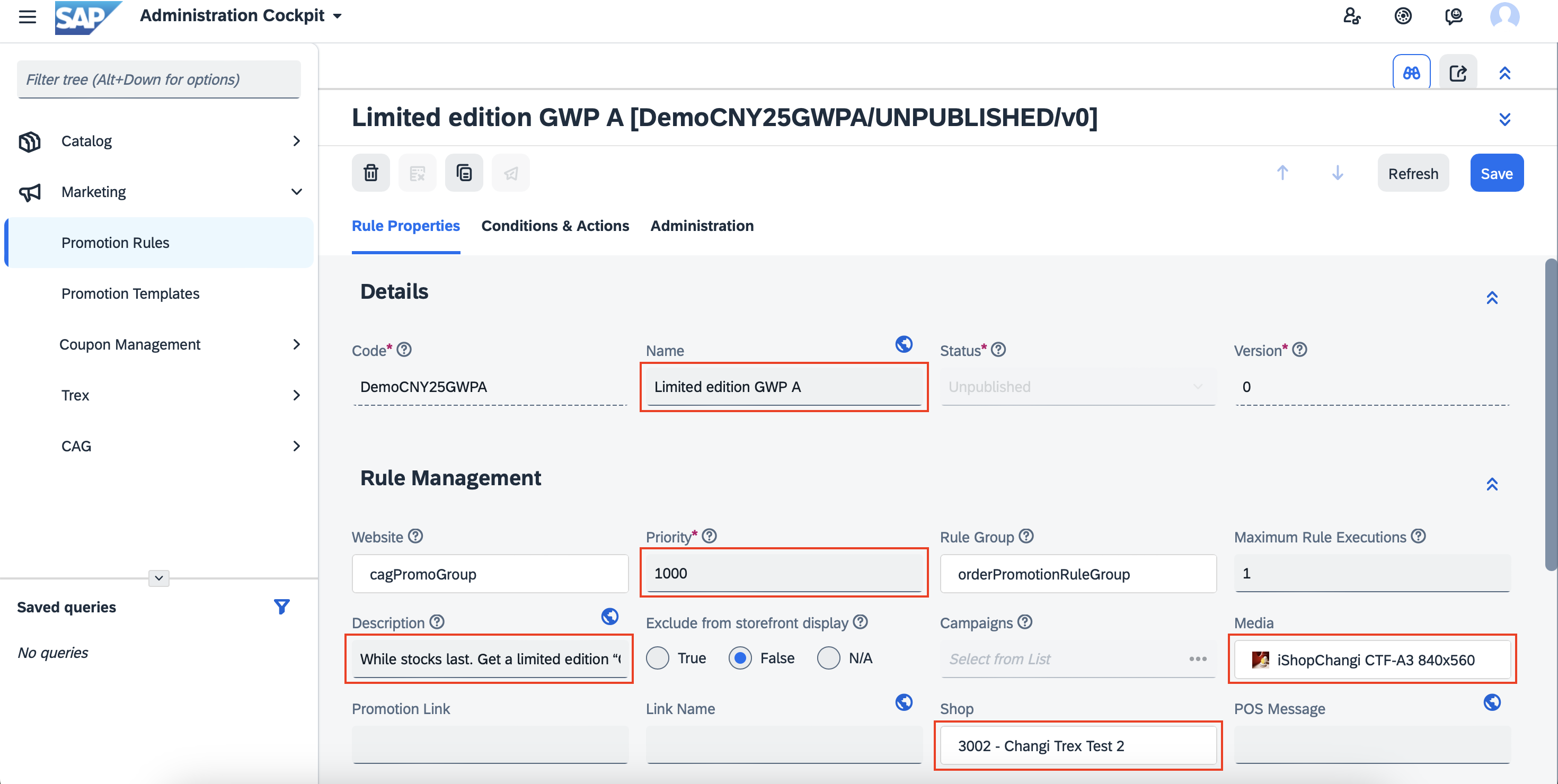
- Name: Input the details of the GWP. Please click on the 🌎 icon to provide the Name in mandarin. It is important to provide the mandarin translation otherwise the details will appear blank on the mandarin version of the iShopChangi website. You may use ChatGPT to get the mandarin translation.
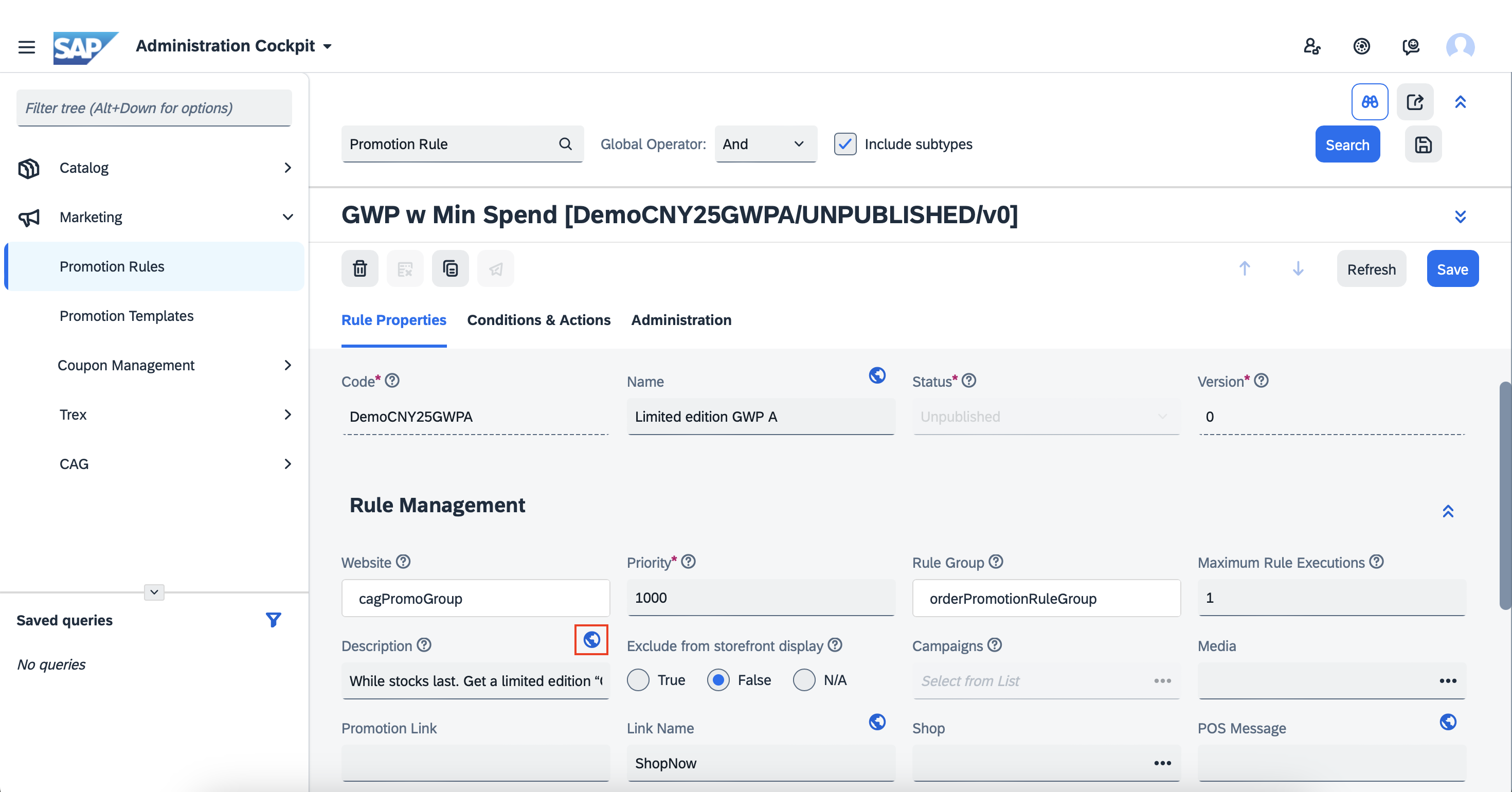
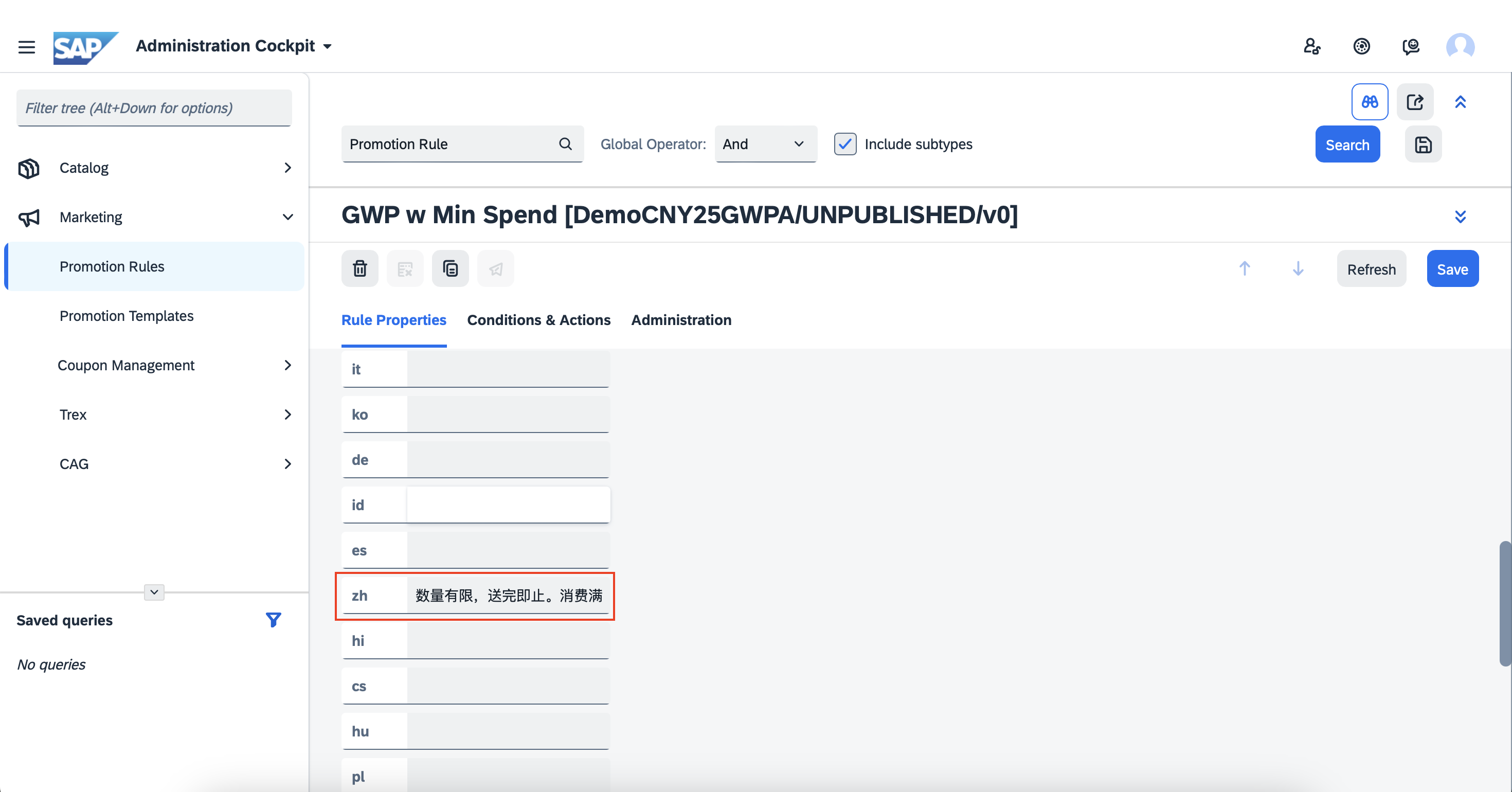
- Description: Input details of the promotion criteria. Please click on the 🌎 icon to provide the Name in mandarin. It is important to provide the mandarin translation otherwise the details will appear blank on the mandarin version of the iShopChangi website. You may use ChatGPT to get the mandarin translation.
- Media: Provide a banner for the promotion.
💡 Adding a banner increases your promotion’s visibility on the Category (promotion carousel) page and on the PDP. Customers will see the promotion details upfront. 📝 Note: Without a banner, the promotion still applies at checkout, but customers may not notice it. - Shop: Select your store.
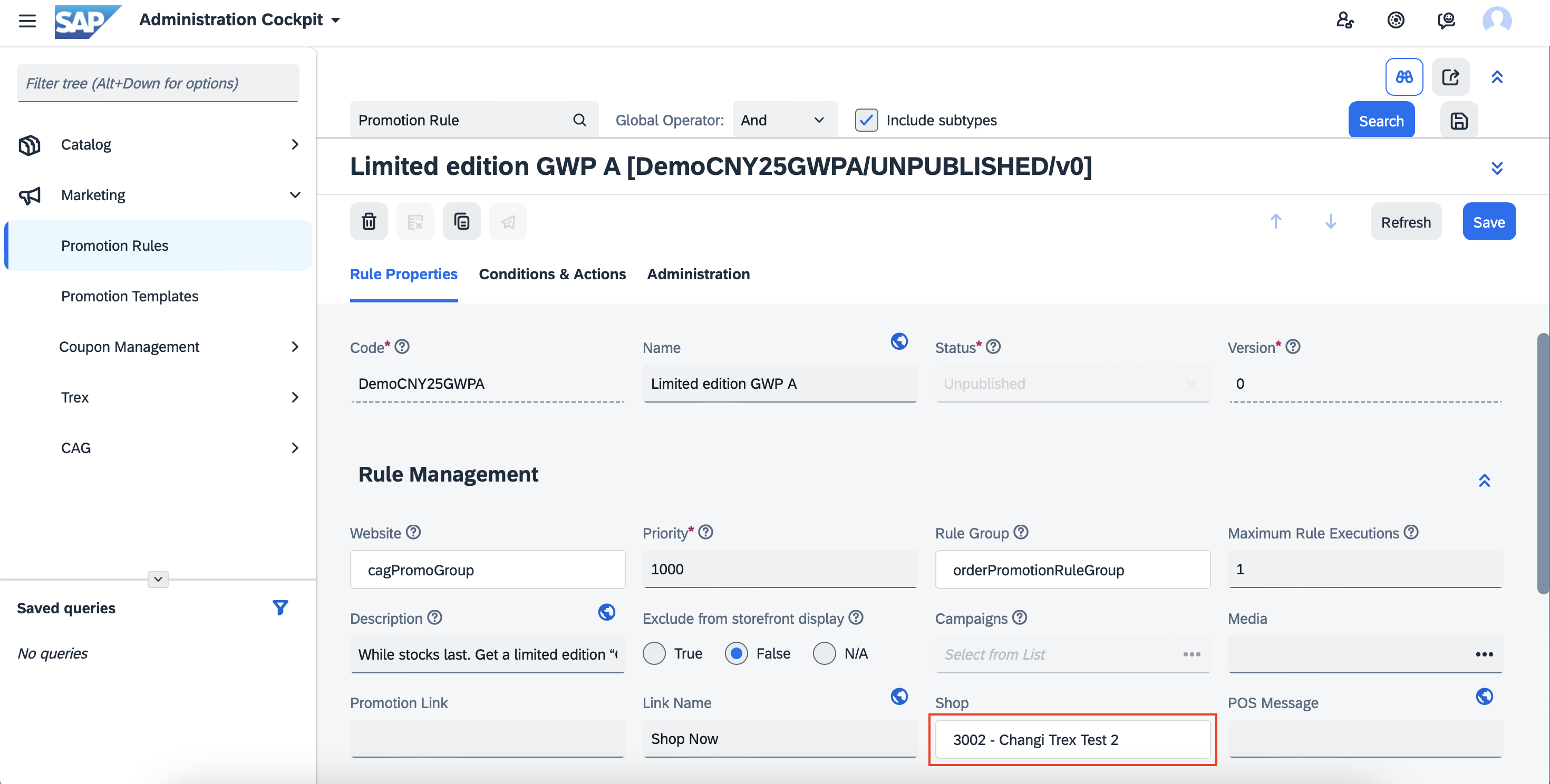
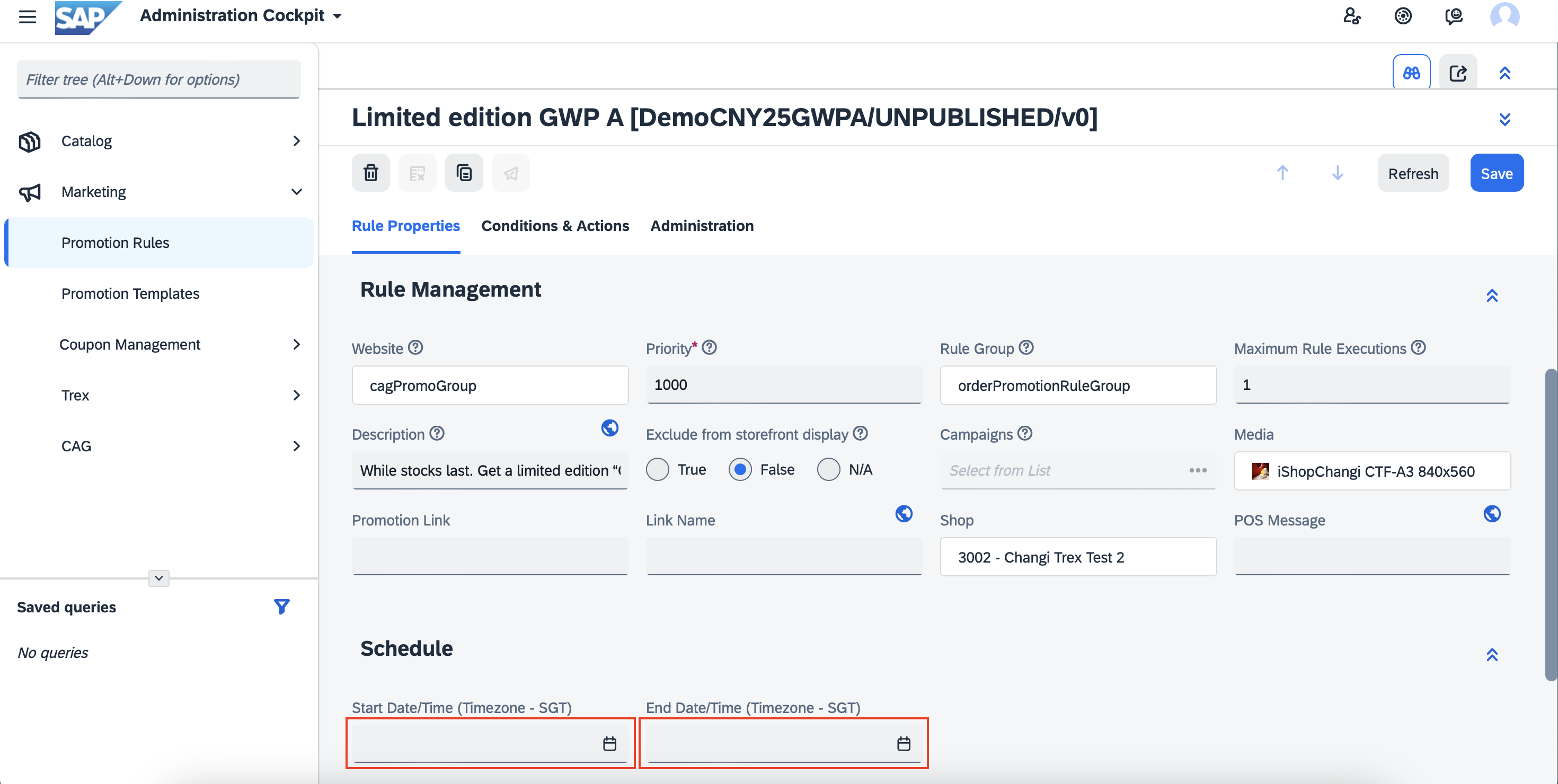
- Schedule: Input the Start and End Date/Time of the promotion.
- Once done, please check if all the fields have been filled up ➡️ SAVE. Proceed to the Conditions & Actions Tab.
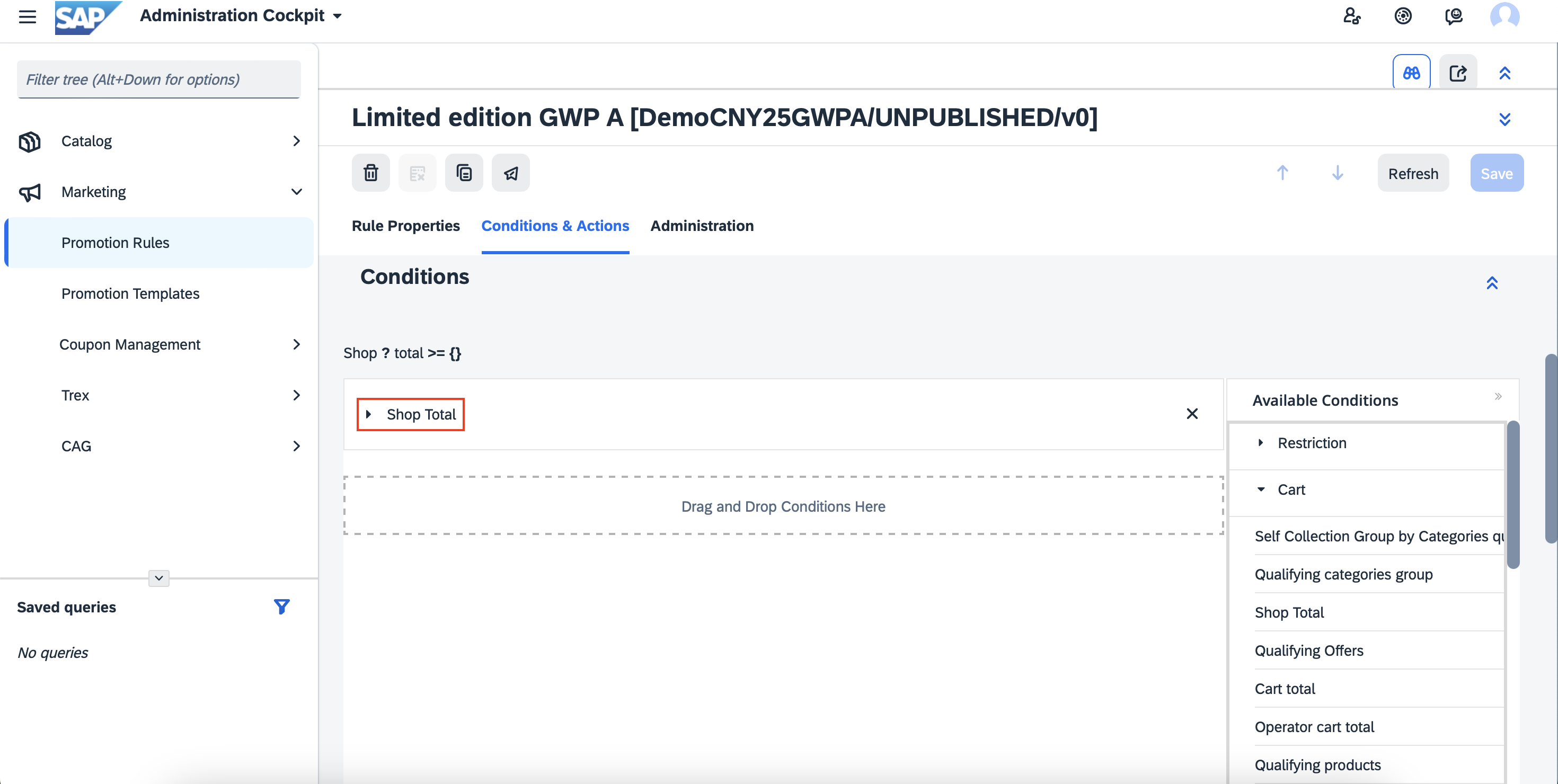
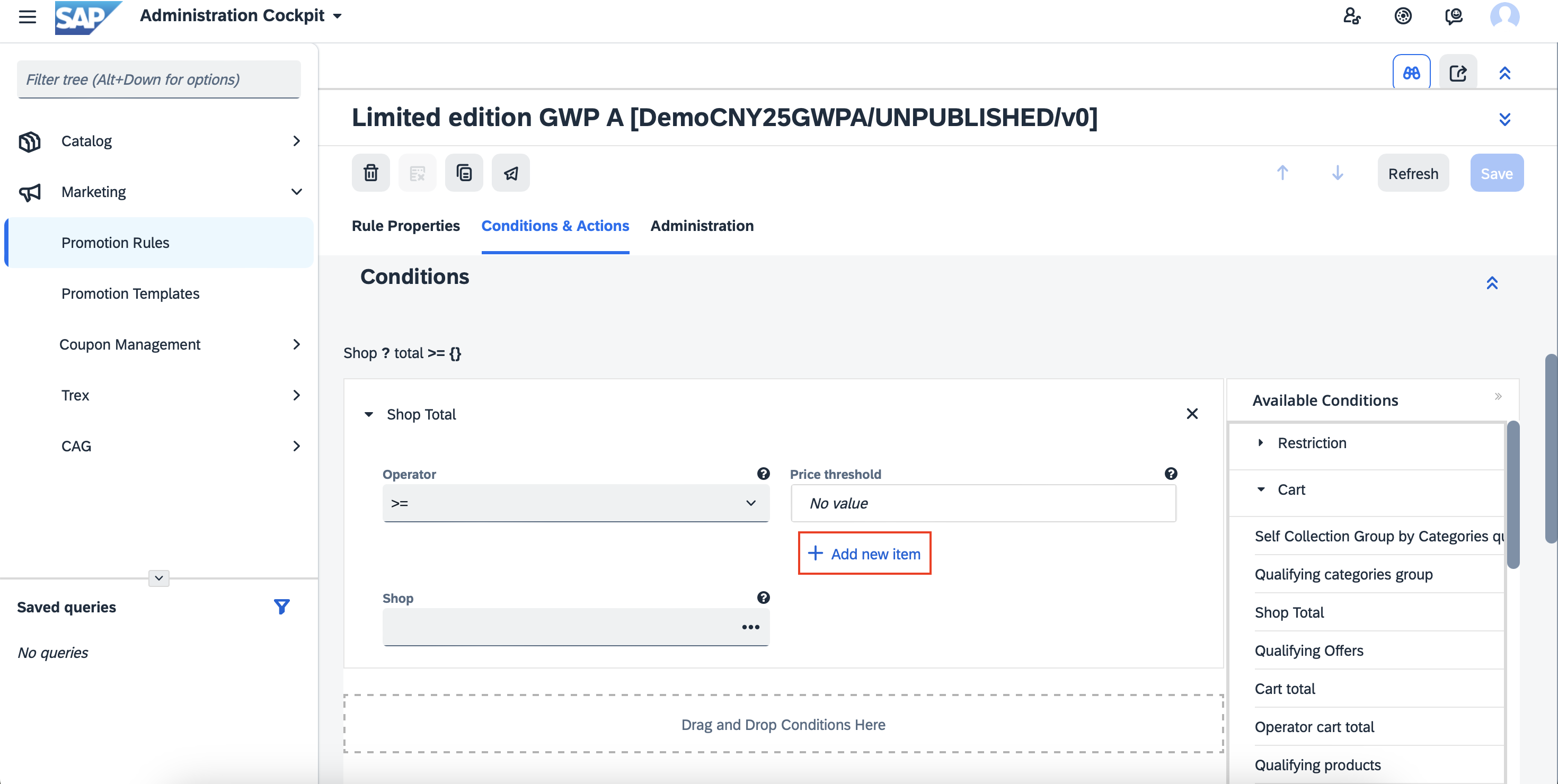
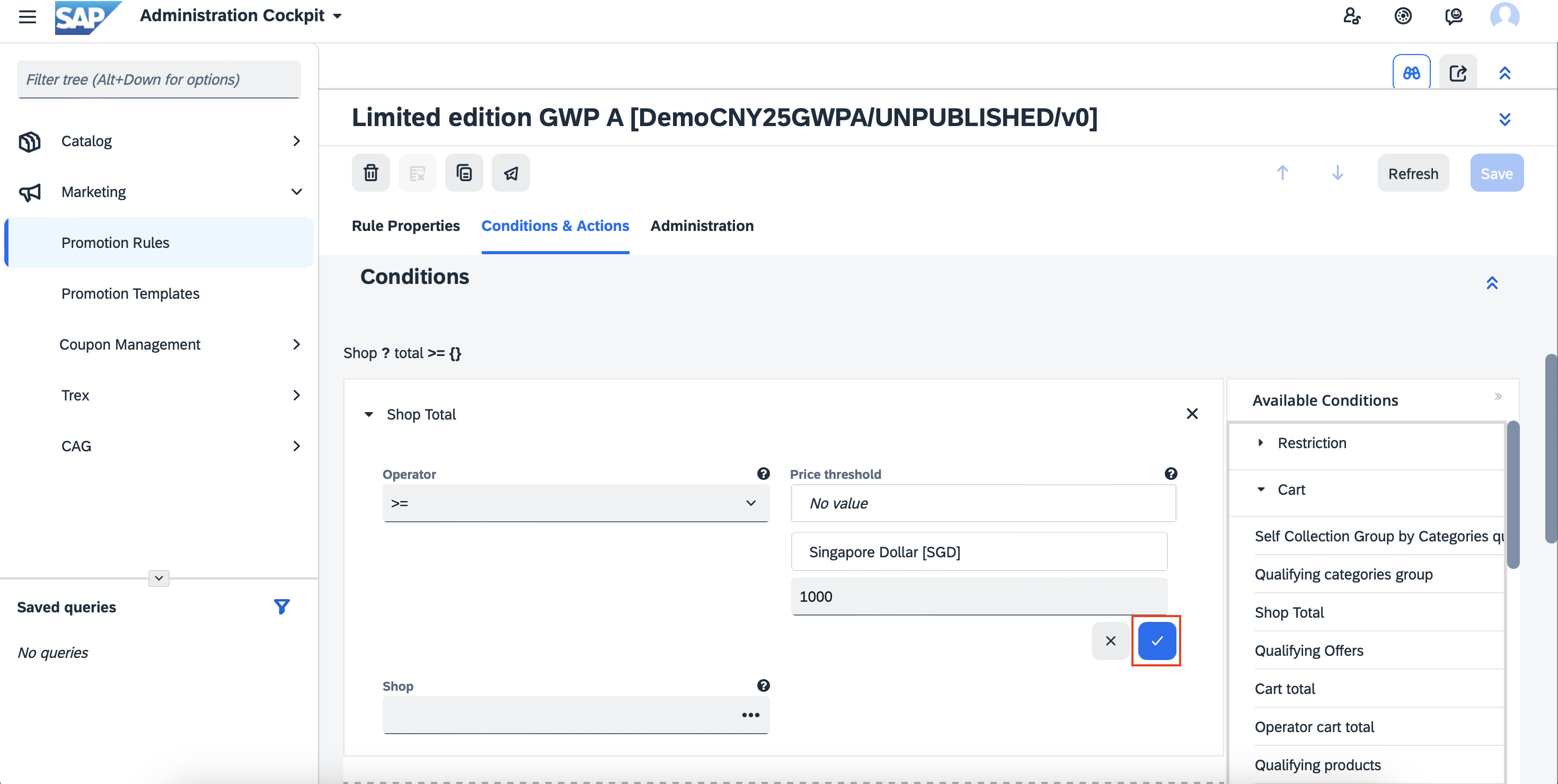
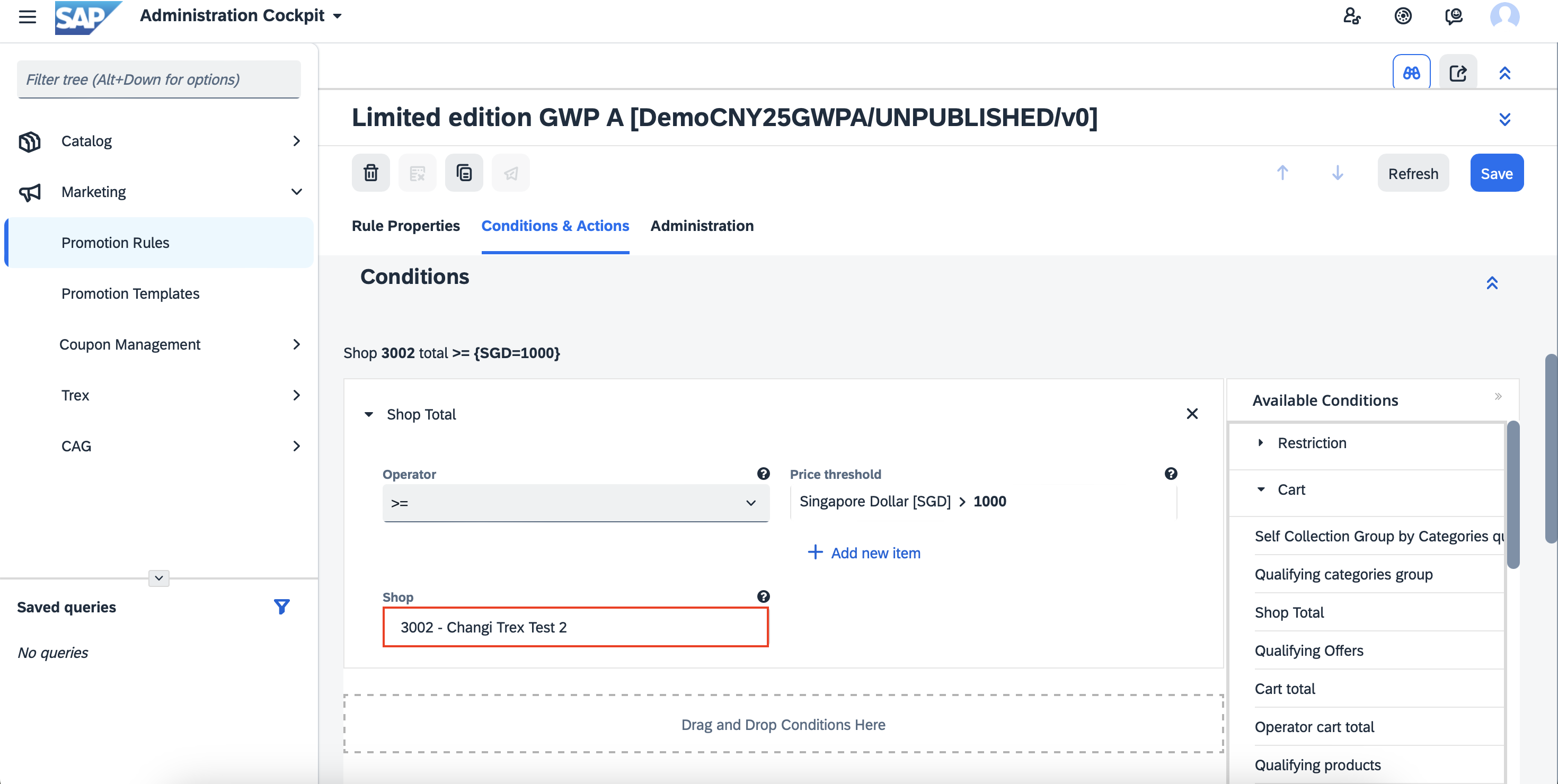
- Conditions: Click into Shop Total. Under Price Threshold, click on + Add new item ➡️ Select the currency and input minimum spend amount. ➡️ ✅ Under Shop ➡️ Select your store.
- *For WeChat Mini Program Applicable merchant only*
If the promotion is for the iSC website only or the WeChat platform only, please add the Qualifying By Channel.
If the promotion is for both the iSC website and the WeChat platform, please ignore this step.
Under Qualifying By Channel condition, click into Channel Type ➡️ select the channel meant for the promotion.
- Actions: Click into Free Gift by Offer. Under Free Offer, key in the mp# of the GWP product to tag and link it to the promotion.
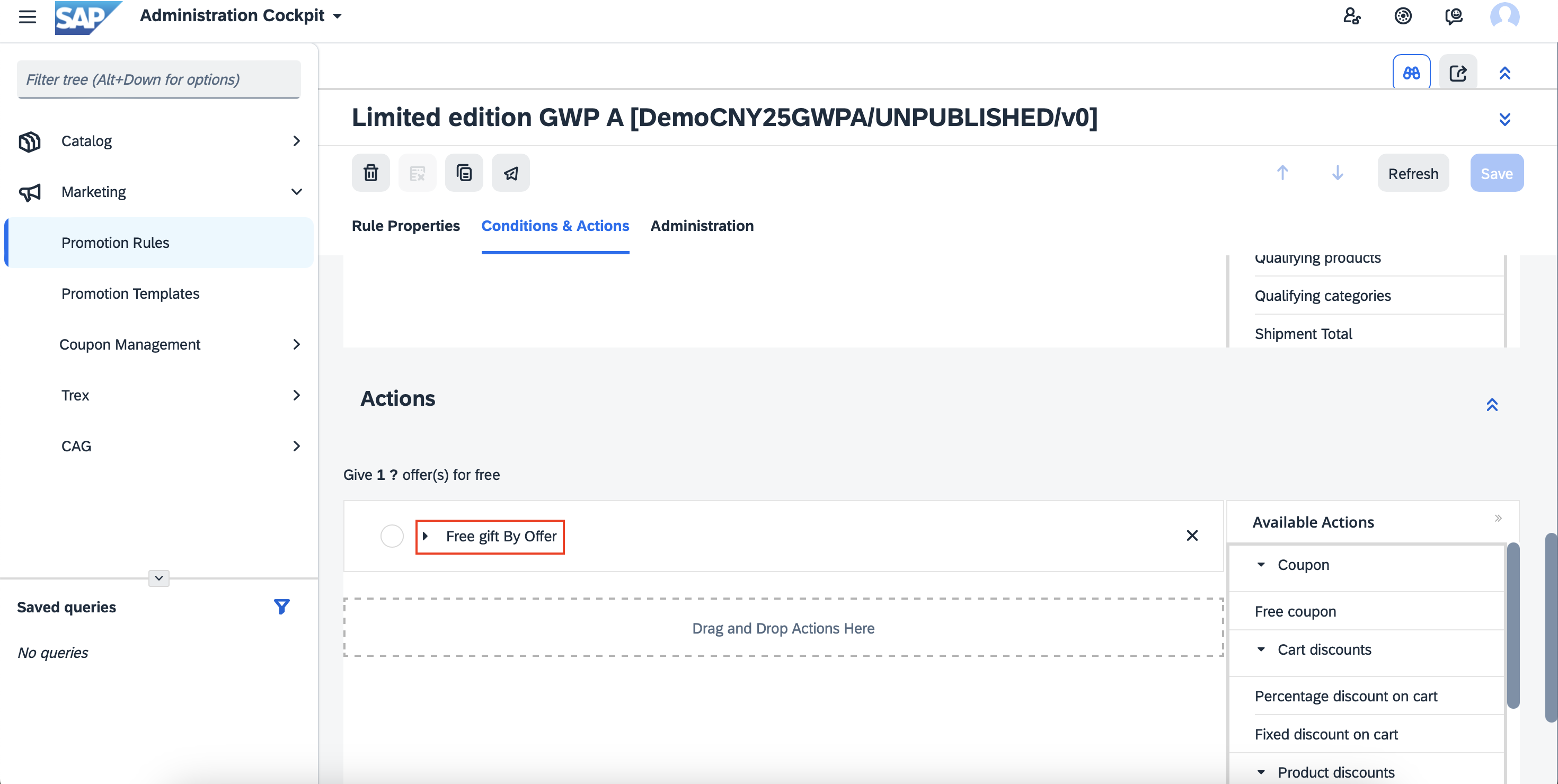
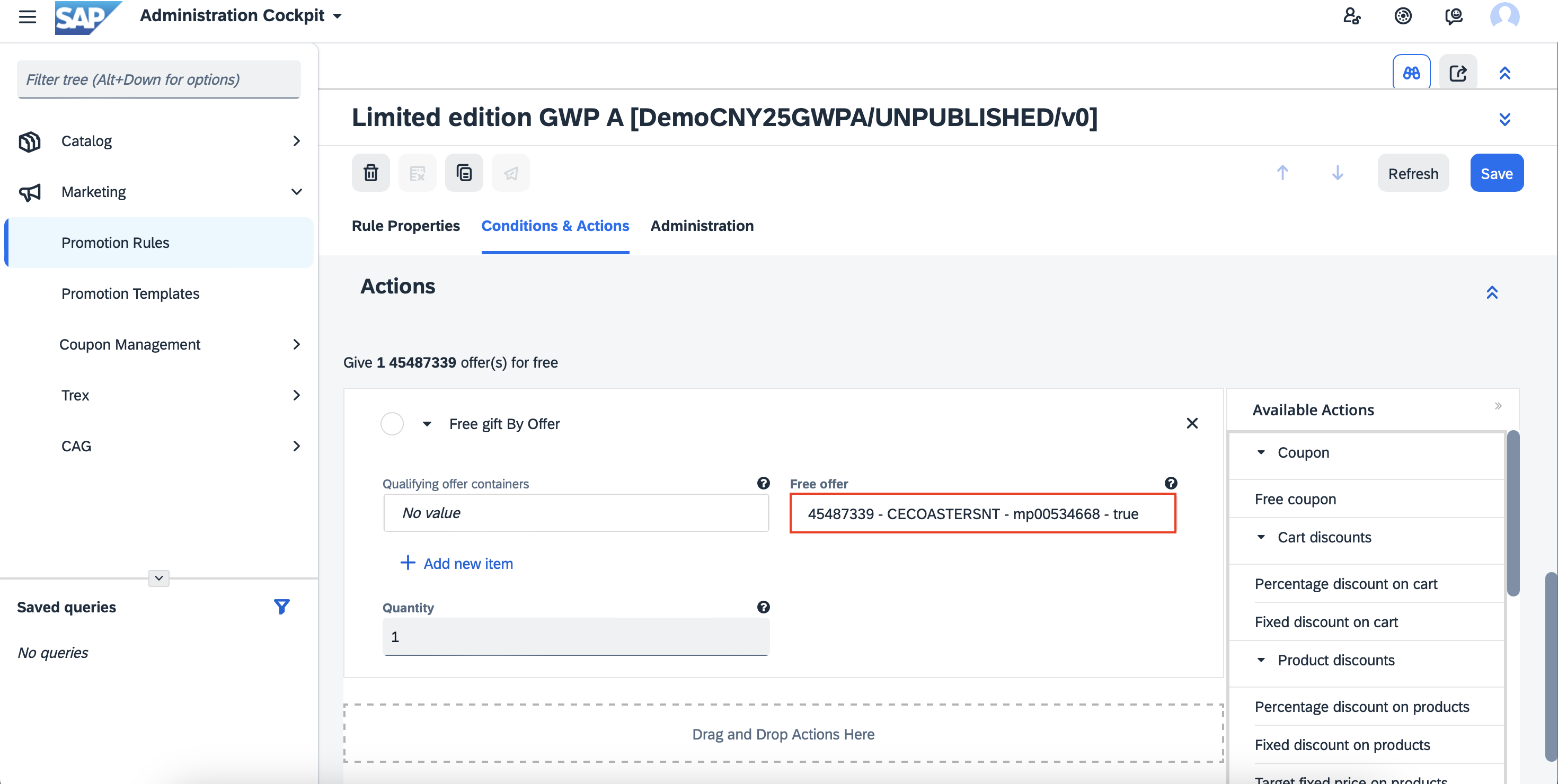 Ensure the product state is true – if it shows false, check that the product has sufficient stock in TREX and that the Available End Date field is blank.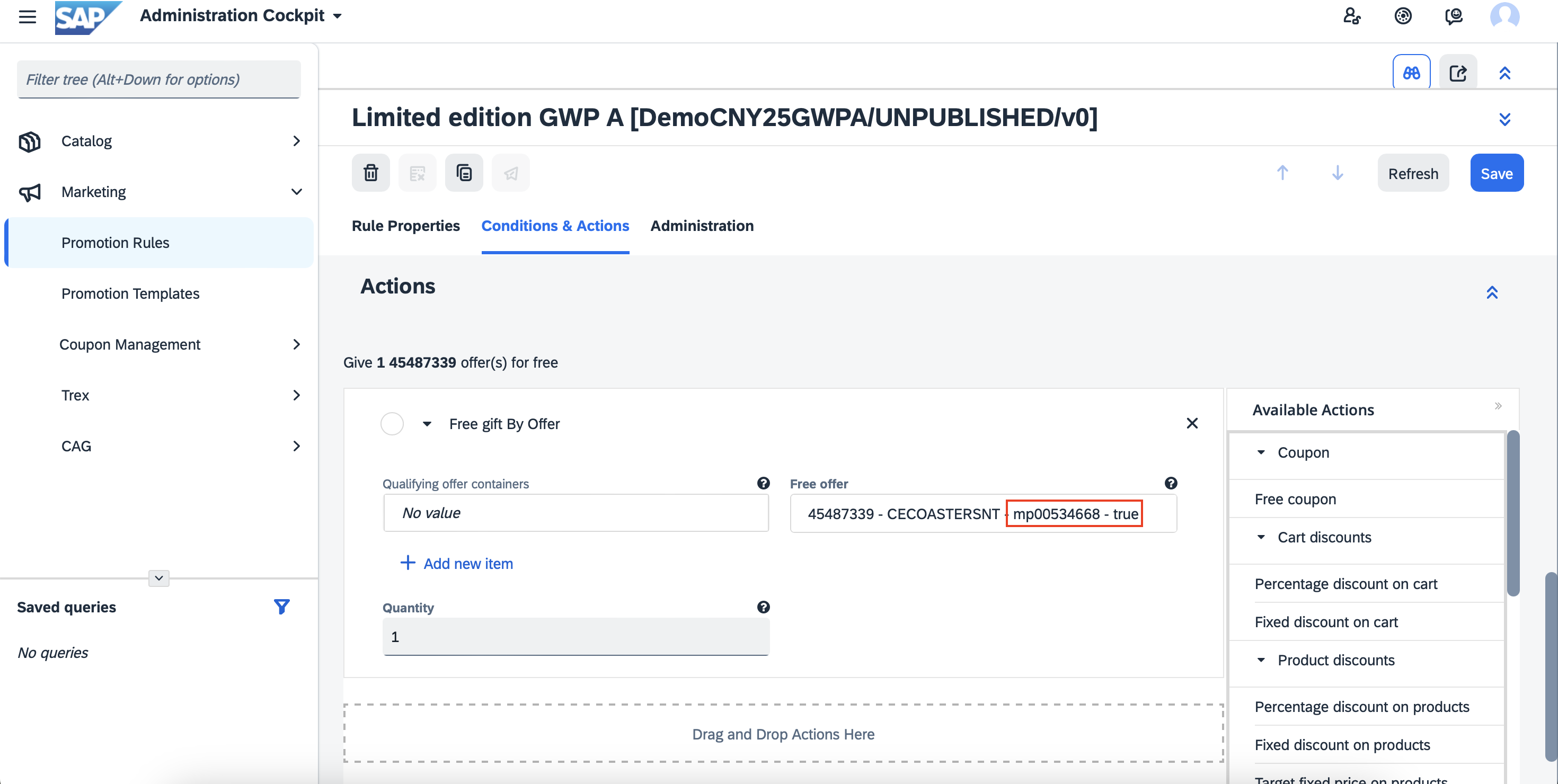
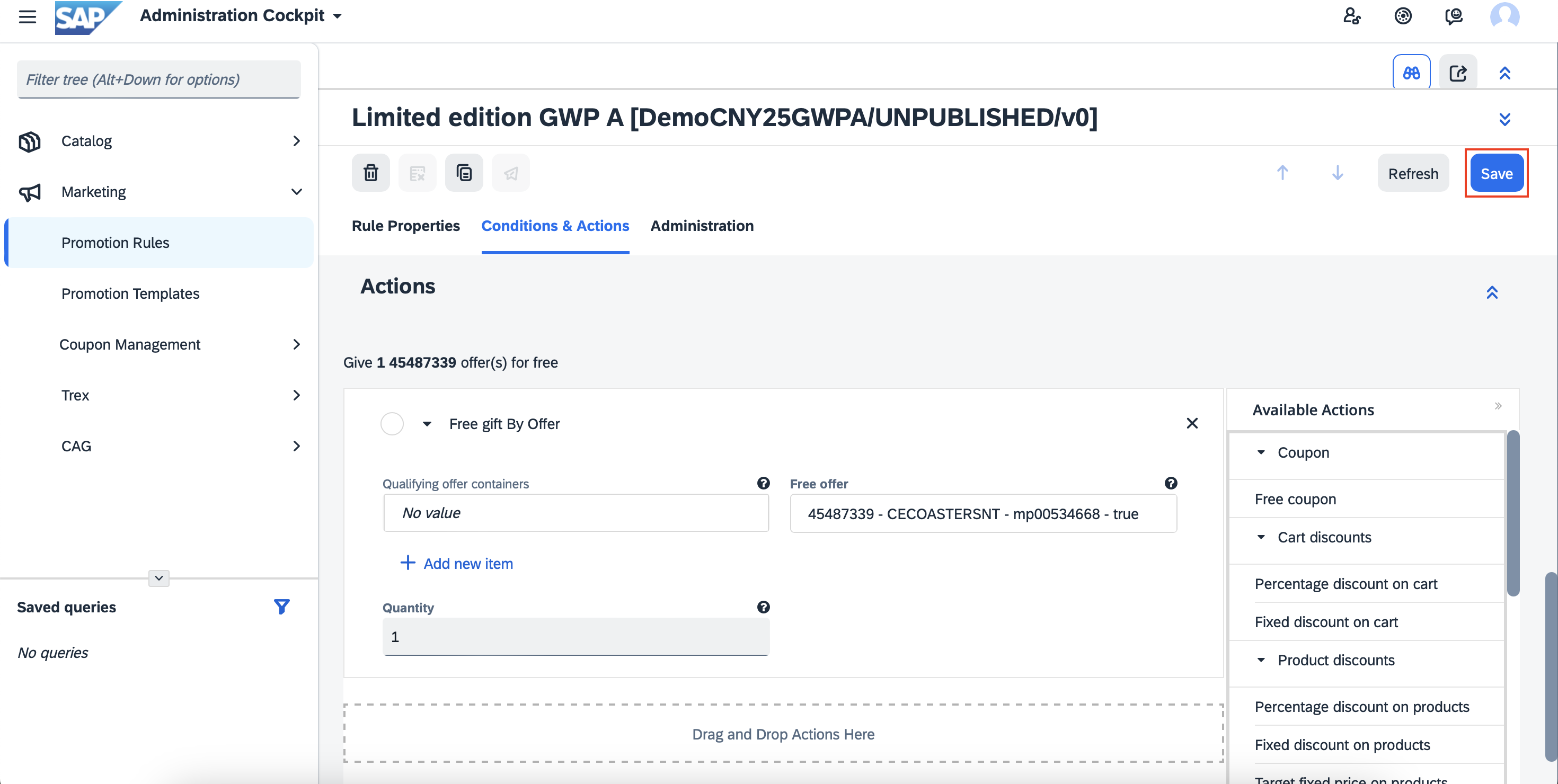
- SAVE ➡️ PUBLISH

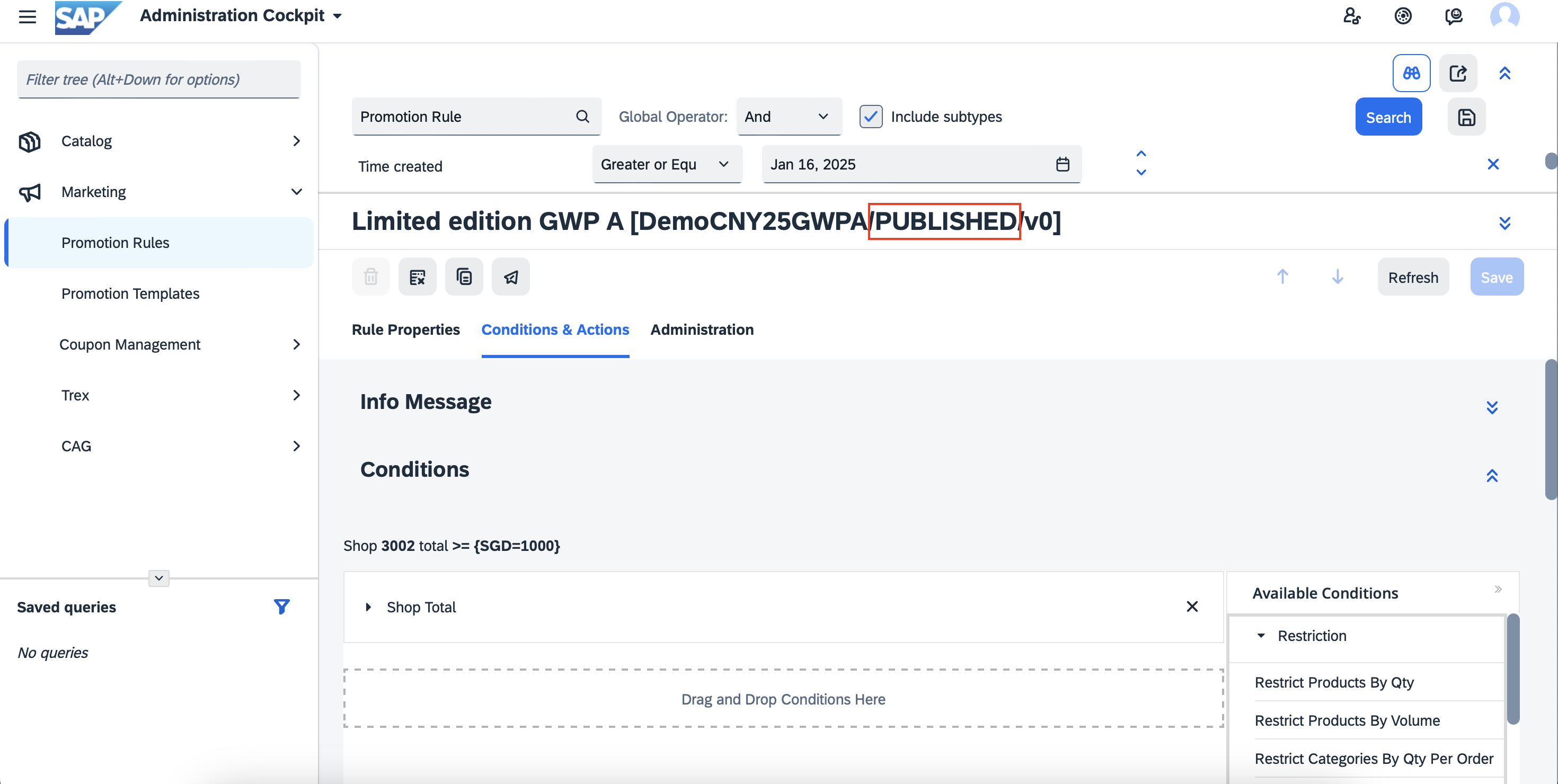
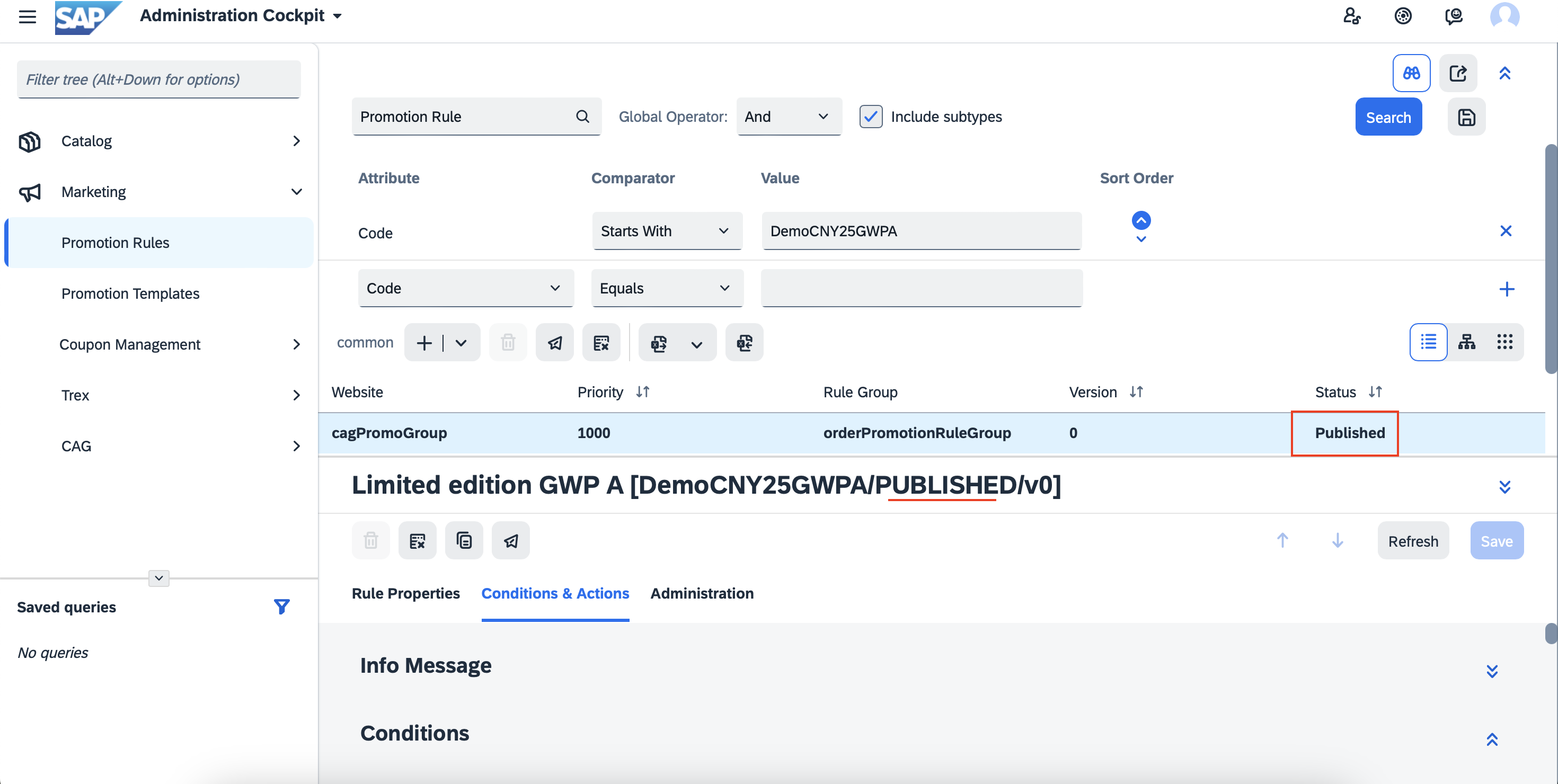
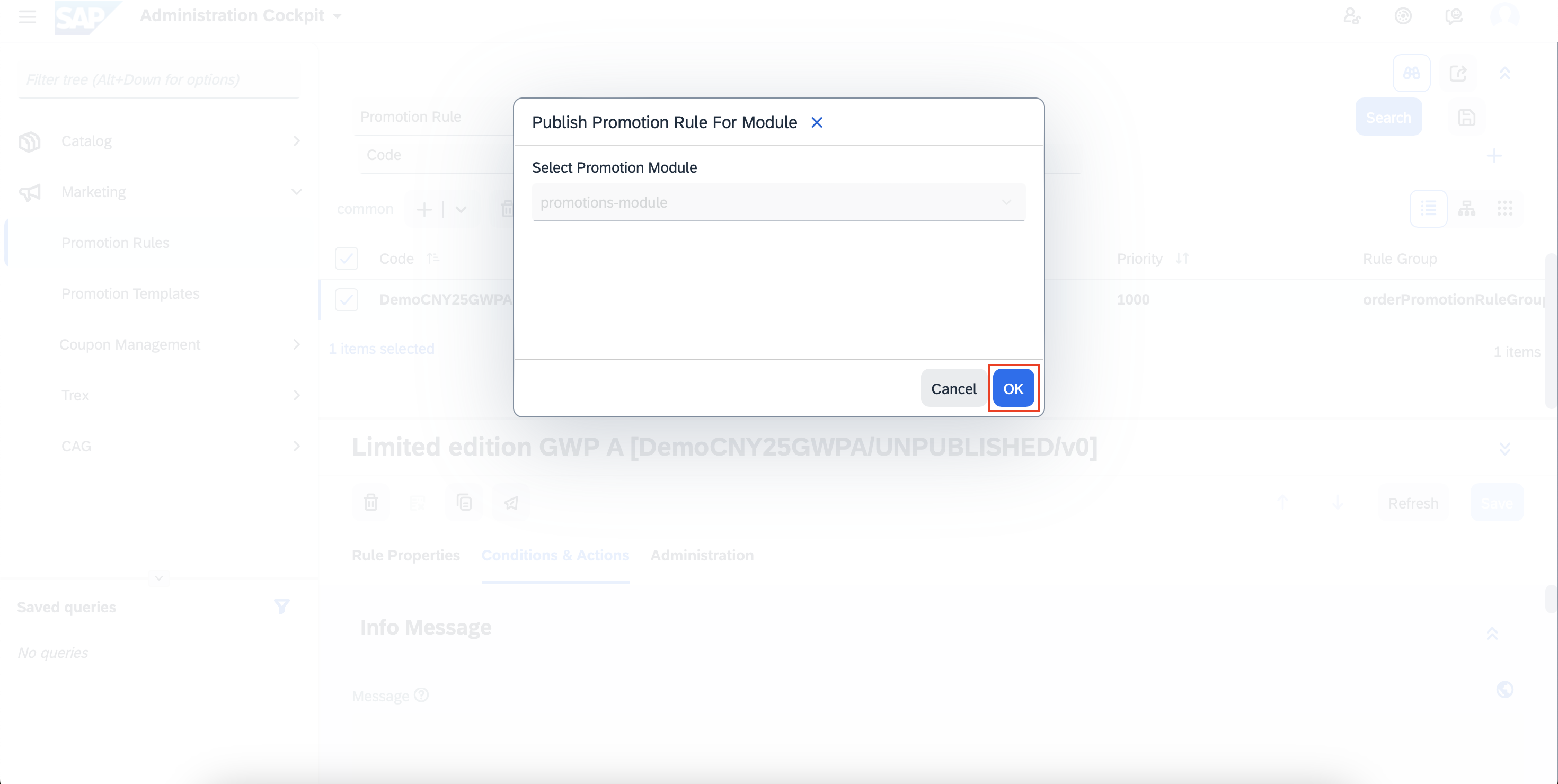 Check the status of the promotion and see if it is Published.