

CAG3PL Mode - HOME DEL
💡 NCXXXXXXXX/ NSXXXXXXXX – A Home Delivery Order placed by a Non-Traveller
💡 HCXXXXXXXX/ HSXXXXXXXX – A Home Delivery Order placed by a Traveller
⚠️ For HCXXXXXXXX/ HSXXXXXXXX orders, please ensure that the order is delivered after Flight Date/ Time.
⚠️ Orders that have not been processed within 5 days of the order date will be automatically cancelled.
Processing the order on Mirakl
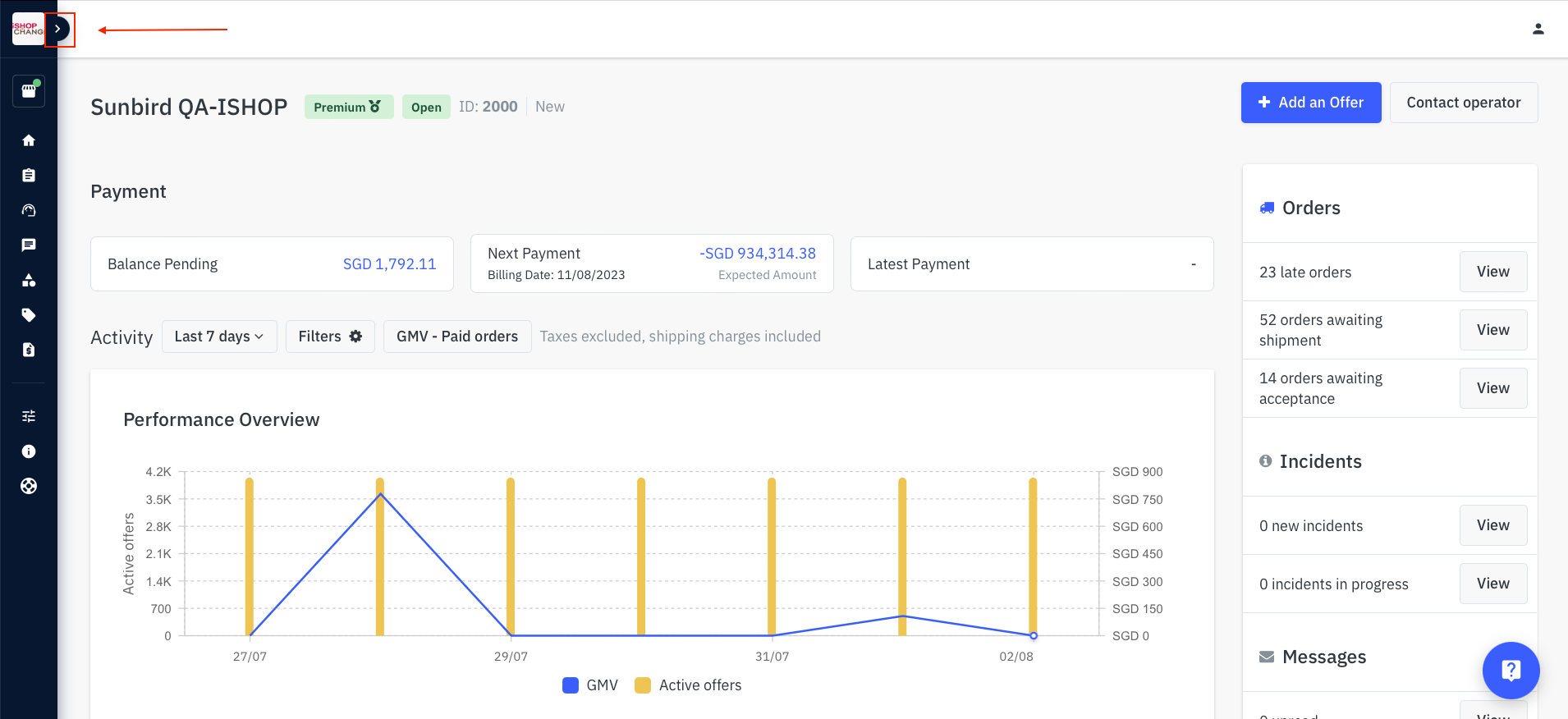
- Expand the sidebar on the left-hand side
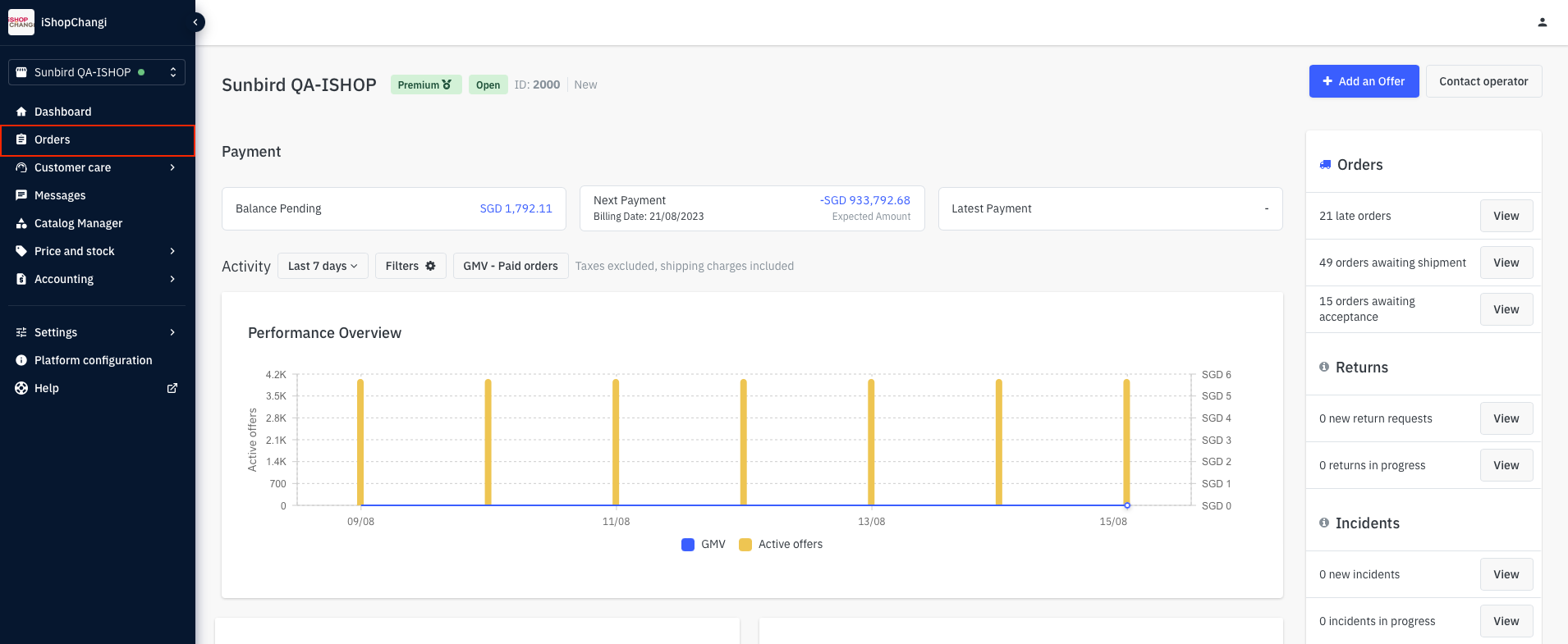
- My Orders
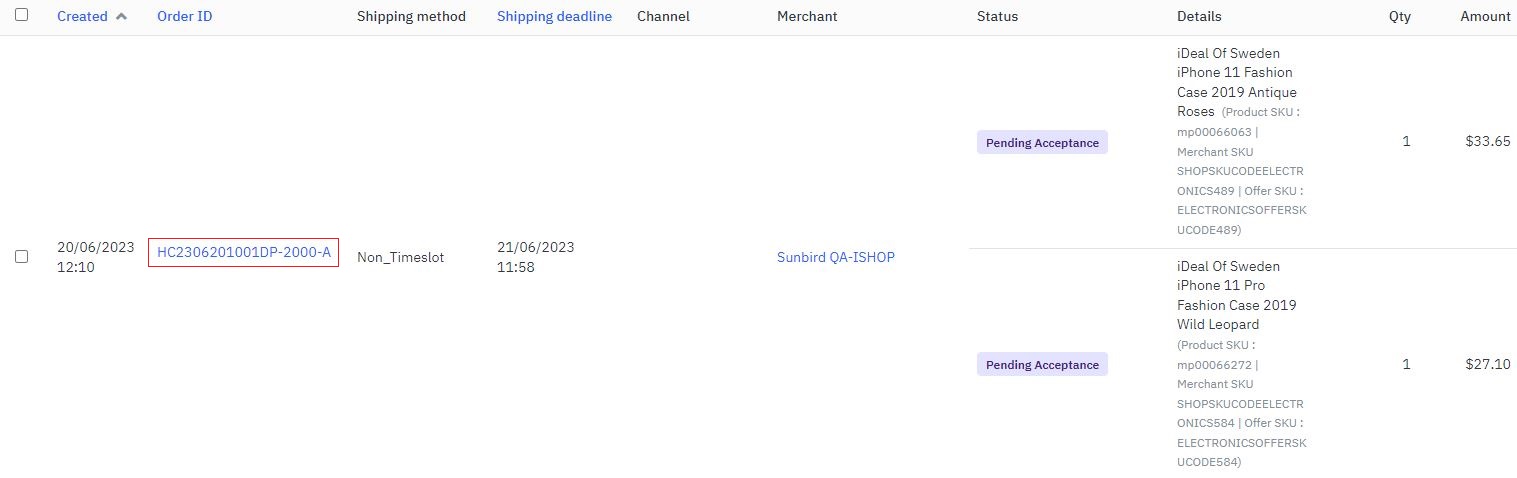
- Under All Orders, look at orders with the status Pending Acceptance ➡️ Click on the Order ID
- Ensure that your stock level is sufficient to fulfil the order.
For each SKU, ☑ tick the checkbox on the left ➡️ click on Accept to proceed with order.
⚠️ If the checkbox is not ticked when Accept is clicked, SKUs that were not selected (not ticked) will be rejected.
⚠️ If the order has 2 quantities of the same product but you only have 1 quantity left. Please click on Accept first. You may proceed to do a Partial Refund later.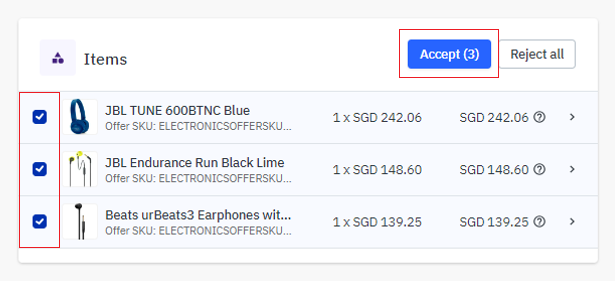
💡 Order status will automatically change from Pending Acceptance ➡️ Debit in progress ➡️ Awaiting Shipment.
Please refresh the page if unable to see the change.
⛔ Please do not click Marked as shipped 🙅 - Pack the order into an appropriate number of carton box(es) and ensure sufficient packaging materials are used.
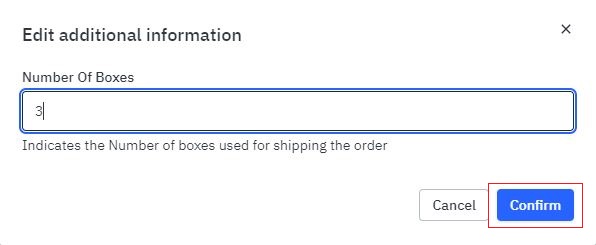
Click into Number of Boxes ➡️ click on the pencil icon✏️ to update the corresponding number of carton boxes (Default is set to 1 box) ➡️ Confirm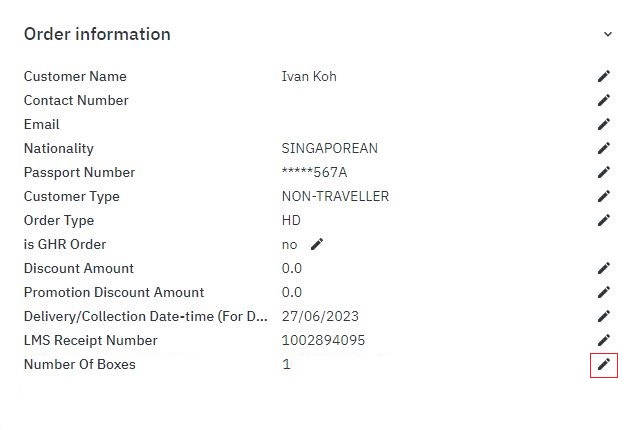
- Before you proceed with the next step, please take note of the following.
⚠️ IMPORTANT: For HCXXXXXXXX/ HSXXXXXXXX orders, please ensure that the order is delivered after Flight Date/ Time.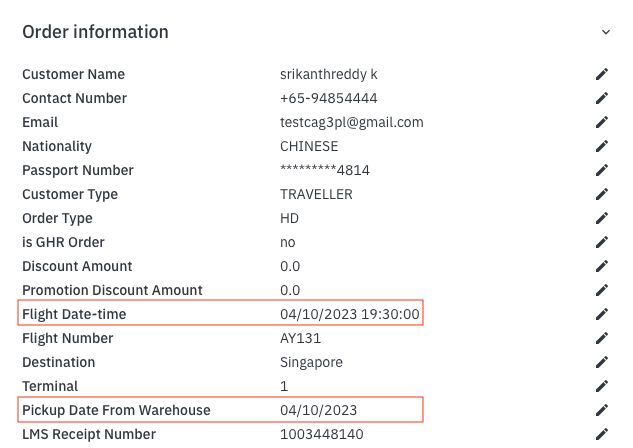
- At the top right corner of the page, click on More Actions➡️ Custom field ➡️ Pickup Date from Warehouse.
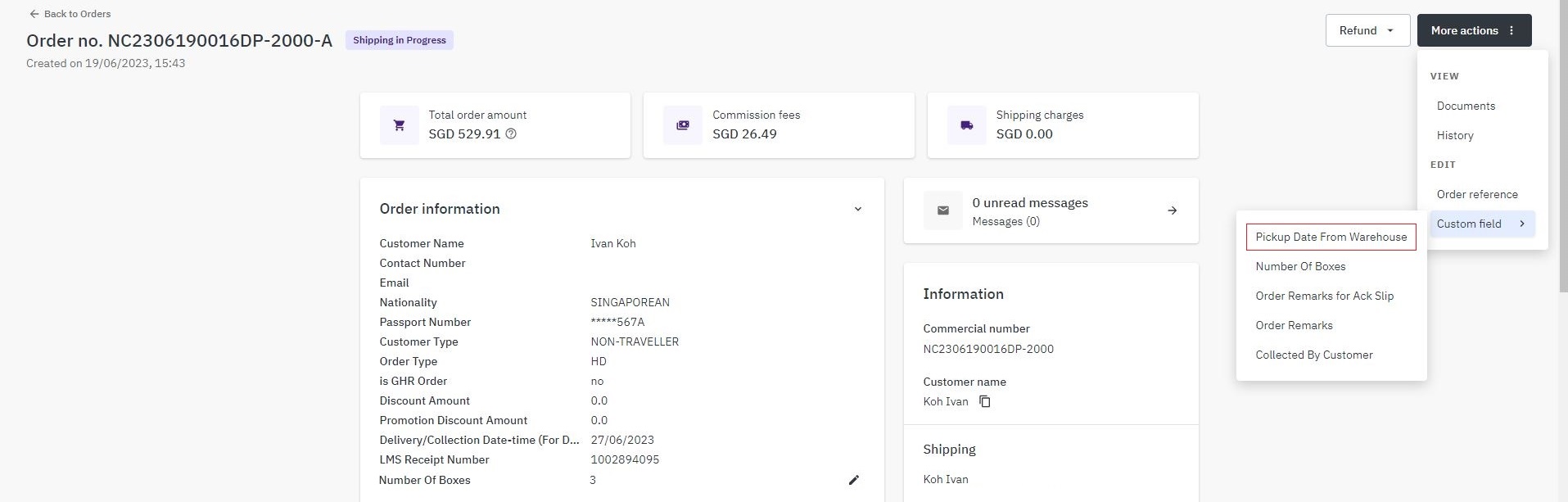 Select the pickup date (Ninjavan will arrive at your Ops Warehouse to pick up the order) ⛔ Please do not click Marked as shipped
🙅💡 Note: The pickup date will appear under the Additional Information section. Please note Ninjavan does not pick up on Sundays and Public Holidays)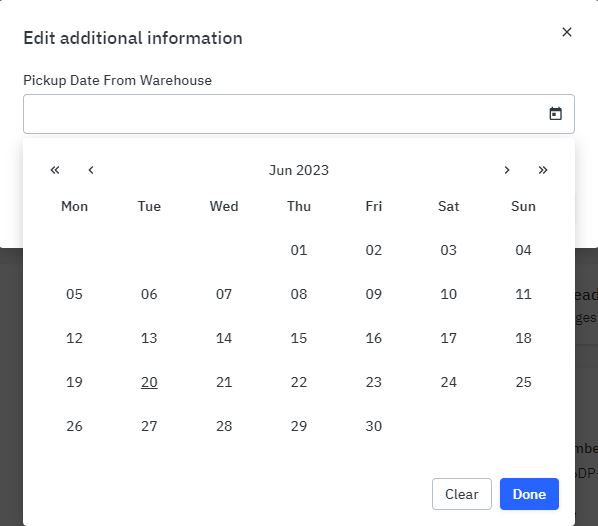
- To track the order status, you may click on the Tracking URL on the order page. This will redirect you to Ninjavan’s tracking page. ⛔ Please do not click Mark as shipped🙅
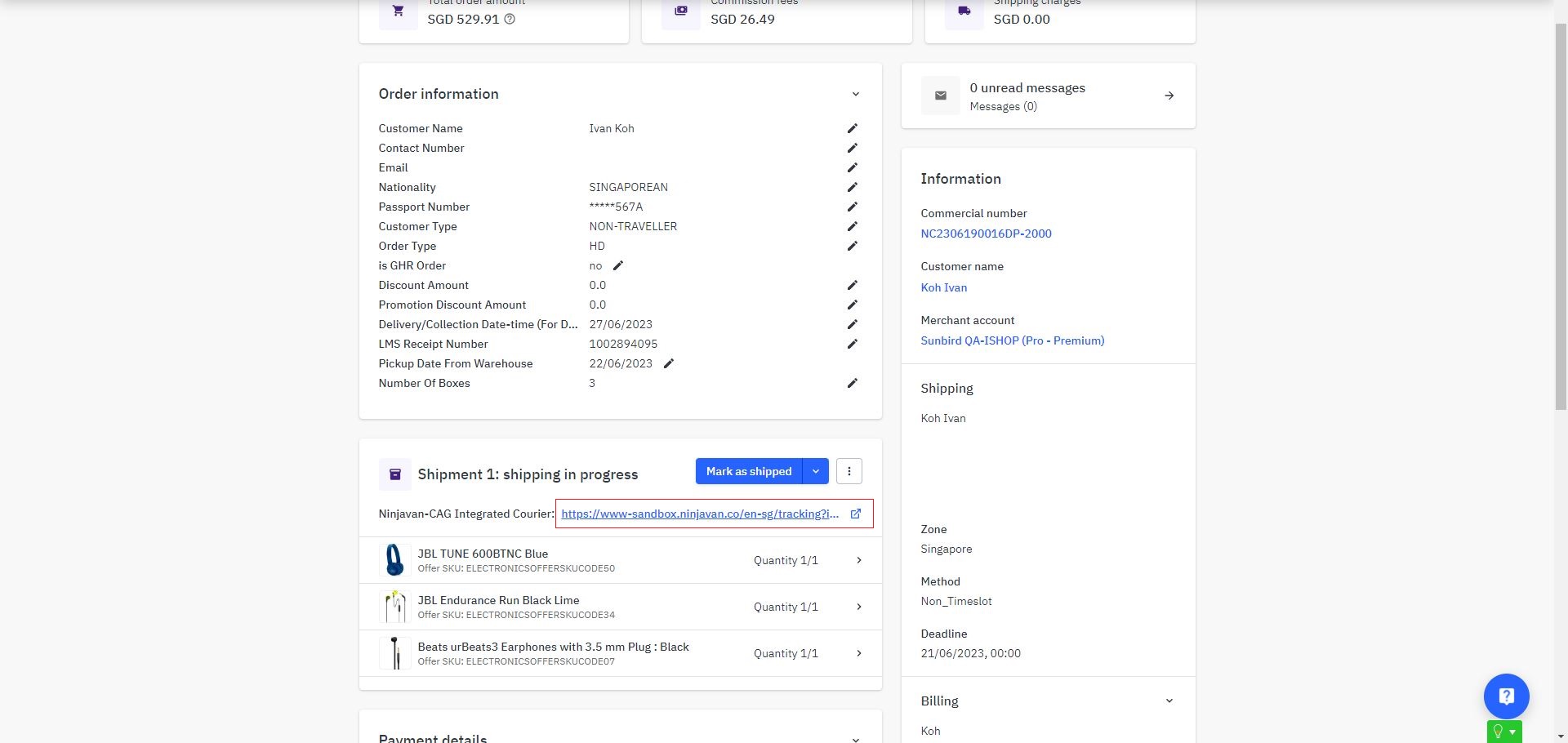
- Ensure all parcels are packed and ready to be picked up. Hand parcel(s) over to Ninjavan on the selected pick-up date.
💡 Order Status will change from Awaiting Shipment ➡️ Shipped automatically once Ninjavan scans the parcel during the handover. 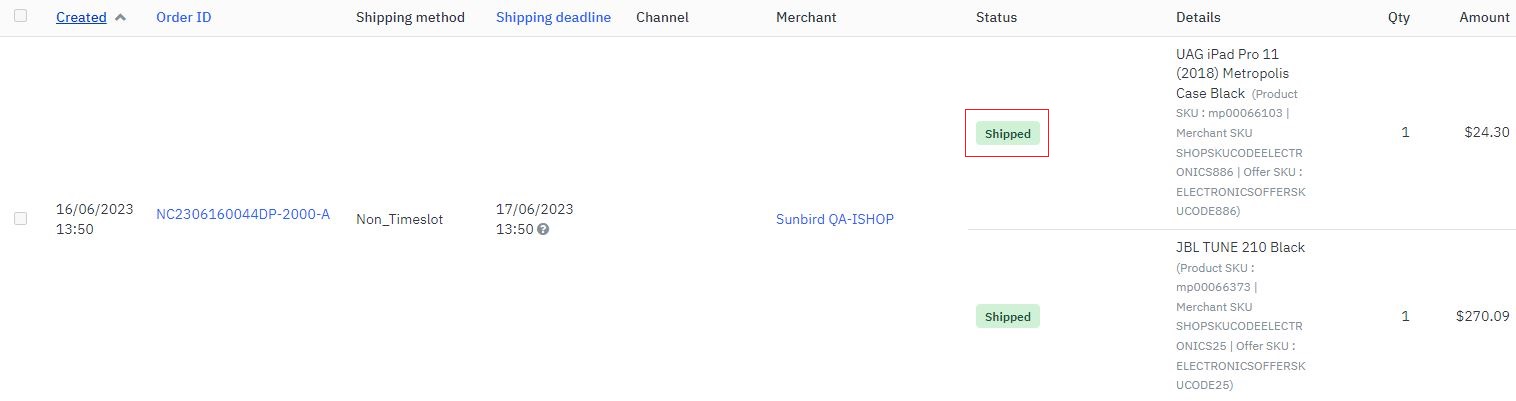 Order status will change from Shipped ➡️ Received once parcel is delivered by Ninjavan