
DM3PL Mode - HOME DEL
💡 NCXXXXXXXX/ NSXXXXXXXX – A Home Delivery Order placed by a Non-Traveller
💡 HCXXXXXXXX/ HSXXXXXXXX – A Home Delivery Order placed by a Traveller
⚠️ IMPORTANT: For HCXXXXXXXX/ HSXXXXXXXX orders, please ensure that the order is delivered after Flight Date/ Time.
Processing the order on Mirakl
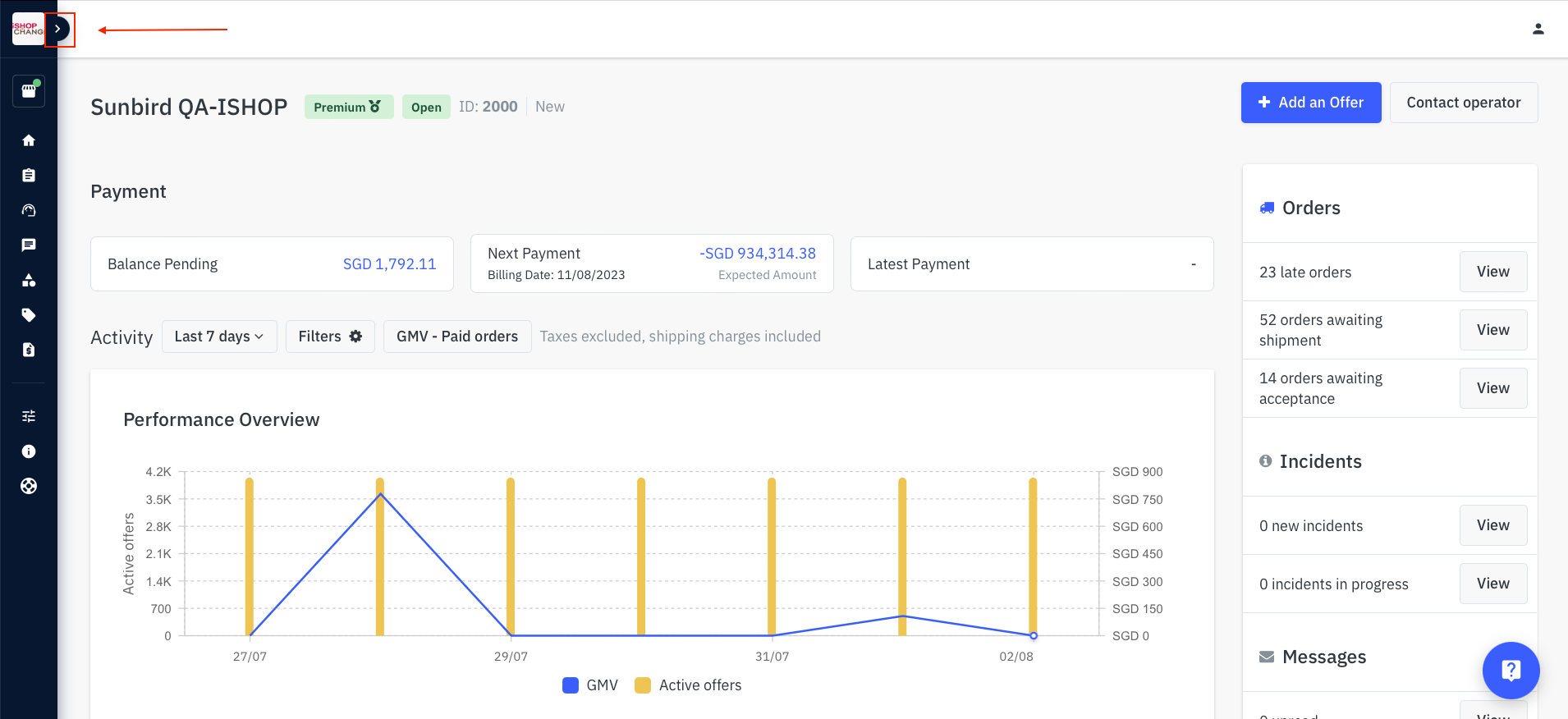
- Expand the sidebar on the left-hand side
- My Orders
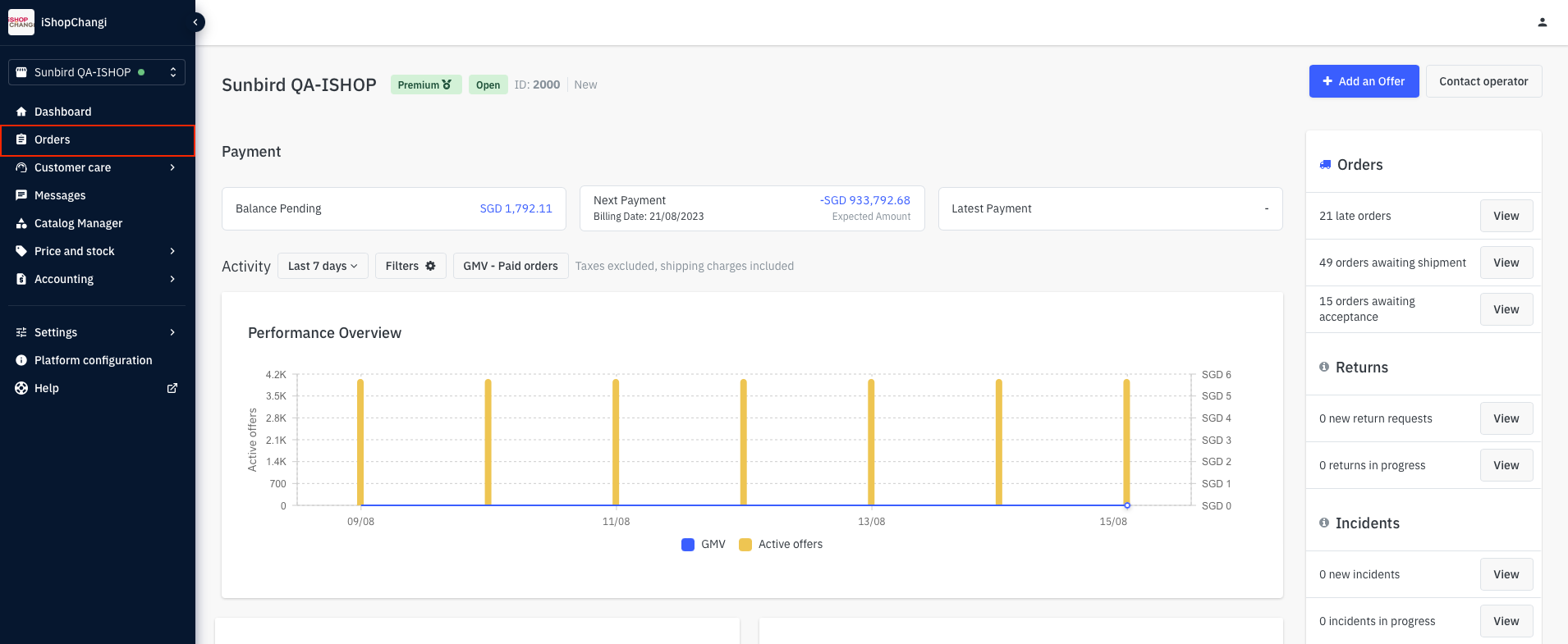
- Click into a Home Delivery order
- Before you proceed with the next step, please take note of the following.
⚠️ IMPORTANT: For HCXXXXXXXX/ HSXXXXXXXX orders, please ensure that the order is delivered after Flight Date/ Time.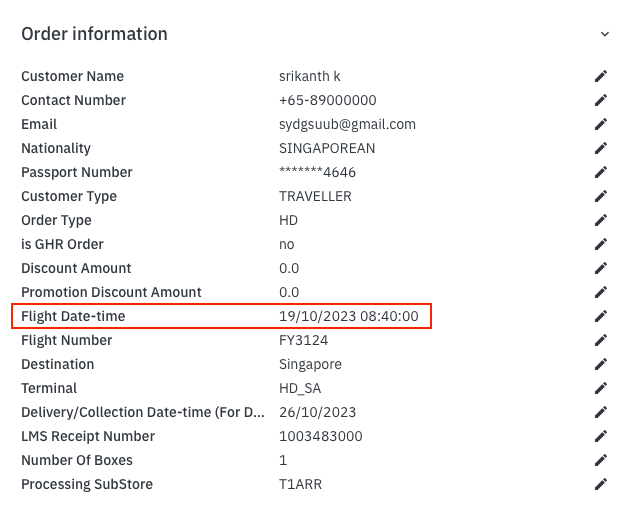
- In the Details Tab, check the Delivery Date.💡This is the latest date that the order should reach the customer.
- Click on the 3 dot icon next to the Refund button. You will be indicating the Order Remarks for Ack Slip (if any) and generating the Acknowledgement Slip here.
 Input the remarks (if any)➡️ Once done, click Confirm.💡Order Remarks will appear at the bottom of the Additional Information section. If you would like to make changes, click on the pen icon to edit. You may do so when the order status is still Shipping in Progress.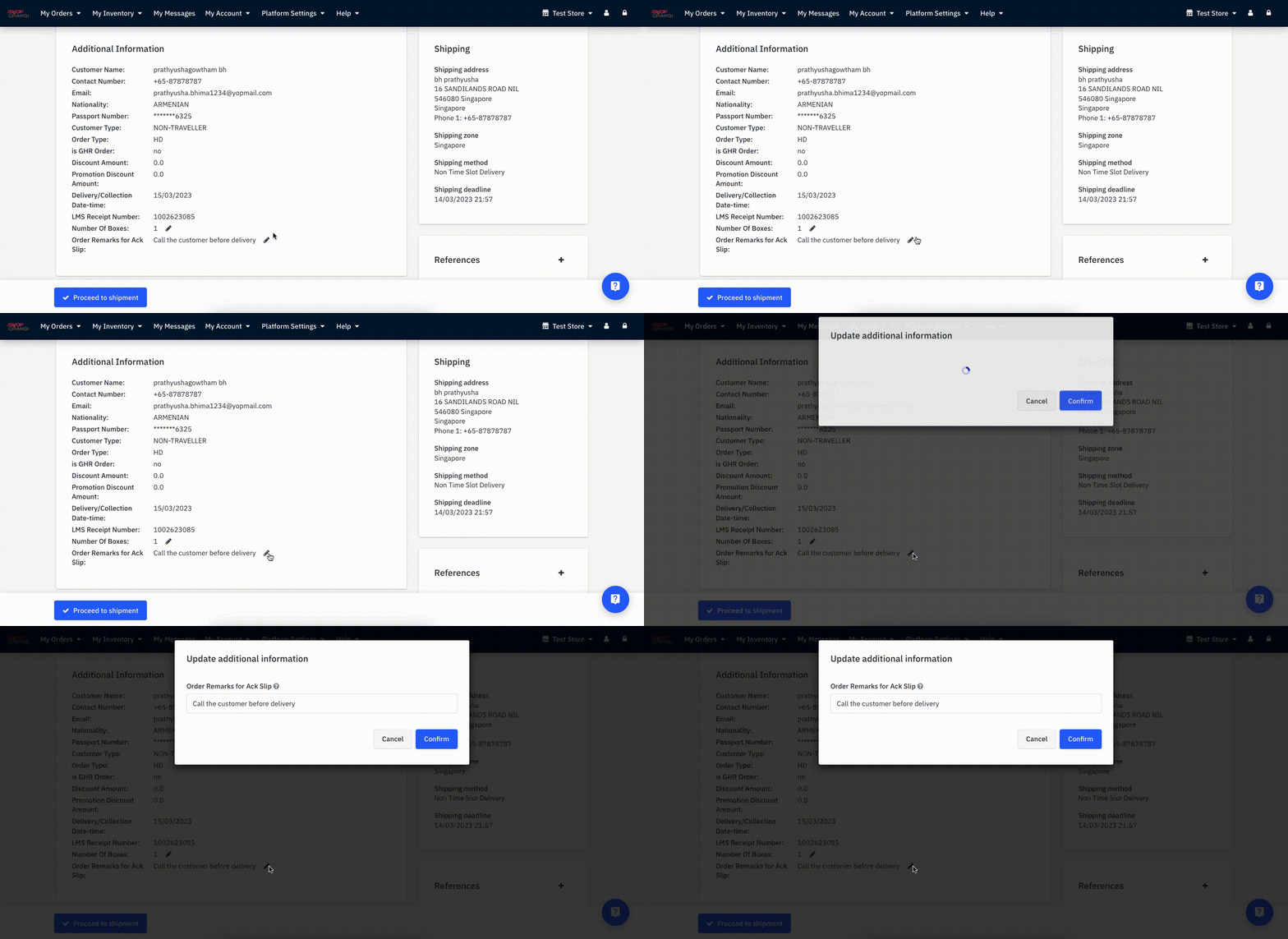
- Click on the 3 dot icon on the top right hand corner again. Select the Acknowledgement Slip. Click Yes and Confirm. If you would like to make changes, click on the pen icon 🖊️ to edit. 💡 You can edit this if the order status is Shipping in Progress.
- In the Details Tab, identify the item(s) purchased and verify if you are able to fulfill the order.
⚠️ If unable to fulfil the order, please see these tutorials on how to proceed with a full or partial refund. - If able to fulfill the order➡️ Click on Proceed to Shipment

- In the Shipment tab under Carrier ➡️ select Other
- Under Name ➡️ input relevant carrier. If using your own fleet, input Merchant Own Fleet. If using a logistics partner, you can include their name e.g. UPS
- (If applicable) input Tracking number and Tracking URL.
- Confirm order shipment to generate order-related documents
 Status will be changed to Shipped