Home
»
© How to generate an image url for your Shop Logo
- Create a Publitio Account.

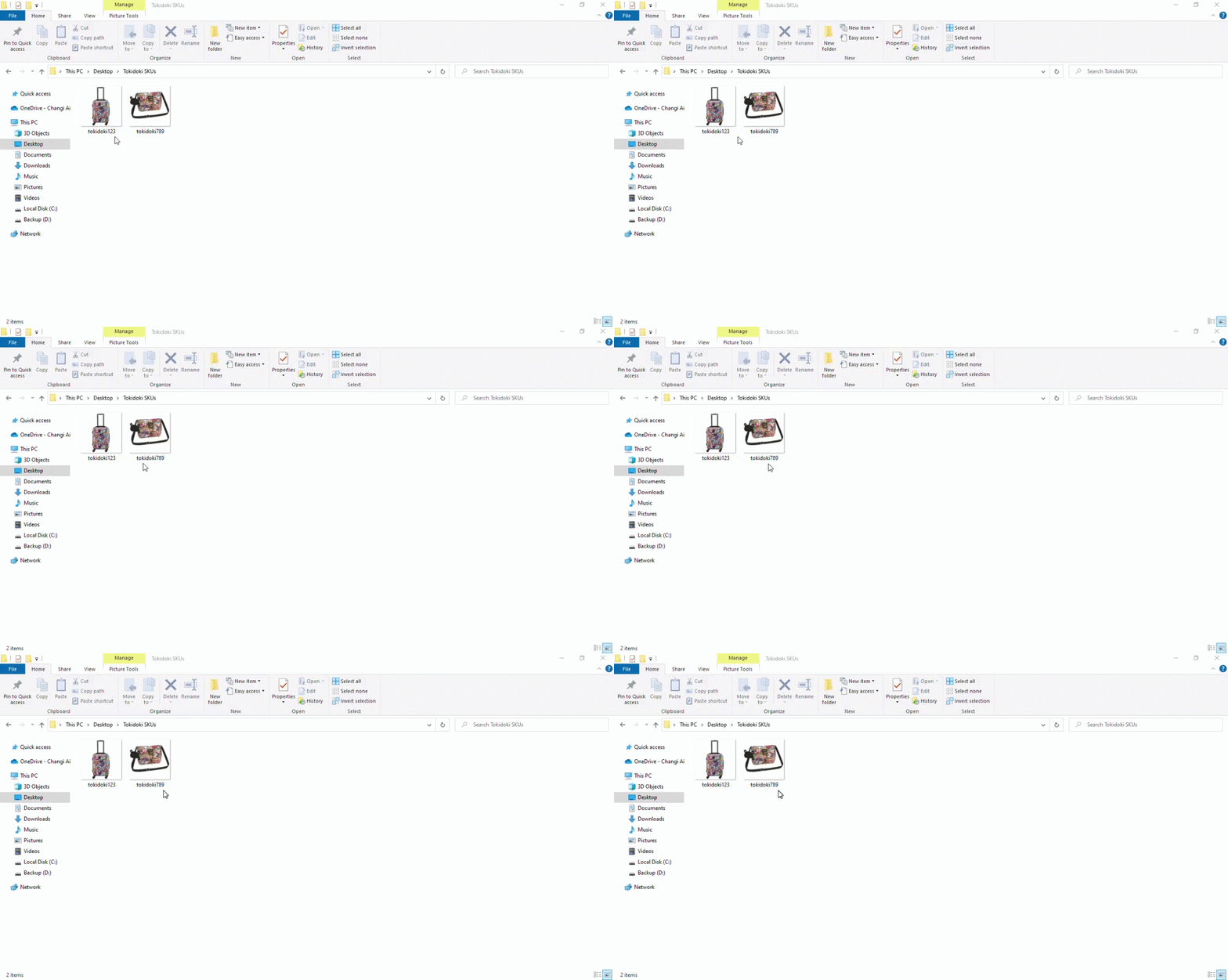
- Rename all the images you intend to upload according to their PLU Code. Consolidate these images on a folder on your Desktop.
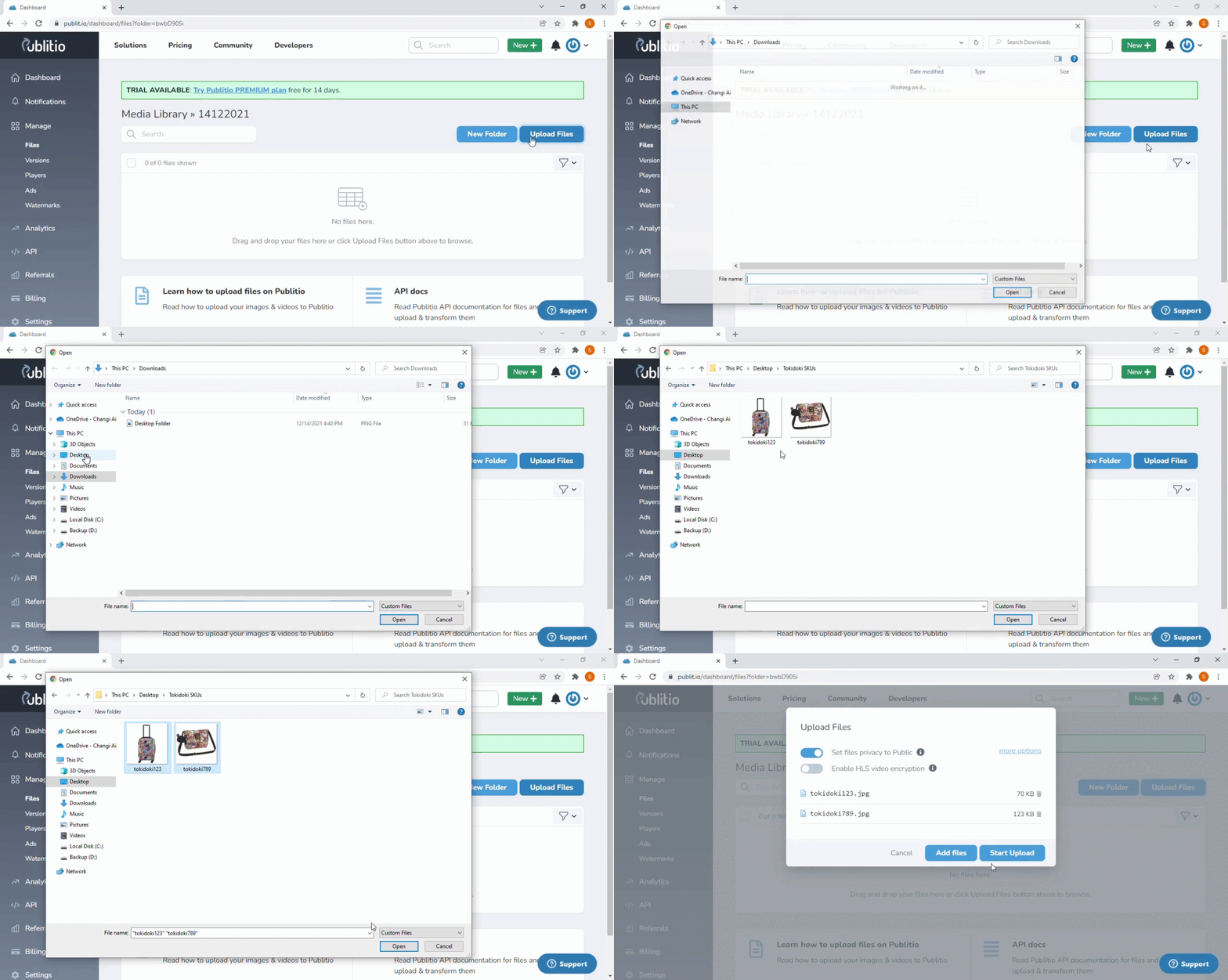
- Click New+ ➡️ Upload File ➡️ New Folder💡 Name the New Folder e.g. 09122020 (Date of Upload) for easy reference

- Upload Files ➡️ Start Upload
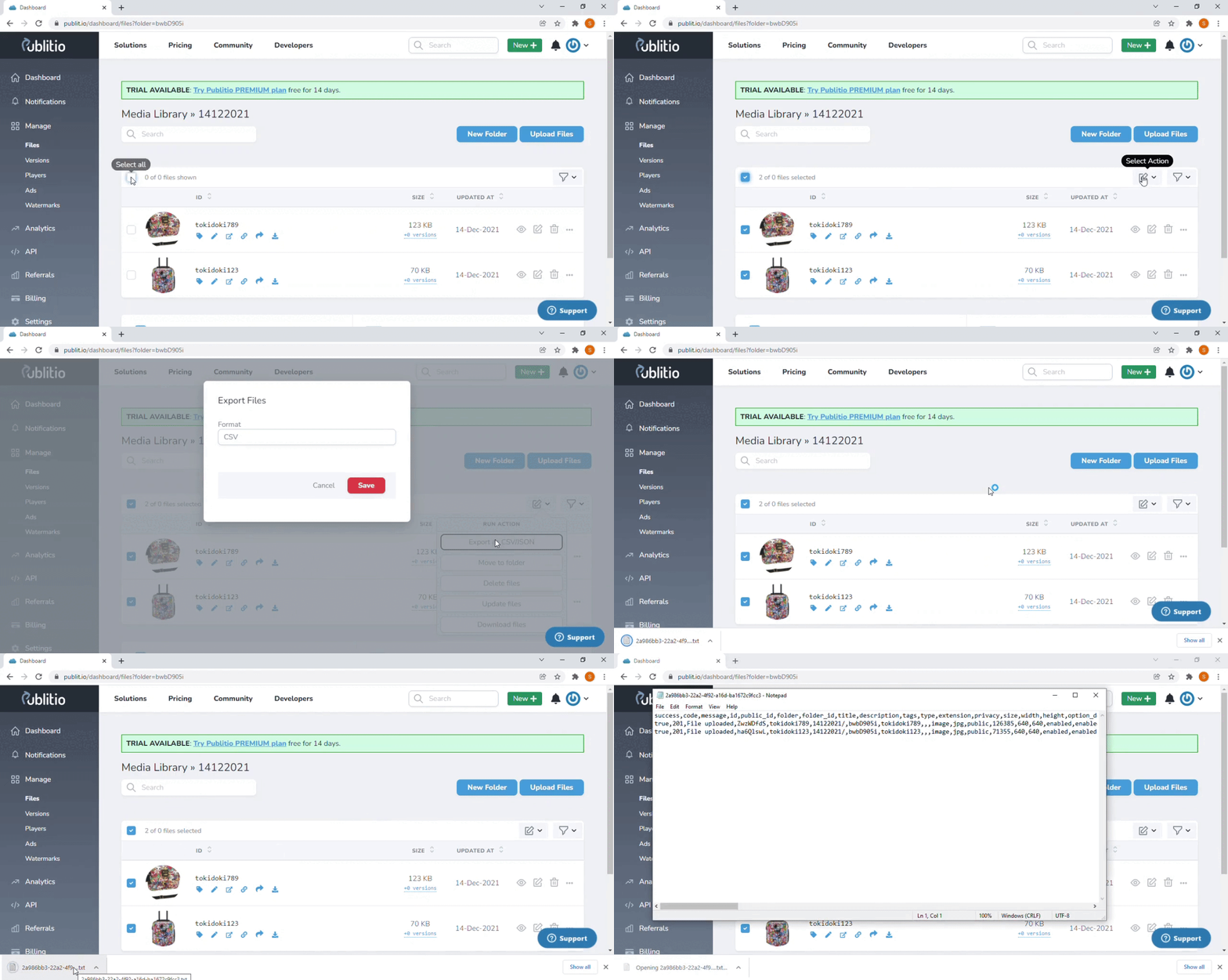
- Select All by clicking on the checkbox ➡️ Export as CSV/ JSON ➡️ CSV ➡️ 💾 Save
- Copy the code from the Text File to your Bulk Upload Template
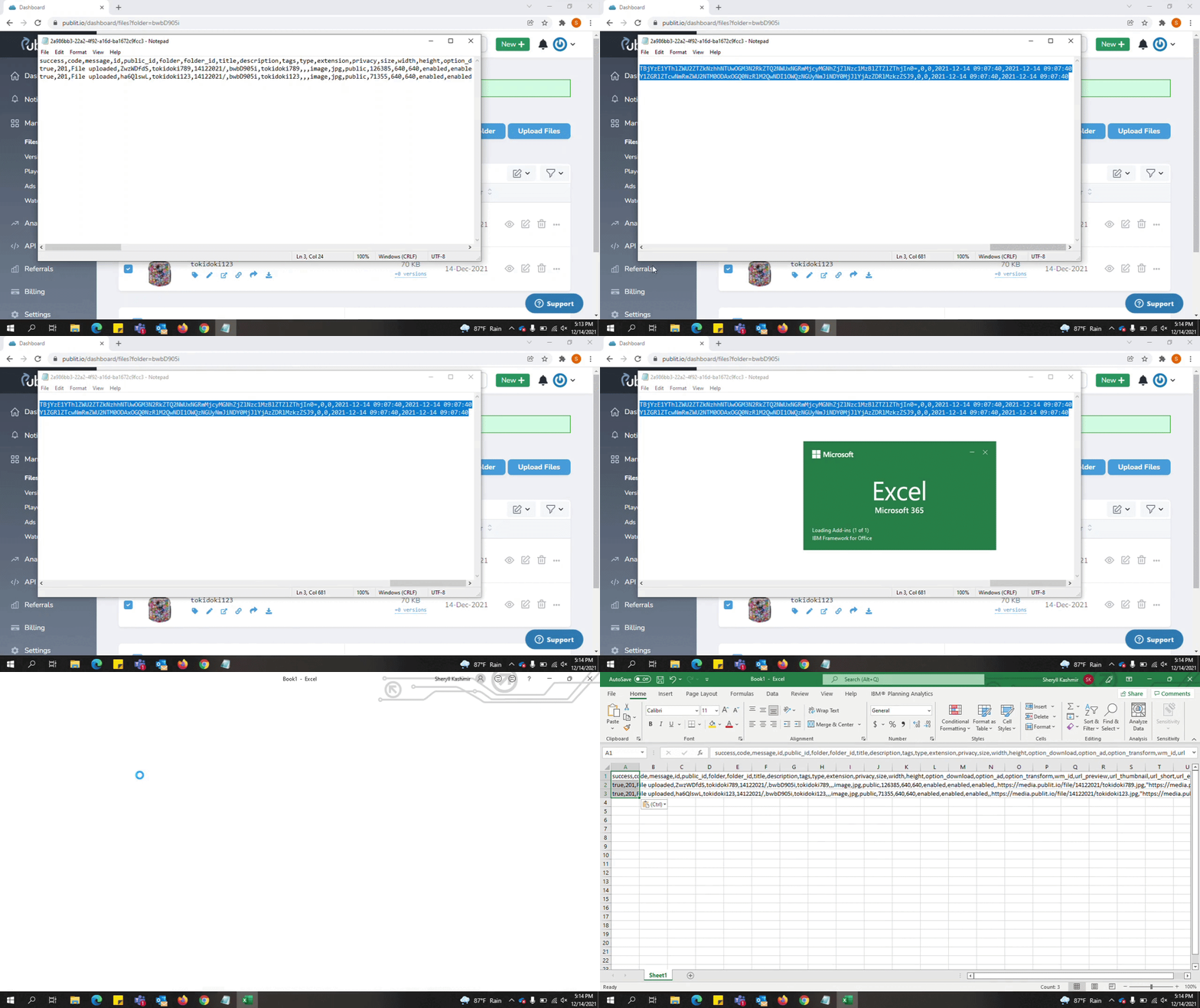
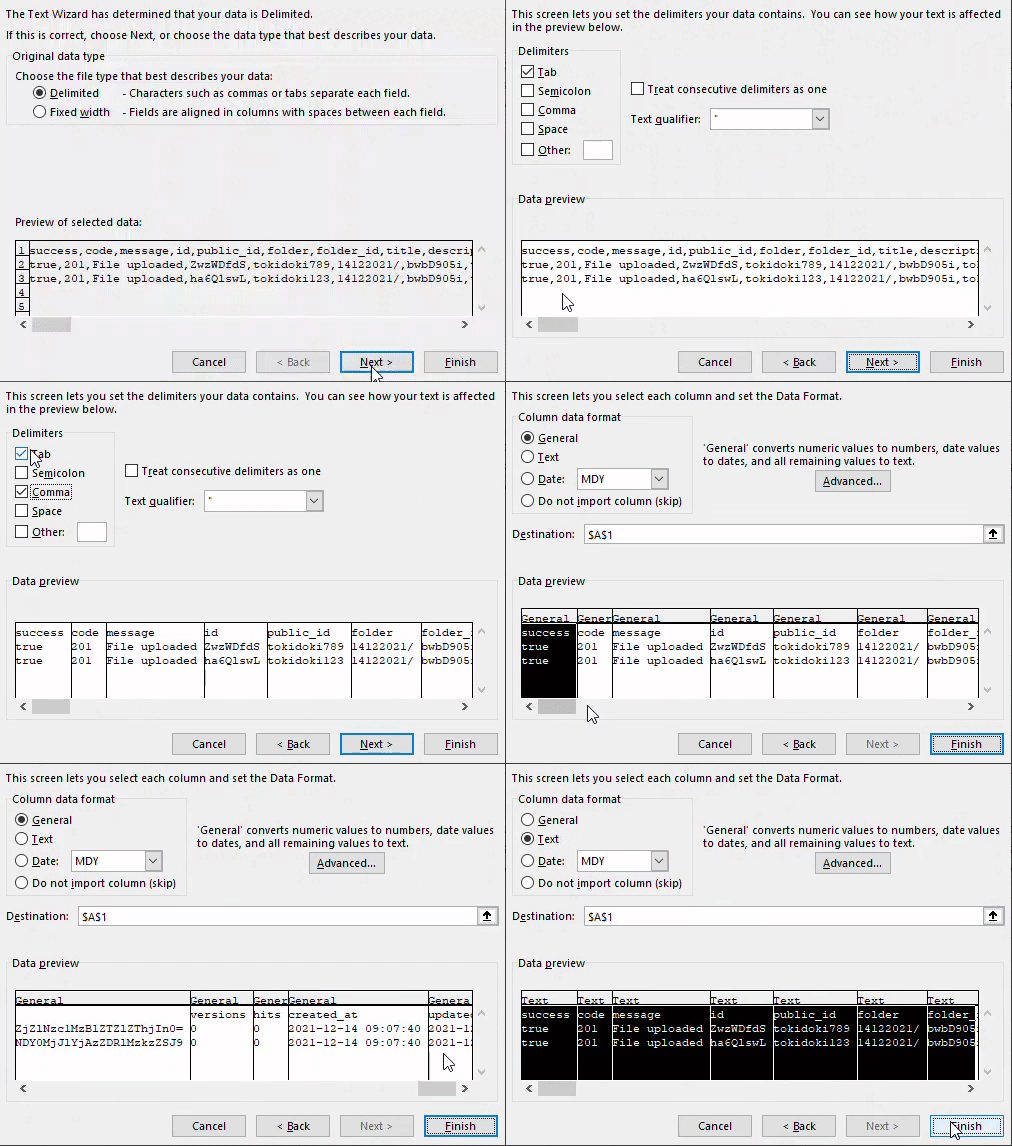
- To sort this data, go to the Data Tab on top ➡️ Text to Columns ➡️ Delimited

- Next ➡️ Select the Delimiter 💡Delimiter is the space or symbol that separates the data ➡️ Scroll to the right, hold down the keys Ctrl + Shift and select Text ➡️ Finish
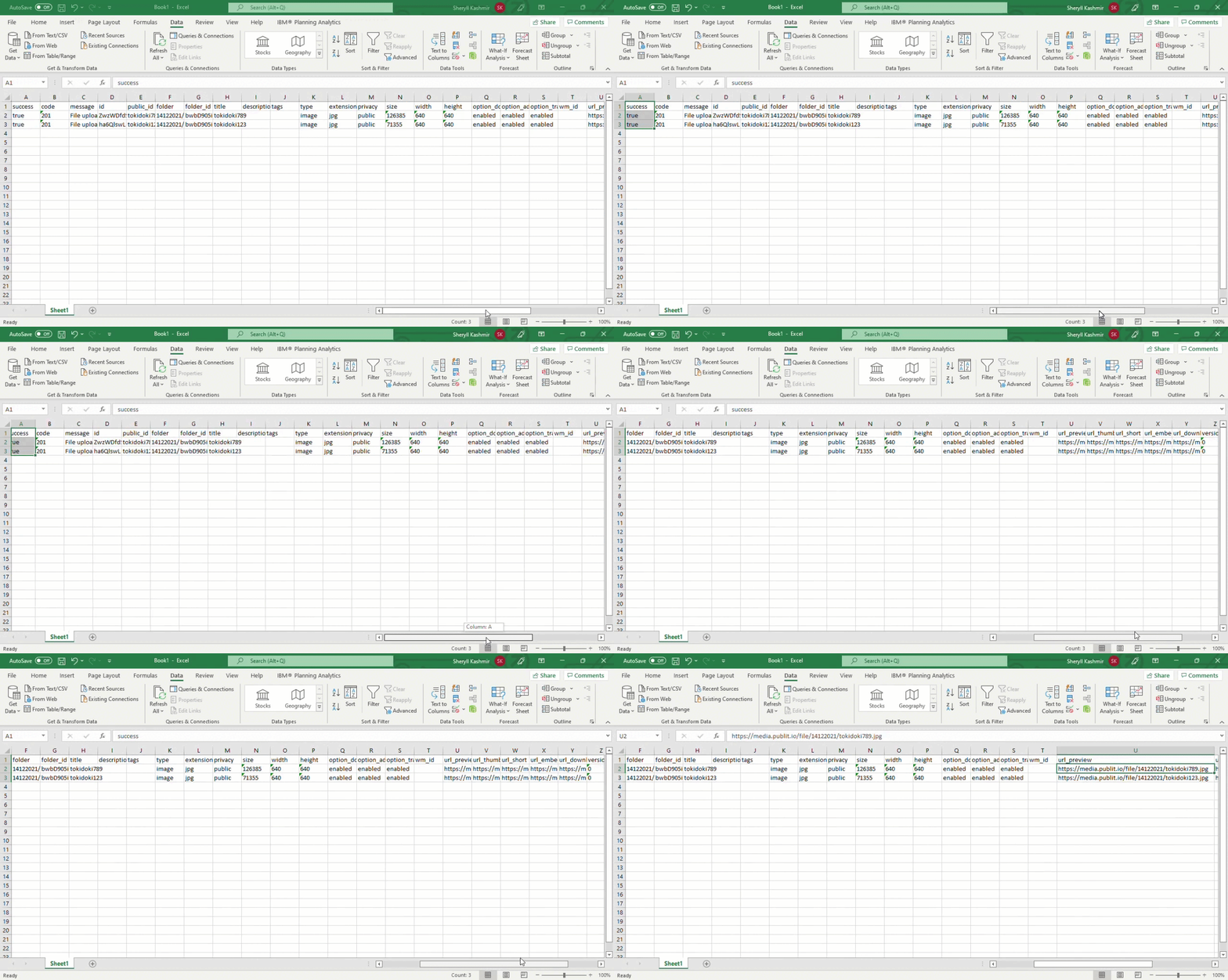
- You will be able to find the URL in Column U.
Related Topics
