

Buy any 2 from Store A and get $X off
Overview
This tutorial explains how to create a promotion that rewards customers with a fixed discount when they buy any 2 products from Store A.
Pre-requisites
Before configuring the promotion, ensure the supporting assets and product setup are in place.
1. Finalise the promotion details.
Prepare the customer-facing elements in advance so you can complete the setup in one session.
– Promotion Name (EN) e.g., Buy any 2 from Store A and get $20 off
– Promotion Name (ZH) e.g., 购买任意 2 件 Store A 商品,立减 $20
– Promotion Description (EN) e.g., Buy any 2 products from Store A and get $20 off. Promotion ends 31 Jul 2026.
– Promotion Description (ZH) e.g., 购买任意 2 件 Store A 商品,即可享有 $20 折扣。优惠活动截至 2026 年 7 月 31 日。
– Promotion Banner (840px by 560px) – increase visibility on the category page & PDP.
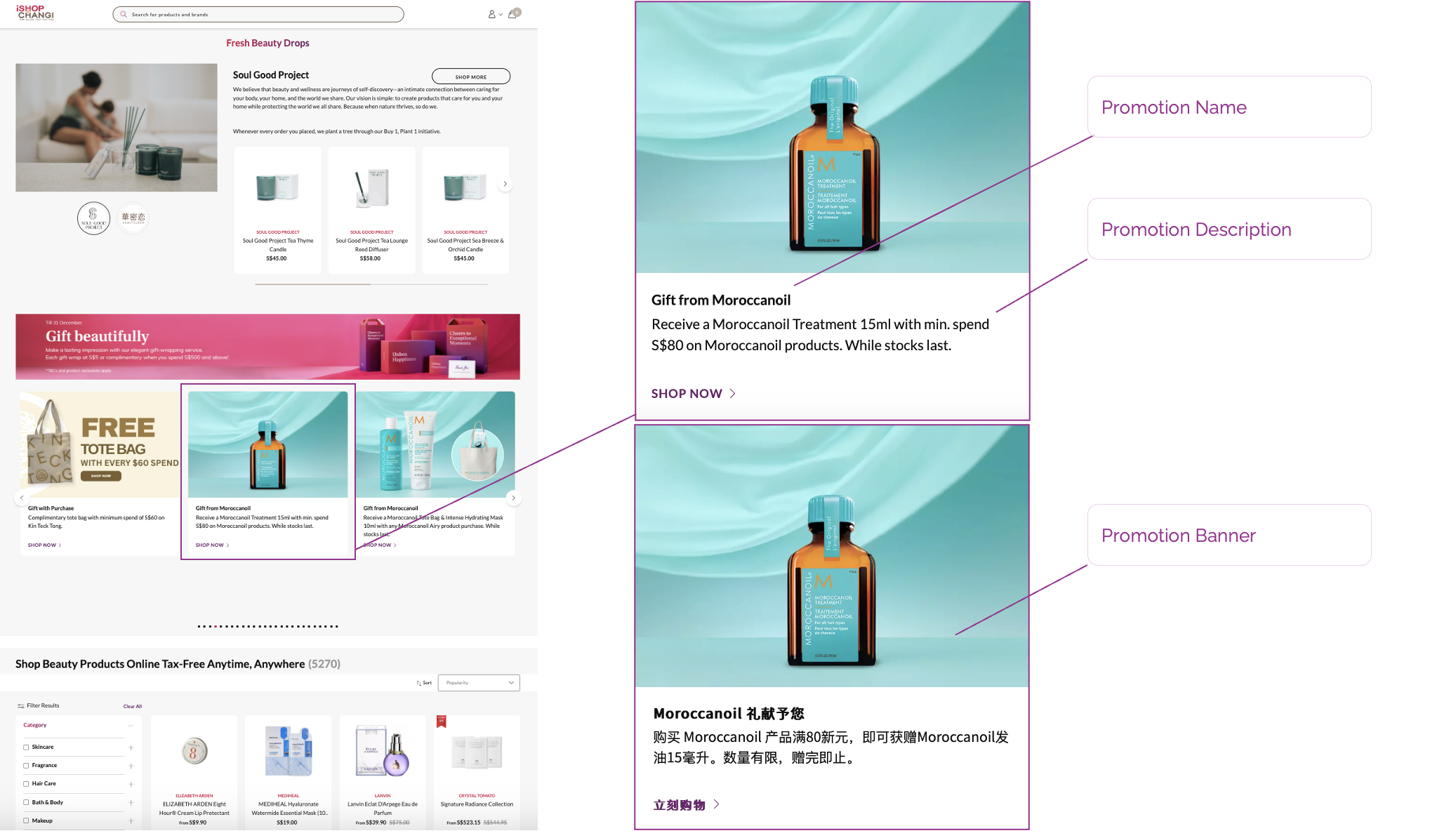
How the promotion will appear on the promotion carousel on the Category page.
 The promotion on the PLP
(Product Listings Page).
 The promotion on the PDP
(Product Details Page).
 How the promotion will appear at the Shopping Cart.
How the promotion will appear at the Shopping Cart.
Steps to create the promotions in SAP BackOffice

1. Click on Marketing in the left-hand side menu.
2. Select Promotion Templates
3. Click on the binoculars icon
4. Click on Search

5. Select the Bundle_B2FixedDiscount_Store_Template


6. Click +
7. Create a unique code for the promotion.
8. Click OK


9. Input the promotion schedule.
10. Include the Description.
11. Select your Shop.
12. Append a Media banner.
13. Input the promotion Name.

14. Click Save.
15. Click on the Conditions & Actions Tab.

16. Input a code in Container ID. E.g., StoreName
17. Click on Qualifying Shop Quantity to expand the section.
18. Select your Shop.
📝 Note: For WeChat Mini Program applicable merchants only.
If the promotion applies to only one platform (WeChat Mini Program or iShopChangi website), please add the Qualifying By Channel condition (from the Available Conditions section on the right). Under Qualifying By Channel, click Channel Type ➡️ select the applicable channel.
If it applies to both platforms, please ignore this note.

19. Click on Fixed discount on products to expand the section.
20. Under Absolute discount value, select the currency and enter the per-item discount amount (total discount ÷ required quantity).
Example: For the promotion “Buy any 2 from Store A and get $20 off,” divide the total discount ($20) by the required quantity (2). Enter $10 as the discount value.
21. Under Qualifying product containers, input the Container ID and the value 0.
22. Under Target product containers, input the Container ID and the value 2.
23. Click Save.
24. Click on the paper aeroplane icon to publish. Ensure that the status changes from Unpublished to Published.
Common FAQs/Errors
1. Unable to publish the promotion?
If you are unable to publish, please review mandatory fields for missing or invalid values.
2. Promotion Banner not appearing on storefront?
If the promotion is working but the banner is not appearing on the Category Banner Carousel or PDP, please inform your Account Manager and the iSC team will review the banner and approve it. Please also ensure that the banner meets the requirements.