

Process Orders on TREX
This tutorial shows you how to fulfill an order on TREX.
How to process the order
1. Identify & Verify the Order
Use the order prefix to identify the order type, verify stock availability and ensure the order can be fulfilled and dispatched before the applicable deadline while it is still in Open status. Note: Partial or full cancellations can only be done at this stage.
Departure/Arrival Orders
DC/DS: Departure Order e.g., DCYYMMDDXXXX-XXXX-A/DSYYMMDDXXXX-XXXX-A
AC/AS: Arrival Order e.g., ACYYMMDDXXXX-XXXX-A/ASYYMMDDXXXX-XXXX-A
These orders are placed by traveller customers for transit collection. Please be mindful of the Flight Date/Time and ensure the order can be dispatched by the dispatch deadline (see #4 Dispatch).

Landside Orders
Order Prefix:
LC/LS: Landside Orders e.g., LCYYMMDDXXXX-XXXX-A/LSYYMMDDXXXX-XXXX-A
Placed by non-traveller customers for airport collection. Please be mindful of the Creation Date/Time for Landside orders and ensure the order can be dispatched by the dispatch deadline (see #4 Dispatch).

Home Delivery Orders
Order Prefix:
HC/HS: Home (Traveller) Delivery Orders e.g., HCYYMMDDXXXX-XXXX-A/HSYYMMDDXXXX-XXXX-A
NC/NS: Home (Non-Traveller) Delivery Orders e.g., NCYYMMDDXXXX-XXXX-A/NSYYMMDDXXXX-XXXX-A
Order Suffix:
Dropship Merchant3PL:
HC/HS: Home (Traveller) Delivery Orders e.g., HCYYMMDDXXXXDM-XXXX-A/HSYYMMDDXXXXDM-XXXX-A
NC/NS: Home (Non-Traveller) Delivery Orders e.g., NCYYMMDDXXXXDM-XXXX-A/NSYYMMDDXXXXDM-XXXX-A
Dropship CAG3PL Mode:
HC/HS: Home (Traveller) Delivery Orders e.g.,HCYYMMDDXXXXDP-XXXX-A/HSYYMMDDXXXXDP-XXXX-A
NC/NS: Home (Non-Traveller) Delivery Orders e.g.,NCYYMMDDXXXXDP-XXXX-A/NSYYMMDDXXXXDP-XXXX-A
Placed by customers for home delivery. Please be mindful of the Creation Date/Time for CAG Consolidated Home Delivery orders and the Delivery Date/Time for Dropship Home Delivery orders.

2. Process the Order
Change the status by clicking on the Ready to Ship button at the top right-hand corner of the screen.
For Dropship CAG3PL Mode, or WEF 3 Aug 10AM onwards Off-Airport Merchants – Traveller Orders on the CAG Pick up Service:
Select the No. of Delivery Boxes Required and the PickUp Date from Warehouse before clicking on Ready to Ship.
For Dropship Merchant3PL Mode:
Select the Courier, enter the Tracking No. and Tracking URL after clicking on Ready to Ship.
Note: You will need to update the order status subsequently by clicking on the Shipping in Progress and Complete Delivery buttons to complete the fulfilment process.
Departure, Arrival and Home Delivery Orders (CAG Consolidated Mode)

Home Delivery Orders (Dropship CAG3PL Mode) and Departure & Arrival Orders (CAG Pickup Service)

Click Ready to Ship to update the order status.

Home Delivery Orders (Dropship Merchant3PL Mode)

Enter Courier and Tracking Details (Tracking No. and Tracking URL).
 Update the order status to Shipping in Progress and Complete Delivery.
3. Print & Pack the Order
Wait 1-2 minutes after status change before printing the order documents.
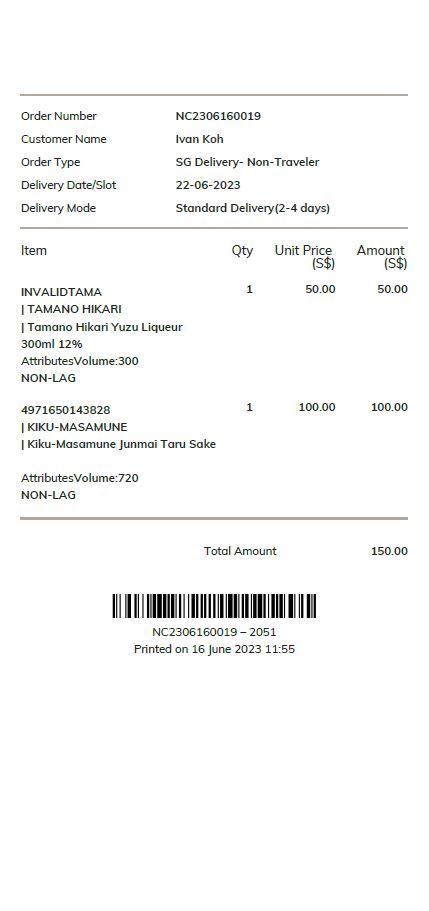
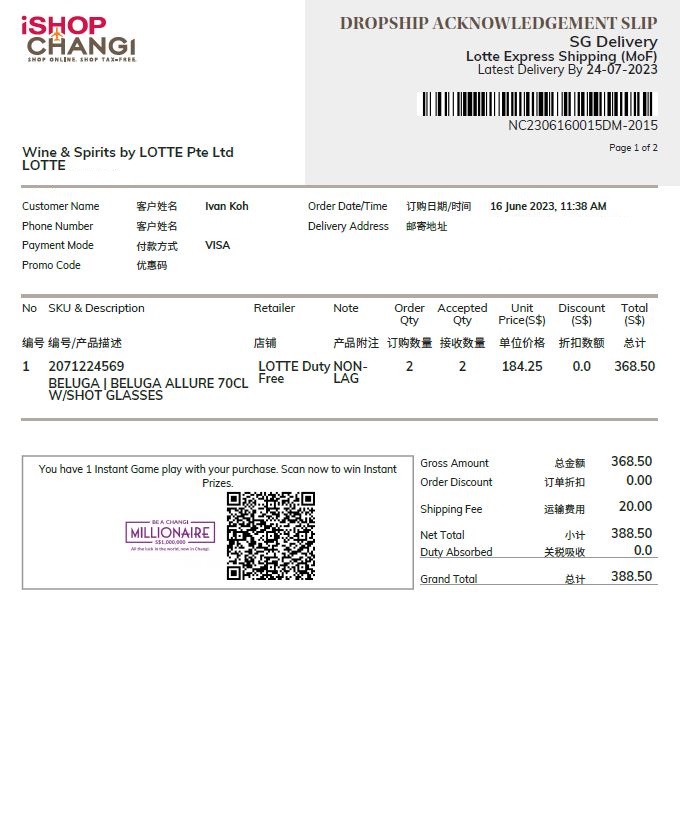
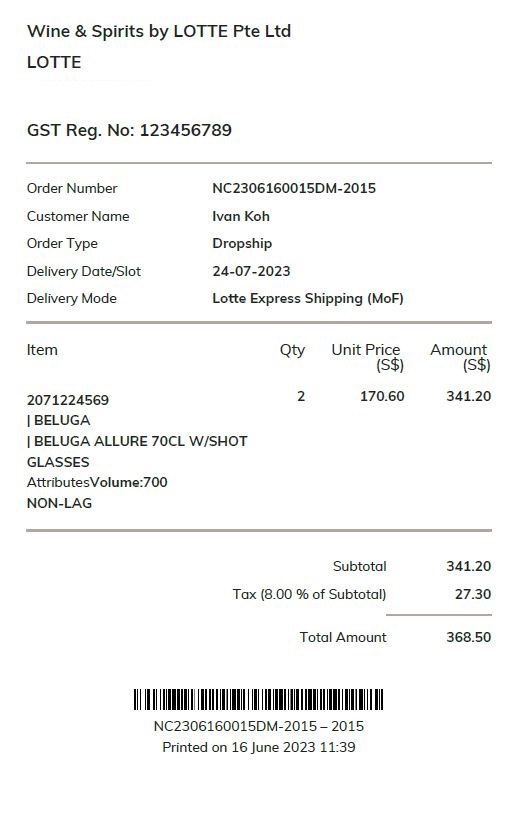
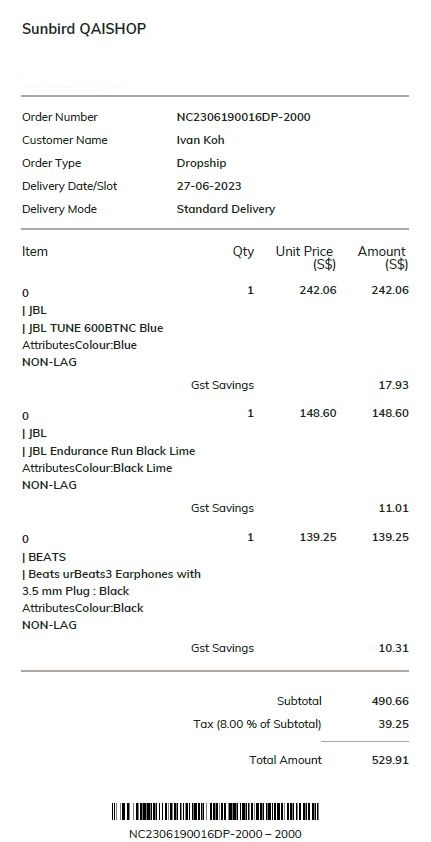
Printing: Print 1 copy of the Receipt (for the customer) and 1 copy of the Delivery Order/Airway Bill/Acknowledgement Slip on separate pieces of paper.
Packing: Pack the receipt inside the order. For Dropship CAG3PL: Stick the Airway Bill on each individual parcel if multiple boxes are used.
Delivery Order
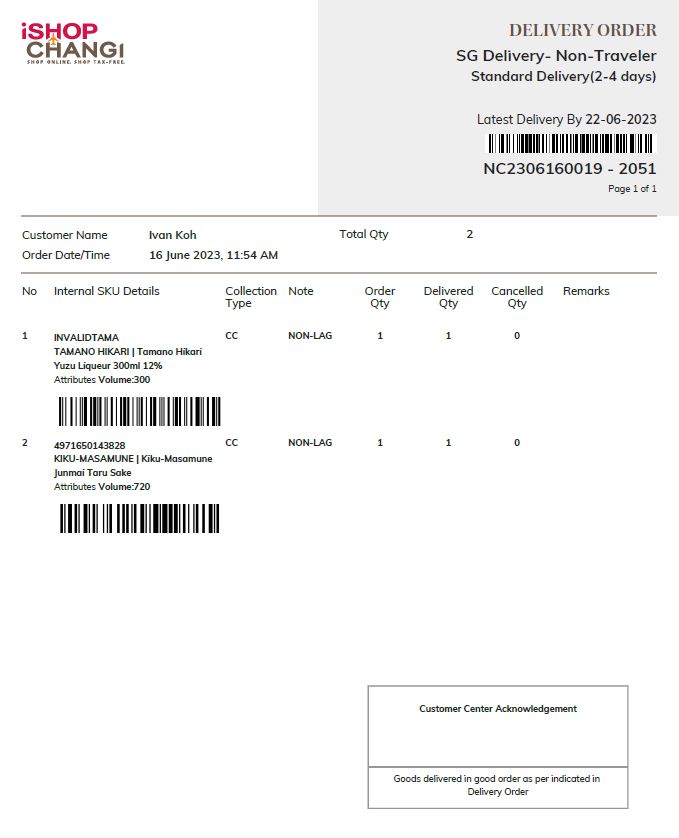
Example: Receipt. This is to be packed in the order to be sent to Customer.
Acknowledgement Slip
Example: Receipt
Airway Bill
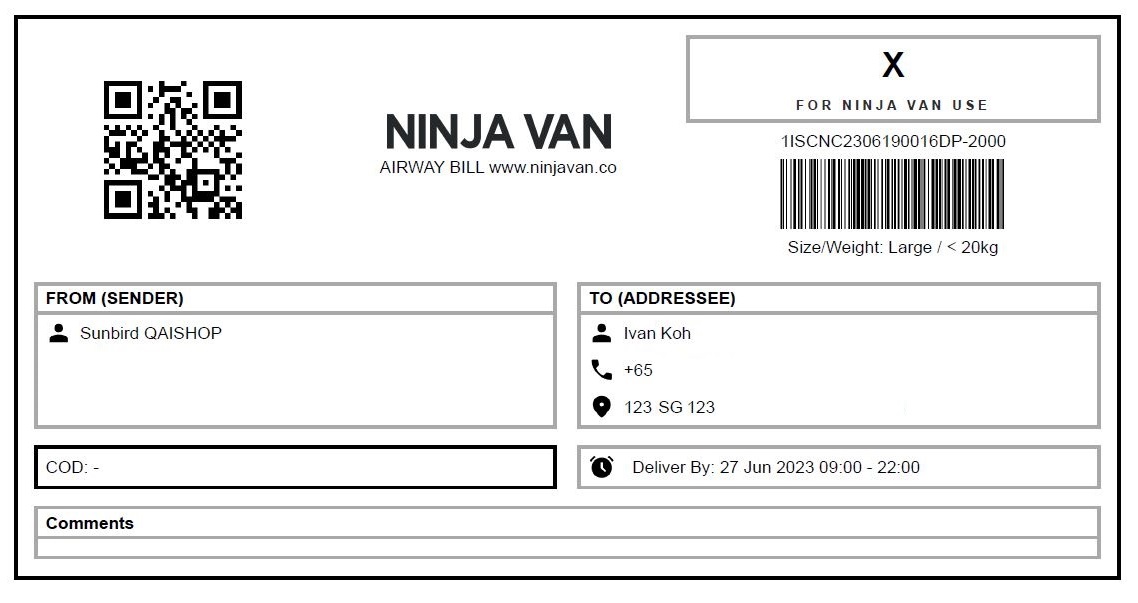
Example: Receipt
4. Dispatch
Deliver the order to the designated facility based on your fulfillment mode and order type.
– (In-Airport) Airside Merchants
– (In-Airport) Landside Merchants
– Off-Airport Merchants
Note:
– If you need help printing these documents when the order isn’t in Ready to Ship status, please contact us through the Merchant Service Desk on the Okta SSO page.
– Once orders have been processed, you will not be able to cancel it from your end. Please contact our Customer Service Team at isc.cs@changiairport.com for assistance.