
Products
Product Listing Journey: Creation to Storefront
 A visual guide to the internal review stages and status transitions for your product listings.
Guidelines
Image
Product Name
Creation & Editing
Creating Products
Editing Products
Grouping & Variants
Enhance your Product page
Content & SEO
Category Specific Attributes
Visuals
Images & Media
Others
GST Settings
Staff Exclusive Settings
Ensure Compliance
Manage Inventory
FAQs
Why Hidden/Deleted Products Still Appear on the Storefront?
If you have hidden a product by setting the Availability End Date, it will disappear from the Product Display Page (PDP) within 5 minutes. If the product is still appearing after, please contact us through the Merchant Service Desk via the Okta SSO page.

The Availability End Date field in TREX.

The Availability End Date field in the Bulk Upload Template.
If you have deleted a product, it will be removed from the PDP within 24 hours.
Why Is My Product Out of Stock When Inventory Is Available?
This might be due to the Stock Quantity and Out of Stock Quantity fields having the same value.
In TREX, please check if the Out of Stock Quantity = Stock Quantity. If so, please remove this value so that the Out of Stock Quantity is 0 instead. Once done, scroll to the end and click on Save & Proceed to Category Attributes ➡️ Submit.

If the the Out of Stock Quantity has no value or is 0 then this issue could be due to customers placing products in their shopping bags but not checking out their products. Our Tech Team will need to run a Cronjob so as to remove the product from the shopping bag. Once done, the product will no longer appear as OOS.
Why Products Do Not Appear on the Storefront?
Please check on the items as these might be the reasons why the product is not appearing on Storefront.
- Store status is set to Open.
- Product status is set to Approved.
- The Available Start Date and Available End Date fields are left empty.
How To View The Rejection Reason?
- Products ➡️ My Products
- Under the Changes Required, click Remarks to see the rejection reason.


Please make the necessary changes accordingly ➡️ Submit for approval. - Alternatively, click on the Product Name ➡️ Click on the pen icon to edit.
You will also be able to view the Remarks.


Please make the necessary changes accordingly ➡️ Submit for approval.
What Are The Different Product Statuses?
- New: Product was newly created and submitted for approval by the Seller Centre team.
- Pending Approval: Product was temporarily rejected by the Seller Centre Team and was edited by the merchant. Therefore, the status changed from Changes Required ➡️ Pending Approval
- Pending Updates: Product was previously approved by the Seller Centre Team but a critical field (e.g., Frontend Product Name, Description, Hero Image etc.) was updated by the merchant. Therefore, the status changed from Approved ➡️ Pending Updates.
- Changes Required: Product was reviewed by the Seller Centre Team and temporarily rejected. The merchant will have to click on the View Remarks button to check the rejection reason and edit the product accordingly.
The status could have changed from
– New ➡️ Changes Required or
– Pending Approval ➡️ Changes Required or
– Pending Updates ➡️ Changes Required
📝 Note: SLA is 1-2 business days for product approvals.
How To Hide Products?
Individual Update
- Products ➡️ My Products
- Click on the Product Name ➡️ Click on the pen icon to edit
- Under the Unique Attributes, scroll down to the Available End Date field ➡️ To hide a product from storefront, input a past date e.g., Yesterday’s date.

- Once done, scroll to the end and click on Save & Proceed to Category Attributes ➡️ Submit.
Mass Update
- Products ➡️ My Products
- Select products to update. Click on Generate export file ➡️ Download last generated export file
- Under Availability End Date field ➡️ To hide a product from storefront, input a past date e.g., Yesterday’s date. Format: YYYY-MM-DD or YYYY-MM-DDThh:mm:ss+00
 Once done, please save the file.
 - Products ➡️ Add New Products ➡️ Bulk Upload of Multiple Products
- Scroll down to Uploaded Templates section, upload the file or drop it within the box. Click on Upload New Template 💡 Please check the File Import section below to see the upload status!
- Check the Error section, under Status. If there is an error, please download the error report to see what the error was. Make the necessary edits and try to re-import the file.
How To Edit Google Drive Image URLs?
- Select the image and set the access type to Anyone with the link

- Select the file id (last portion of the URL) of the image, do not include “/view?usp=sharing” as the file id
- Append the file id to the following prefix https://drive.google.com/uc?export=view&id=
Your image link should look like this example: https://drive.google.com/uc?export=view&id=17Os20UdWQmjW2fMXWOOQK6kNurMozZ61
How to Update Product Codes for Existing Products?
When the correct EAN or SKU code needs to be updated for existing SKUs
- Products ➡️ My Products
- Click on the Product Name ➡️ Click on the pen icon to edit


- Under the Unique Attributes, scroll down to the EAN or SKU Code field and edit

- Once done, scroll to the end and click on Save & Proceed to Category Attributes ➡️ Submit.

 Under My Products, you will notice that both the product codes have been updated.
Key fields to note when creating Services SKUs
- Category: Please select Beauty > Others Beauty > Beauty Services
- Frontend Product Name (EN), [ZH]: Product (Service) Name in English. This will be shown to customers on iShopChangi.
- Description (EN), [ZH]:
– Provide a summary of the Service. Please highlight the benefits/ features.
– State the venue(s) where the Service can be redeemed
– Include the duration of the Service provided. E.g., 90 Mins
– Include Non-refundable and Non-Exchangeable clause. E.g., No cancellation of order after purchase is made.
– State clearly how order will be fulfilled. E.g., “Upon purchase, you will be contacted via email to confirm the date of your appointment within 3 working days.“, “Please show your confirmation email / bring physical voucher on the day of your appointment.“ - Backend Product Name (EN), [ZH]: Product Name in English. Input the variant details. E.g., Apple iPhone 15 – Silver 256GB. This is for backend reference and will appear in order documentation and reports.
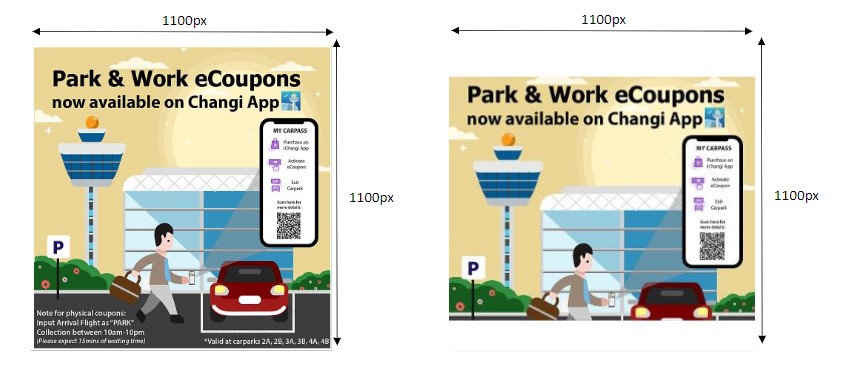
- Hero Image: Image should feature the product voucher on a plain white background. E.g., (Left Image) Vertical image cropped to the edges. (Right Image) Horizontal image cropped to the edges.
- Retail Price: Selling price before discount and tax. Ensure that the price indicated meets the Free Delivery criteria.💡 This is the selling price before GST ℹ️ Please select False (ensure selection is toggled to grey) for the GST Absorption – Non Traveller field in the later steps.
- Shipment Type: Select Merchant 3PL. Please speak to your Account Managers to proceed with this arrangement as this needs to be configured backend.
- Home Delivery: Select HomeNonTraveller
- GST Absorption – Non-Travellers: Ensure that the selection is toggled so that it turns grey. This indicates that the store is not absorbing GST.
Key fields to note when creating Pre-Order SKUs
- Frontend Product Name [EN], [ZH]: Include [Pre-Order] in front of the Product Name e.g.,
[Pre-Order] Samsung Galaxy Z Fold7

- Backend Product Name [EN], [ZH]: Include [Pre-Order] in front of the Product Name e.g.,
[Pre-Order] Samsung Galaxy Z Fold7 512GB Jet Black
- Description [EN], [ZH]:
For Home Delivery Orders, state when the delivery will begin. E.g., Orders will be dispatched from 29 July onwards.
For Travellers Orders, state the period it will available for purchase. E.g., Purchases can be made for flights departing after 29 July, 2pm onwards.
- Lead Time To Ship (Days): If you are on the Dropship Merchant3PL fulfillment mode, you may set a later Delivery Date by including a value here.
💡 This value will be added onto the current SLA on storefront.
This is an example of the extended lead time at cartout.
👋🏼 Questions, concerns or experiencing issues?
Contact us through the Merchant Service Desk via the Okta SSO page!